Skip to content
Symbiant System Black Logo
  • Home
  • Knowledge Base
  • Symbiant Website
  • Symbiant Changelog
  • Submit a Ticket
  • My Support Tickets
  • Home
  • Knowledge Base
  • Symbiant Website
  • Symbiant Changelog
  • Submit a Ticket
  • My Support Tickets
Popular Keywords importuserdivisionsamlimport risk

Admin Basics

  • Creating/Adding Users
  • Transferring Ownership from One User to Another (Assuming)
  • Making a User Active/Inactive
  • Delete a User

User FAQ

  • Login Issues

System Errors & Issues

  • Login Issues

System Setup

  • Permission Groups
  • User Roles Reference
  • Creating/Adding Divisions
  • Creating/Adding Users
  • Assigning Roles and Divisions
  • Making a User Active/Inactive
  • Delete a User
  • Creating Dropdown Option Selections
  • Transferring Ownership from One User to Another (Assuming)
  • Login Issues

SAML Single Sign On

  • Setting up SAML SSO with Azure
  • Setting up SAML SSO with JumpCloud
  • Setting up SAML SSO with Google
  • Enabling SAML for Users in Symbiant
  • SAML Azure Errors

Risk Registers (System Setup)

  • Creating a Risk Register
  • Modifying a Risk Score Set
  • Template Risk Score Sets
  • Managing Risk Categories

Admin FAQ

  • Symbiant System Best Practices
  • Login Issues
  • Creating/Adding Users
  • Delete a User
  • Moving Divisions (Restructuring)

System FAQ

  • Creating/Adding Users
  • Login Issues

Account FAQ

  • Creating/Adding Users
  • Login Issues
View Categories
  • Home
  • Knowledge Base
  • System Setup Information
  • System Setup
  • Creating/Adding Divisions

Creating/Adding Divisions

0:00 / 2:30
  • View as Markdown Open this page as plain Markdown (opens in a new tab)
  • Open in ChatGPT Ask questions about this page (opens in a new tab)
  • Open in Claude Ask questions about this page (opens in a new tab)
  • Open in Google AI Studio Ask questions about this page (Google account required) (opens in a new tab)
AI Doc Summarizer Doc Summary
AI Doc Summarizer Thinking Thinking

Divisions are the organisation tree (your company, its regions and departments) that you assign users and records to. They control who can see which records, so building the tree is usually the first step when setting up Symbiant.

Note: Applies to: system administrators (admin role). In Symbiant V6 divisions live under Set up > Permission Groups (older articles call this area “Groups”).

How Divisions Are Organised #

  • A Permission Group (for example “Divisions”) holds the whole tree.
  • A Root Division is the top of the tree, usually your company name. You can have more than one root, but one is simplest.
  • Subsidiary divisions sit below a root or below each other, for example Company/UK/Sales.

The example below has one root (Company), three regions (UK, Europe, Ireland) and departments under UK and Ireland.
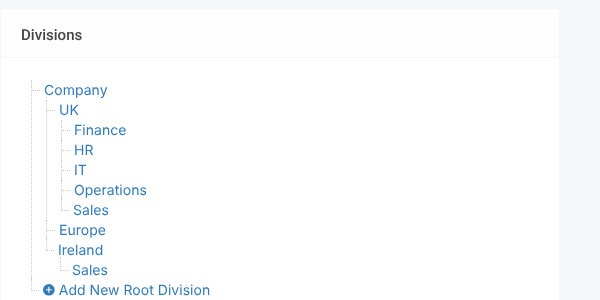
The finished example tree: Company > UK > Finance, HR, IT, Operations, Sales; Europe; Ireland > Sales

Tip: Keep the tree as simple as you can. Users with a divisional role see their own division and everything below it, so a clear tree makes access easy to manage.

Opening Permission Groups #

  1. Click the Set up spanner at the bottom left.
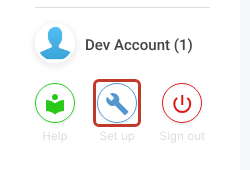
The Set up spanner at the bottom left of the sidebar

  1. Select Permission Groups in the Set up menu.
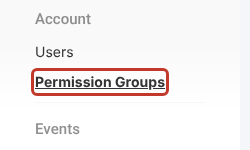
Permission Groups in the Set up menu

Note: Your site may already have a group and a root division created for you. If so, open the group and skip to “Adding Subsidiary Divisions”.

Adding a Permission Group #

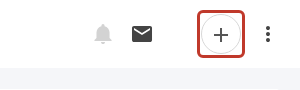
  1. Click + at the top right.

The + button at the top right

  1. Enter a Name for the group. We recommend “Divisions” or “Departments”. Info is optional.
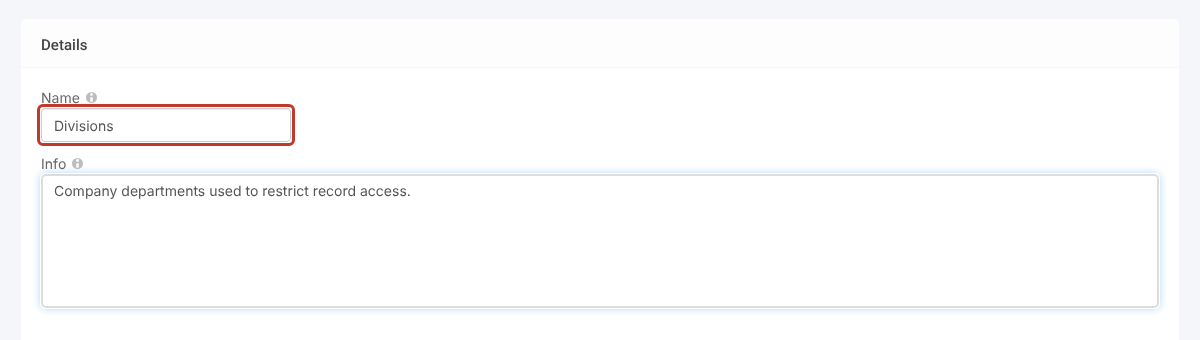
Naming the new group

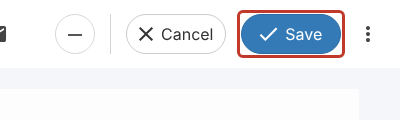
  1. Click Save at the top right.

The Save button

Adding a Root Division #

  1. In the Permission Groups list, click your group to open it. The tree appears in the Divisions panel on the right.
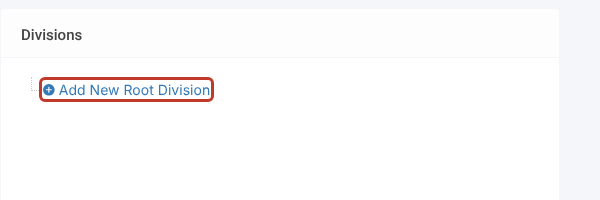
  2. Click Add New Root Division.

Add New Root Division in the Divisions panel

  1. Enter the Name of the root (usually your company name) and click Save.
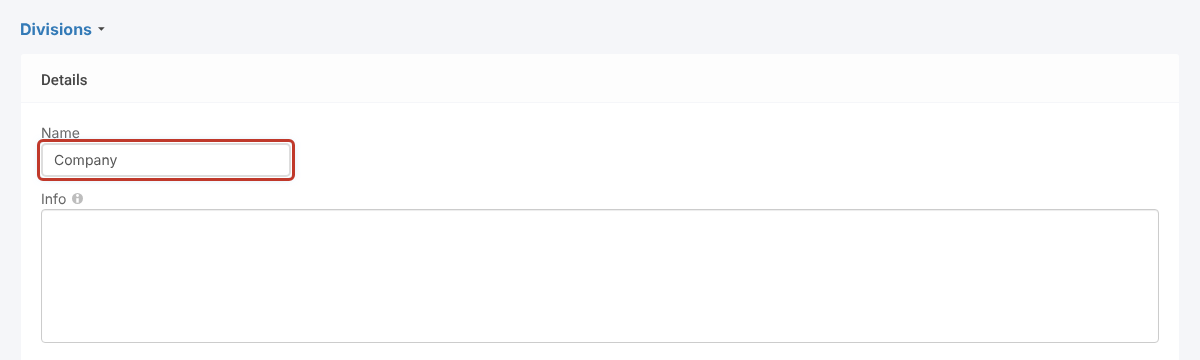
Naming the root division

Adding Subsidiary Divisions #

  1. Hover over the division you want to add below. Small icons appear to the right of its name.
  2. Click the + (Add Subsidiary) icon, the first of the icons.
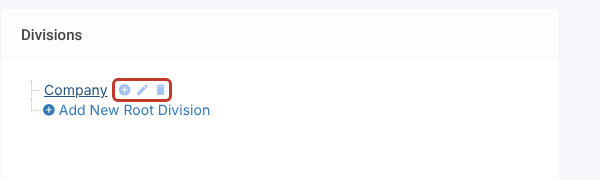
The hover icons next to a division: Add Subsidiary, Edit and Delete

  1. Enter the Name of the new division and click Save. The breadcrumb at the top (for example Divisions > Company) shows where the new division will sit.
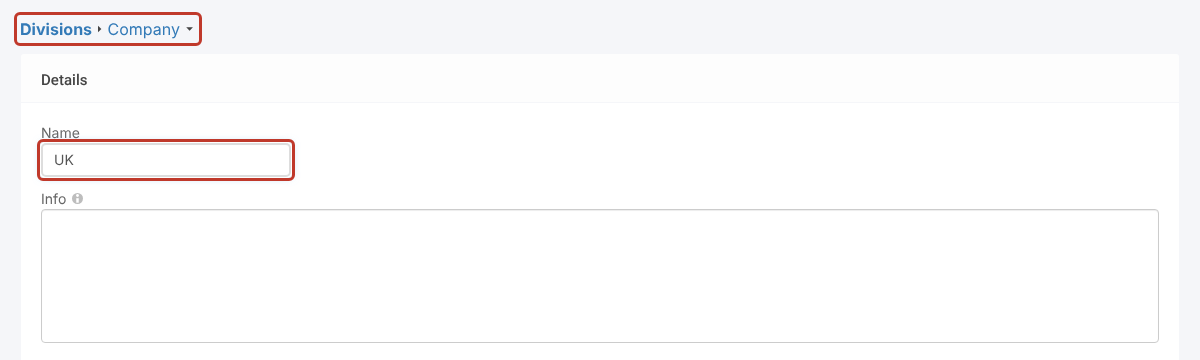
Naming a subsidiary division, with the breadcrumb showing its parent

  1. Repeat for each division you need. You can stop, save and come back later.

Tip: To add many divisions at once, use Bulk add instead. See Importing Divisions.

The Hover Icons #

IconWhat it does
+ (Add Subsidiary)Adds a division below this one.
Pencil (Edit)Renames the division or edits its Info.
Arrows (Move)Drags the division to a new parent. Not shown on root divisions. See Moving Divisions (Restructuring).
Bin (Delete)Deletes the division.

Critical: Deleting a division removes it from every record and user that has it. Move or rename divisions rather than deleting them where you can.

Related Articles #

  • Assigning Roles and Divisions
  • Importing Divisions
  • Moving Divisions (Restructuring)
  • Exporting Divisions
Add, Setup
Did this help?

Share This Article :

  • Facebook
  • X
  • LinkedIn
Require Additional Information? Please Contact Support

How can we help?

Updated on 30 October 2026
User Roles ReferenceCreating/Adding Users
Table of Contents
  • How Divisions Are Organised
  • Opening Permission Groups
  • Adding a Permission Group
  • Adding a Root Division
  • Adding Subsidiary Divisions
  • The Hover Icons
  • Related Articles
Symbiant System White Logo

20-22 Wenlock Road

London

N1 7GU

Linkedin
Telephone Numbers
  • UK - 0113 5263 755
  • Support - 0204 5514 735 option 2
  • USA - 347 991 7130
Information
  • Home
  • Knowledge Base
  • Symbiant Website
  • Submit A Ticket
  • Change Requests
  • Support Staff Login

Copyright © 2025 Symbiant All Rights Reserved - Risk, Audit and Compliance Management Software

We use cookies on our website to give you the most relevant experience by remembering your preferences and repeat visits. By clicking “Accept All”, you consent to the use of ALL the cookies. However, you may visit "Cookie Settings" to provide a controlled consent.
Cookie SettingsAccept All
Manage consent

Privacy Overview

This website uses cookies to improve your experience while you navigate through the website. Out of these, the cookies that are categorized as necessary are stored on your browser as they are essential for the working of basic functionalities of the website. We also use third-party cookies that help us analyze and understand how you use this website. These cookies will be stored in your browser only with your consent. You also have the option to opt-out of these cookies. But opting out of some of these cookies may affect your browsing experience.
Necessary
Always Enabled
Necessary cookies are absolutely essential for the website to function properly. These cookies ensure basic functionalities and security features of the website, anonymously.
CookieDurationDescription
cookielawinfo-checkbox-analytics11 monthsThis cookie is set by GDPR Cookie Consent plugin. The cookie is used to store the user consent for the cookies in the category "Analytics".
cookielawinfo-checkbox-functional11 monthsThe cookie is set by GDPR cookie consent to record the user consent for the cookies in the category "Functional".
cookielawinfo-checkbox-necessary11 monthsThis cookie is set by GDPR Cookie Consent plugin. The cookies is used to store the user consent for the cookies in the category "Necessary".
cookielawinfo-checkbox-others11 monthsThis cookie is set by GDPR Cookie Consent plugin. The cookie is used to store the user consent for the cookies in the category "Other.
cookielawinfo-checkbox-performance11 monthsThis cookie is set by GDPR Cookie Consent plugin. The cookie is used to store the user consent for the cookies in the category "Performance".
viewed_cookie_policy11 monthsThe cookie is set by the GDPR Cookie Consent plugin and is used to store whether or not user has consented to the use of cookies. It does not store any personal data.
Analytics
Analytical cookies are used to understand how visitors interact with the website. These cookies help provide information on metrics the number of visitors, bounce rate, traffic source, etc.
SAVE & ACCEPT
Loading...

Insert/edit link

Enter the destination URL

Or link to existing content

    No search term specified. Showing recent items. Search or use up and down arrow keys to select an item.