 Doc Summary

The admin role doesn’t receive a module’s automated emails on its own, so admins’ inboxes aren’t flooded. To receive a module’s emails, also give yourself that module’s _admin role.
Note: Applies to: system administrators (admin role).
Steps #
- Click the Set up spanner at the bottom left.
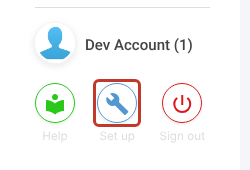
- Select Users and open your own user (or the admin who should get the emails).

- In Roles, search for the module and tick its
_adminrole, for examplerisk_adminfor Register Risks orincident_adminfor Incidents.
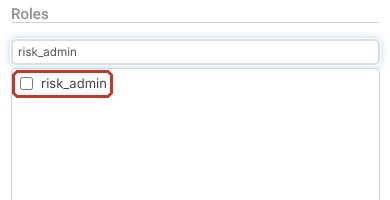
- Click Save. The user now receives that module’s admin emails from its triggers and schedules.
To stop the emails, untick the module’s _admin role and save.
Tip: Make sure at least one administrator receives every module’s emails, or split the modules between several admins.
Note: Emails are only sent when the trigger or schedule is active. See How Automated Emails Work and check sent emails in the Email Log Viewer.