
 Doc Summary

Permission Groups is the Set up screen where you build and manage your divisions. Older articles call this area Groups. This article explains what’s on the screen and where to go for each task.
Note: Applies to: system administrators (admin role).
What a Permission Group Is #
A permission group holds one division tree, for example your company, its regions and its departments. Users and records are assigned to divisions in the tree, and a user can only see records in the divisions they’re assigned to (and below, for divisional roles).
Most organisations need just one group, usually called Divisions or Departments.
Opening Permission Groups #
- Click the spanner (Set up) at the bottom left.
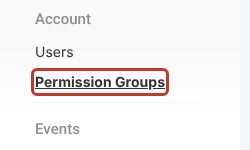
- Under Account, click Permission Groups.
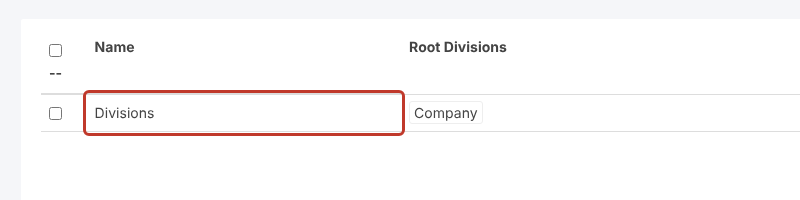
The list shows each group with its root divisions. Click a group to open it.
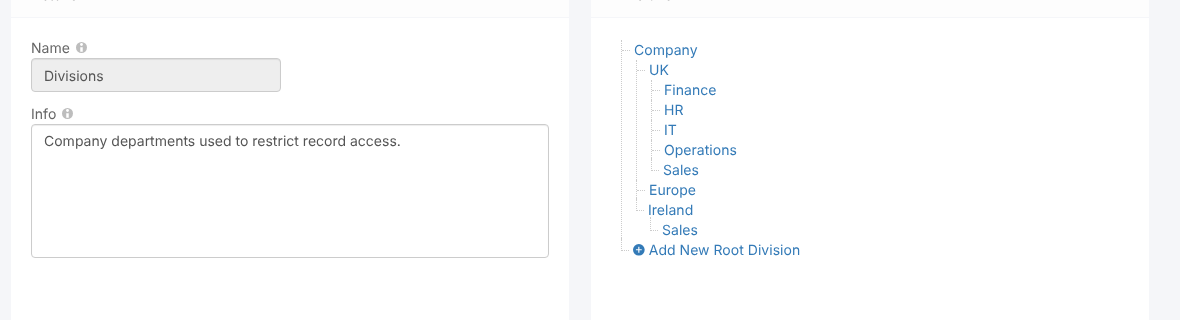
Inside a Group #
On the left are the group’s Name and Info. On the right is the Divisions tree.
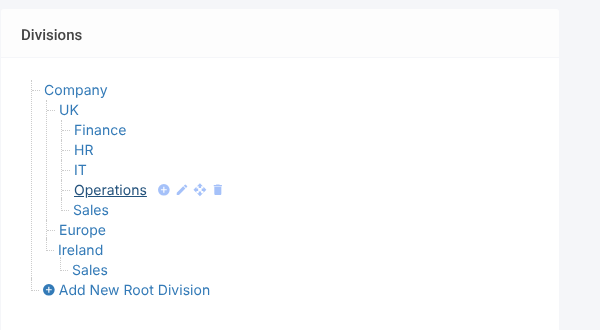
Hover over a division to see its icons: add a sub-division, edit, move and delete.
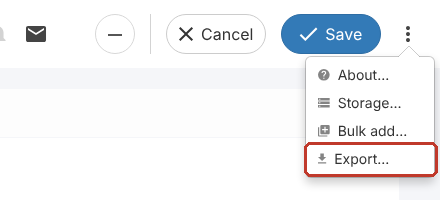
The three dots (⋮) at the top right give you Bulk add… (paste in many divisions at once) and Export… (download the tree as a CSV file).
What Do You Want to Do? #
| Task | Article |
|---|---|
| Create a group and build the tree | Creating/Adding Divisions |
| Add many divisions at once | Importing Divisions |
| Download the tree | Exporting Divisions |
| Move a division or a whole branch | Moving Divisions (Restructuring) |
| Give users divisions | Assigning Roles and Divisions |
| Put a record in a division | How do I assign a specific Record to a specific Division? |
| Understand how divisions limit access | Limiting Access of Users in Symbiant |
Critical: Deleting a division removes it from every record it’s on. Move divisions instead of deleting and recreating them.