
 Doc Summary

How to find a report and generate it as an Excel, Word or other file.
Applies to: Users with access to Reports · Module: Reports
Accessing Reports #
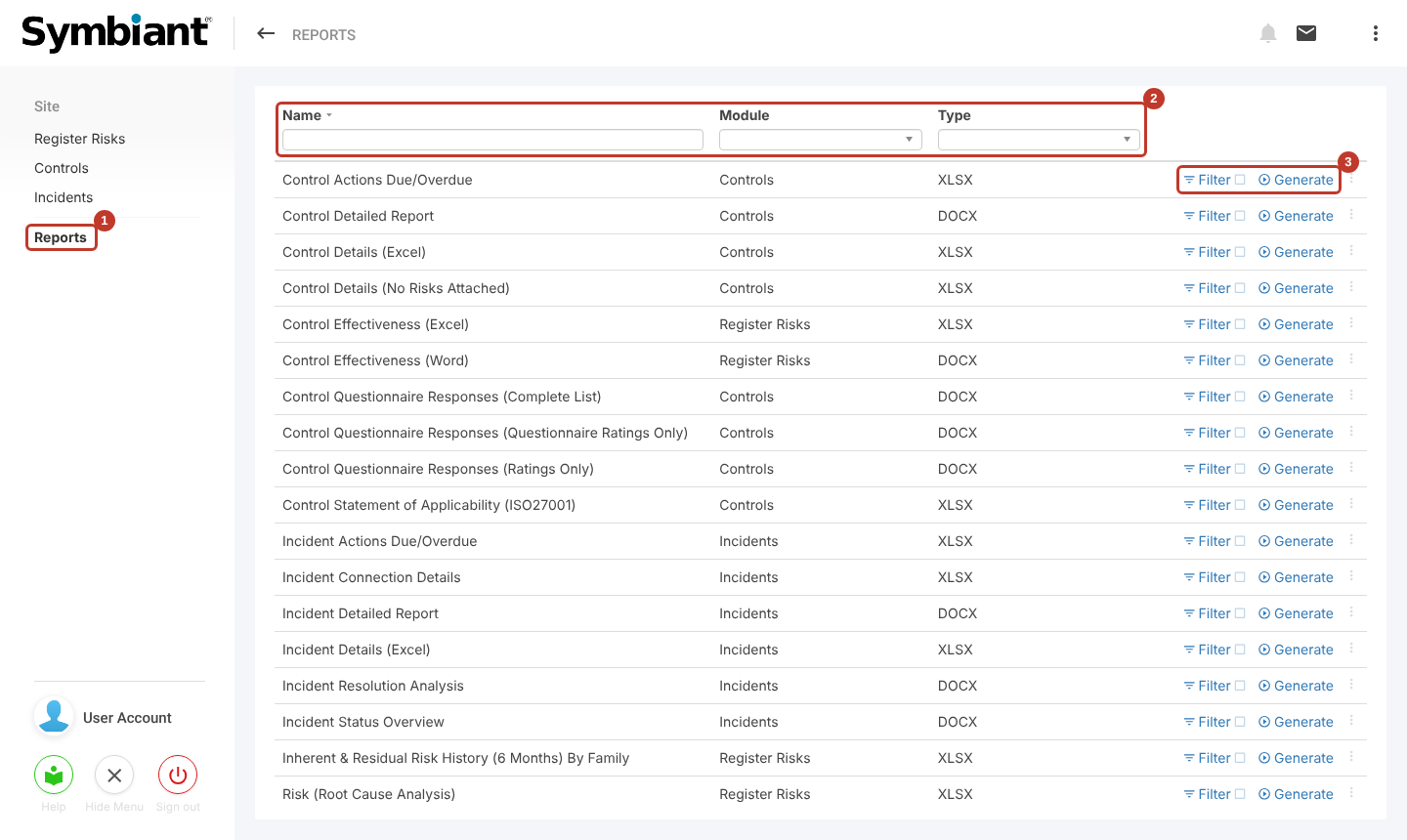
- Select Reports at the bottom of the left-hand menu (1).
- The list shows the reports for the modules you have access to. Use the boxes at the top of the list (2) to search by Name, or narrow the list by Module or Type.
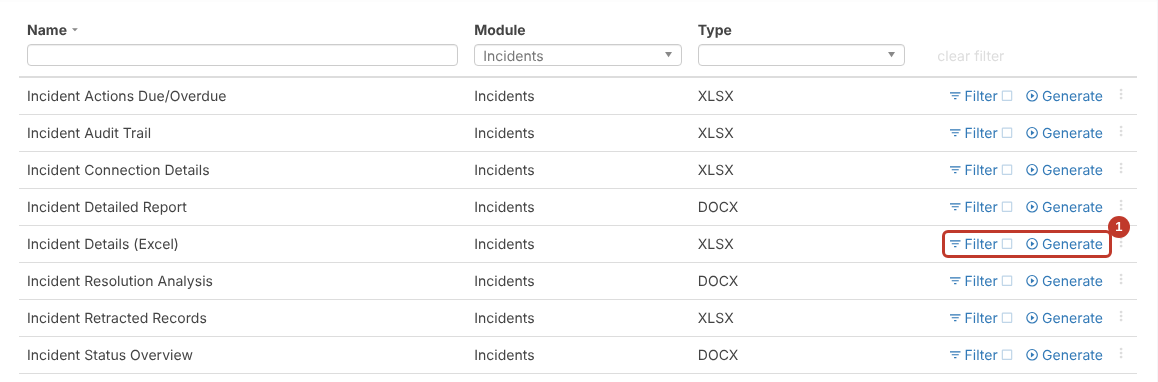
- Each report has a Filter and a Generate option (3).
For example, choosing Incidents under Module (1) shows only the Incident reports (2).
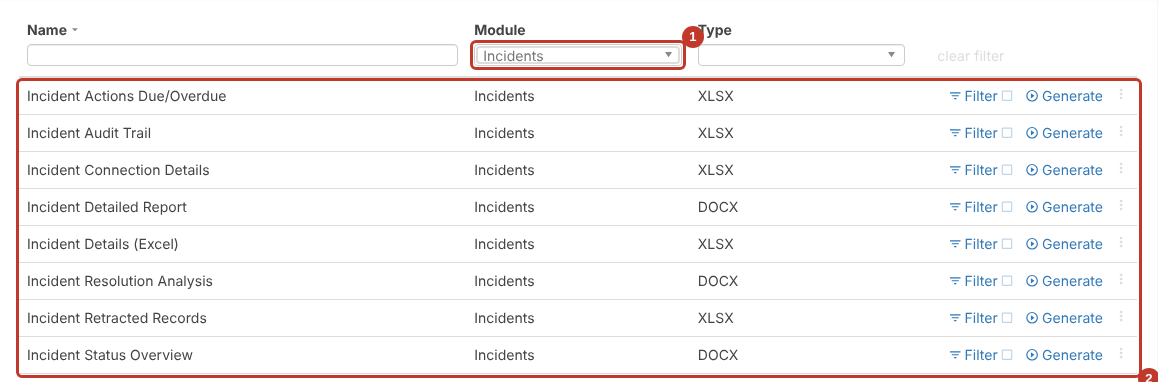
Tip: Click clear filter at the top right of the list to show all reports again.
Generating a Report #
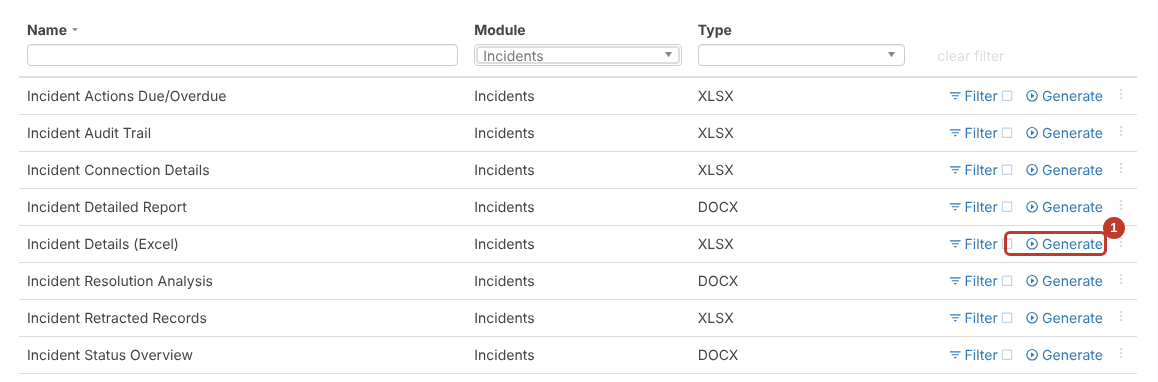
- Click Generate next to the report you want (1).
- While the report is built, the row shows Requesting report… (1). How long it takes depends on how many records go into the report. A large report can take a few minutes.
- When it’s ready, the file downloads through your browser. Open it from your browser’s downloads.
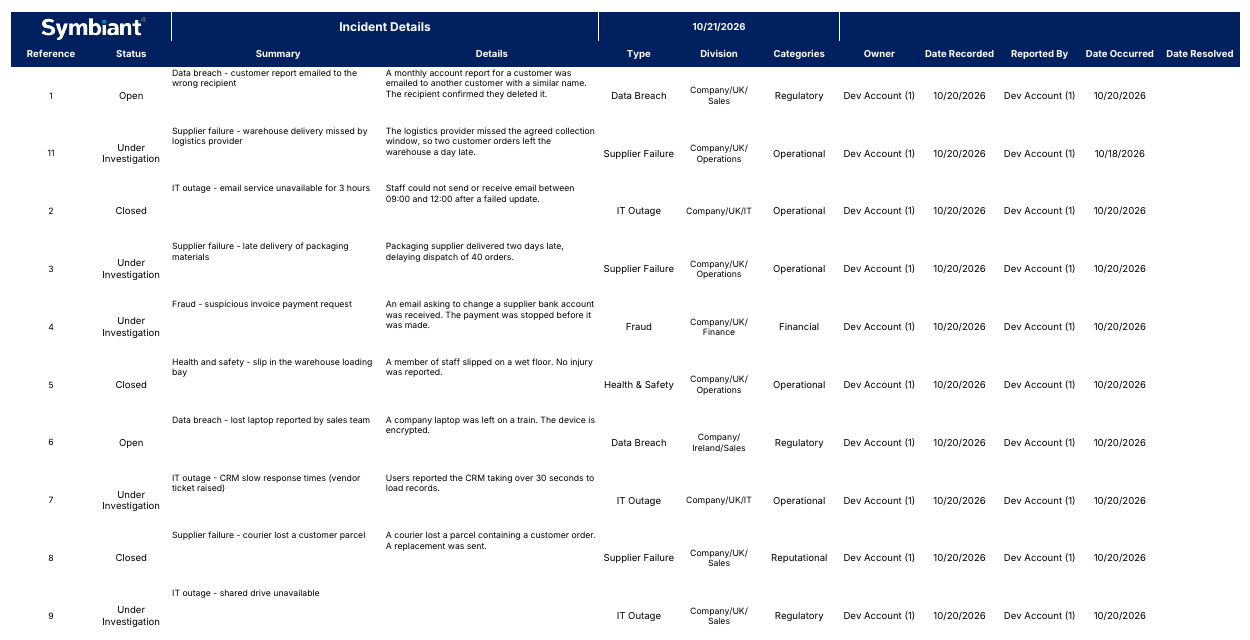
This is the Incident Details (Excel) report opened in Excel:
And part of the Incident Status Overview Word report:

Note: Reports only include the records you’re allowed to see, based on your divisions and role. If a report seems to be missing records, see Reporting Permissions.


