
 Doc Summary

How to answer a survey that has been assigned to you.
Applies to: users named in Questions Assigned To who have a Survey role, and survey owners and admins · Module: Survey
Before You Start #
Being named in Questions Assigned To is not enough on its own. You also need a role in the Survey module, usually survey_action_assignee for people who only answer surveys. Without one, Survey doesn’t appear in your left menu. Ask your administrator to add the role in Set up > Users.
Opening the Survey #
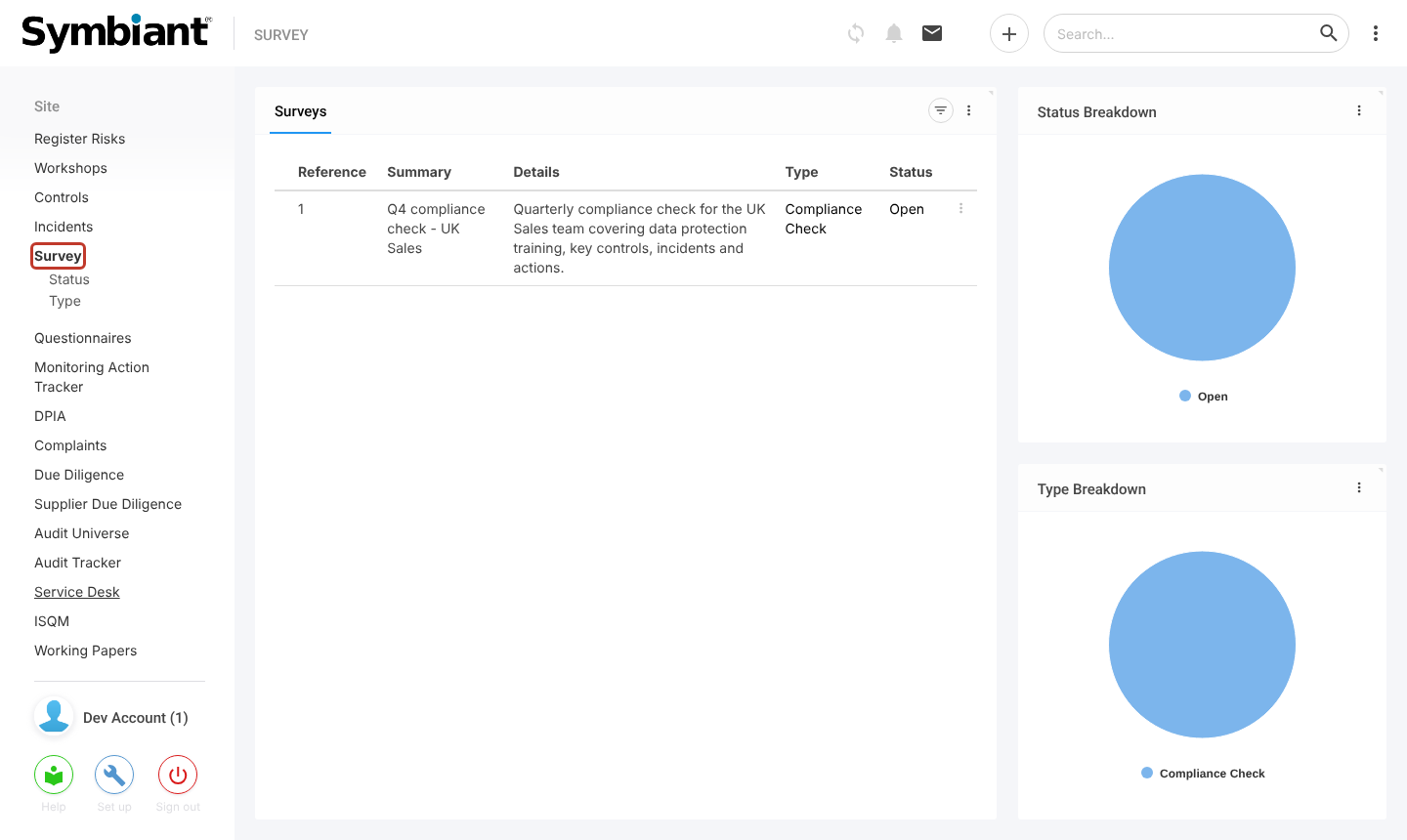
- In the left menu, click Survey and click the survey in the list.
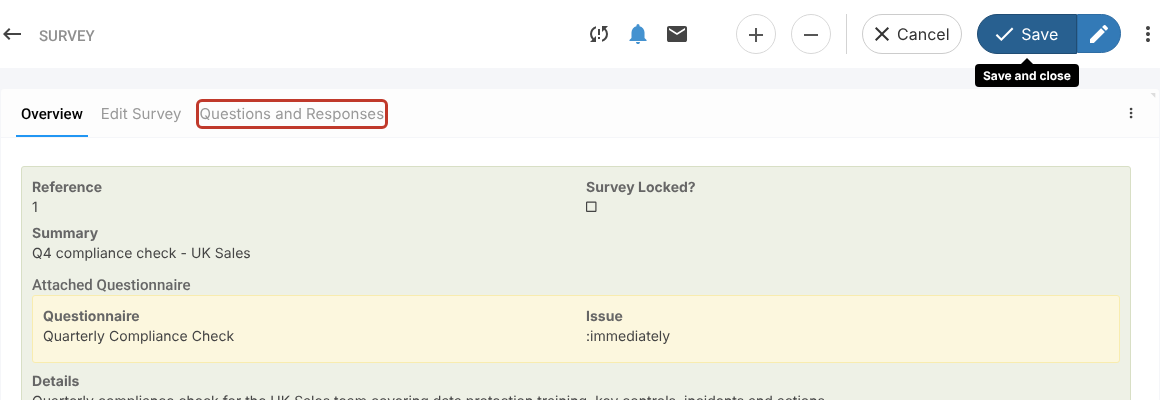
- Click the Questions and Responses tab. Depending on your role, the survey may open on this tab straight away.
Answering the Questions #
- Answer each question. Bold headings group the questions into sections. Some questions or answer boxes only appear after a particular answer.
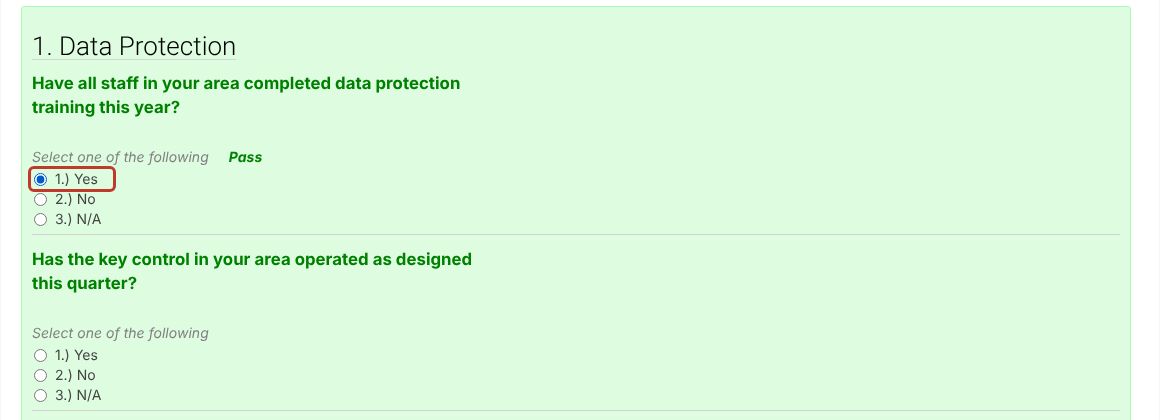
- As you answer, each answer shows its result (Pass, Minor Fail or Major Fail) and the bar at the bottom shows your progress through the scored questions. Use Prev and Next to move between pages on longer questionnaires.

- When every scored question is answered, the overall rating is shown above the bar.
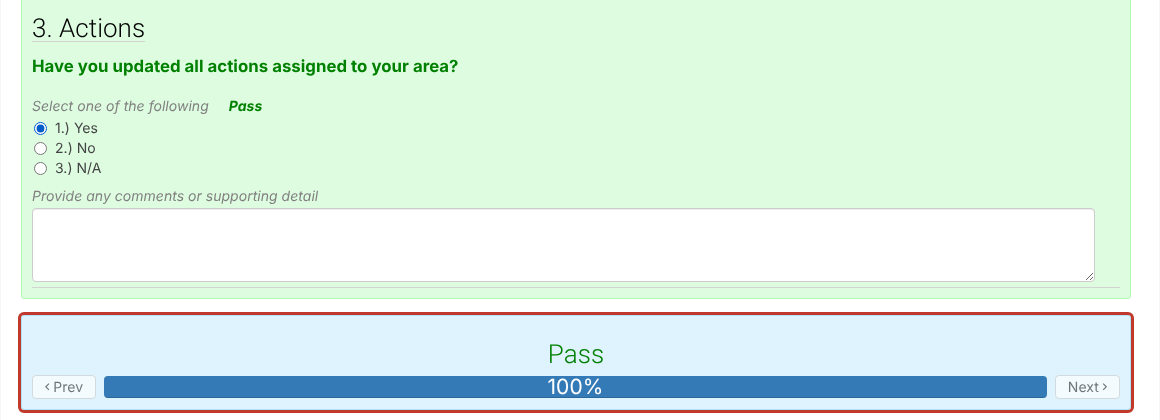
Note: Only questions whose options have pass and fail criteria count towards the progress bar and the overall rating. Unscored questions, such as a date, a comments box or a multiselect without criteria, don’t move the bar. The bar can therefore reach 100% and show a rating before you have answered everything, so check every question before you save.
Overriding the Rating (Owners and Admins) #
Survey owners and admins can click the overall rating and choose a different one (Pass, Minor Fail or Major Fail), for example after reviewing the comments.

Saving Your Answers #
- Click Save (save and close) or the pencil icon (Save and edit) at the top right. You can come back later and carry on.
Note: If questions are missing, see Why can’t I see Questions in a Survey?


