
 Doc Summary

Working paper reports give you your working papers, plans, time sheets and observations as a Word or Excel file, for example to track audit progress or time spent.
Note: Applies to: users who have a Working Papers role and have been given access to the reports. You only see reports assigned to you, and they only include working papers you are allowed to read.
Opening Reports #
- Select Reports in the left menu.
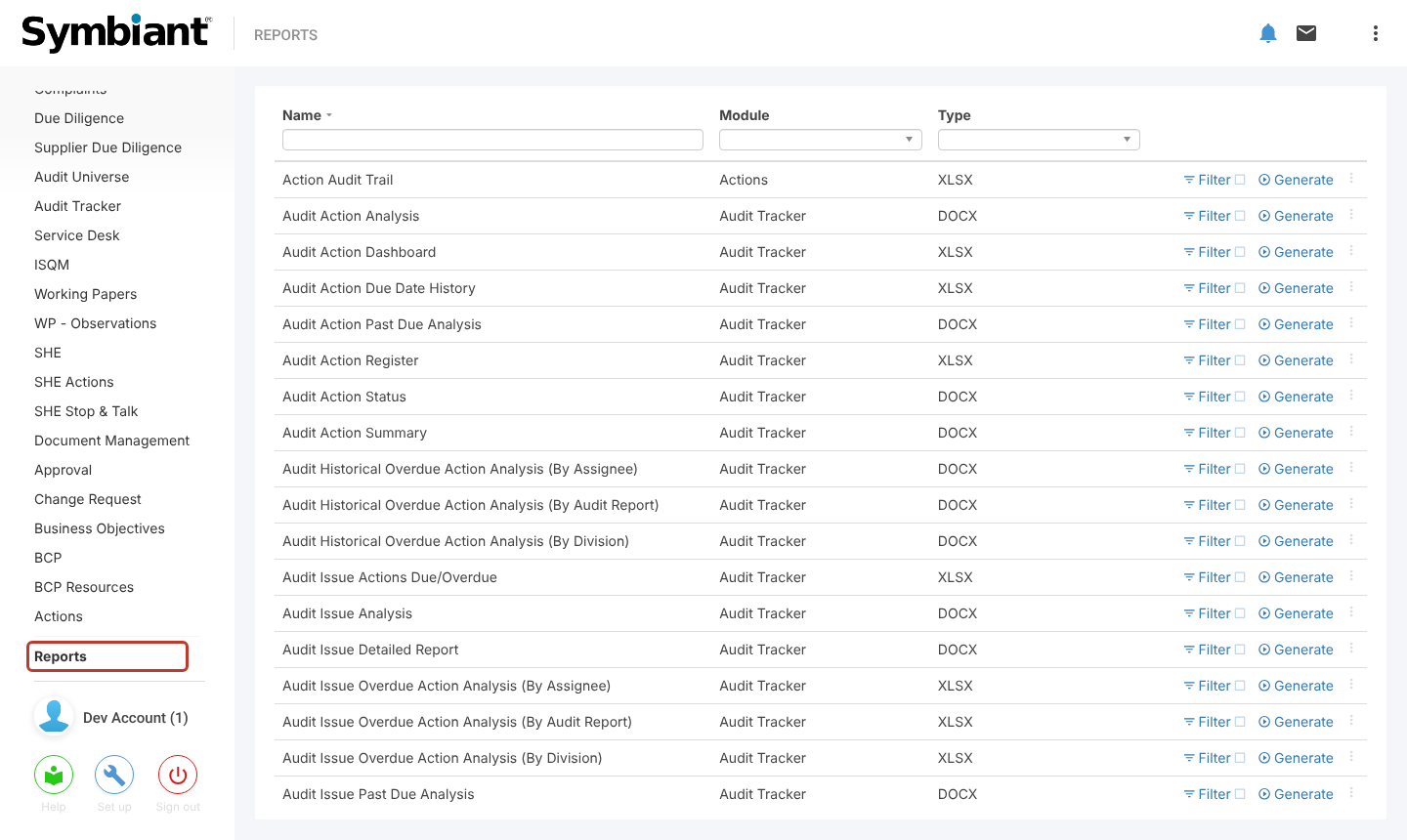
- In the Module filter at the top of the list, select Working Papers.
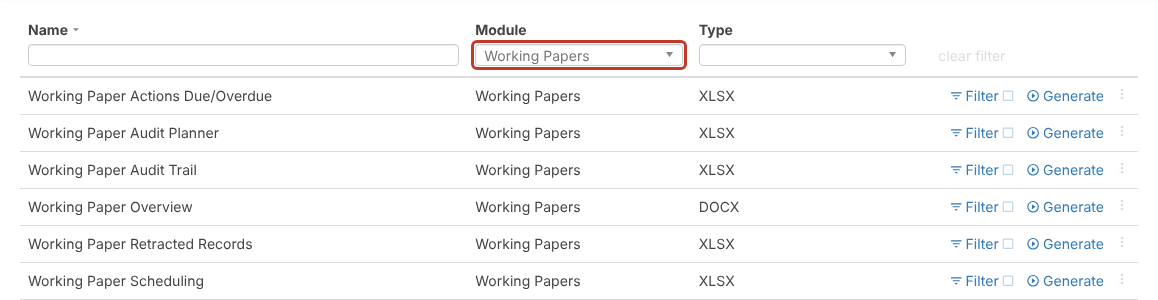
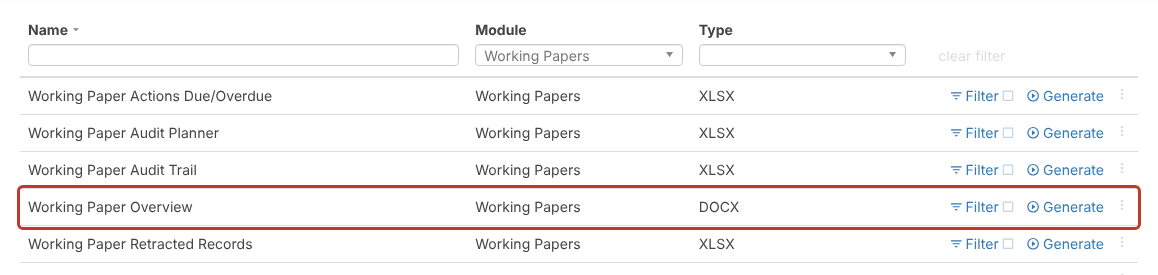
- Find the report you need. The standard working paper reports include:
- Working Paper Overview (Word) and Working Paper Status (Word or Excel): each working paper’s details and stage.
- Working Paper Audit Planner and Working Paper Scheduling (Excel): planned stages, dates and auditors.
- Working Paper Time Sheets (Excel): hours recorded by type of work.
- Working Papers (Observations) (Excel): observations raised during the audit.
- Working Paper Actions Due/Overdue (Excel): actions that are due or late.
- Working Paper Audit Trail and Working Paper Retracted Records (Excel): every change made, and deleted working papers.
Filtering a Report (Optional) #
To report on only some working papers, for example one stage or one audit firm, click Filter on the report’s row before generating. See Filtering on Reports.
Generating the Report #
- Click Generate on the report’s row.
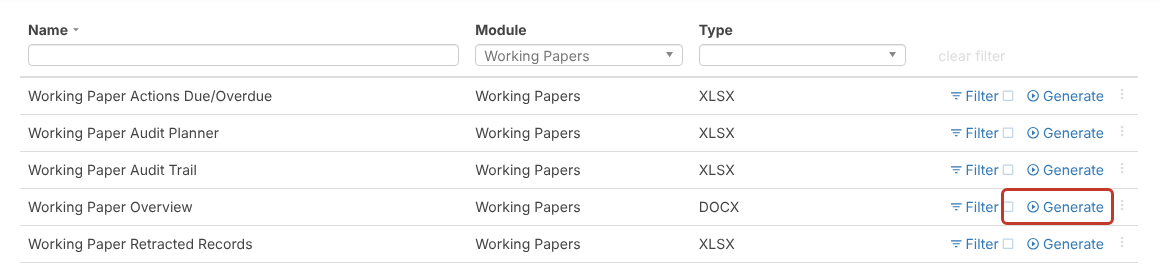
- The row shows Generating report… while the file is built. Large reports can take up to a few minutes.
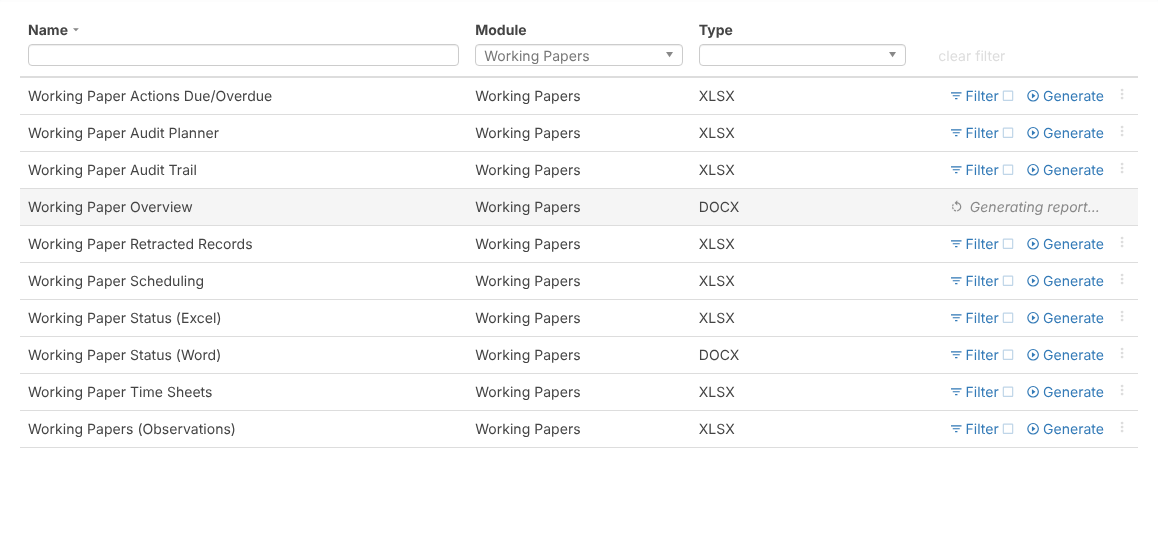
- When it is ready the file is saved by your browser (usually to your Downloads folder). Open it from there.


