
 Doc Summary

How to link a control policy to the control that enforces it. Requires the Controls module.
Applies to: Users who can edit the control · Module: Controls
Before You Start #
The policy must already be in the Control Policies list. See Adding a Control Policy.
Opening the Control #
Select Controls in the left-hand menu and select the control on the dashboard.
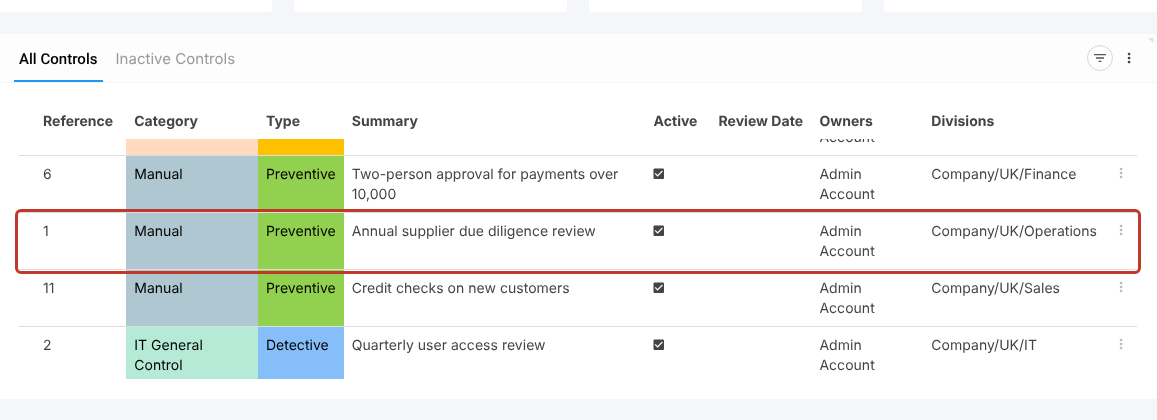
Linking a Policy #
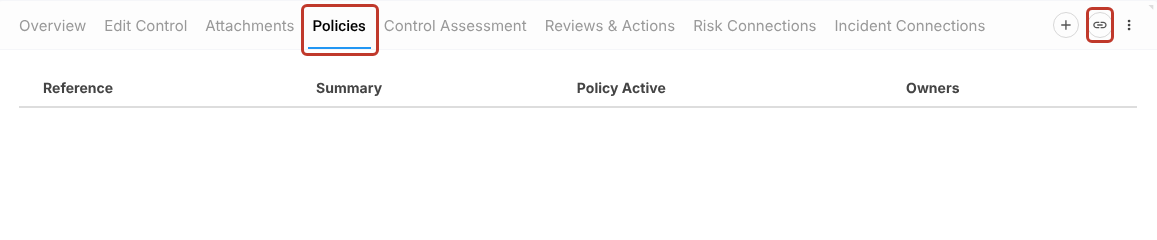
Select the Policies tab, then the link icon at the right of the tab bar.
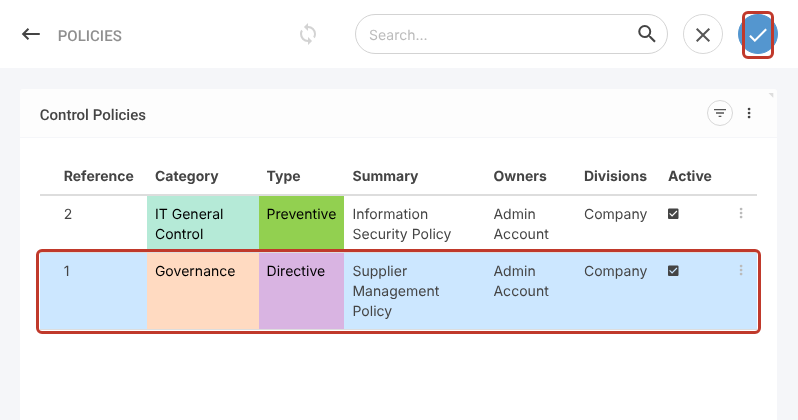
A list of policies opens. Select the policy you want to link (it is highlighted in blue), then select the blue tick at the top right.
The policy now shows on the Policies tab.
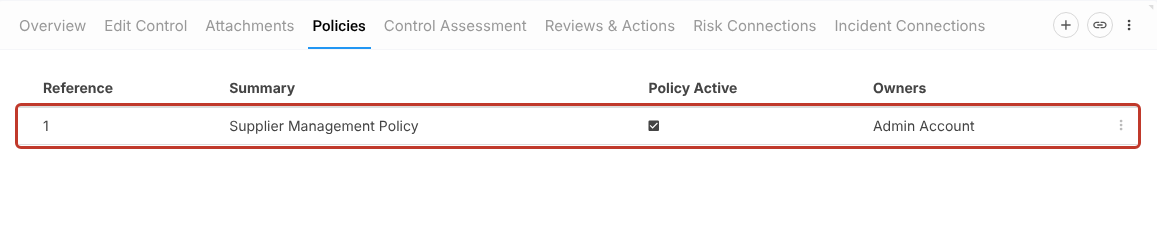
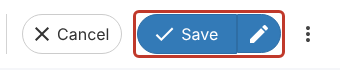
Select Save at the top right, or the pencil to save and stay on the control. The link is not kept until you save.
Viewing a Linked Policy #
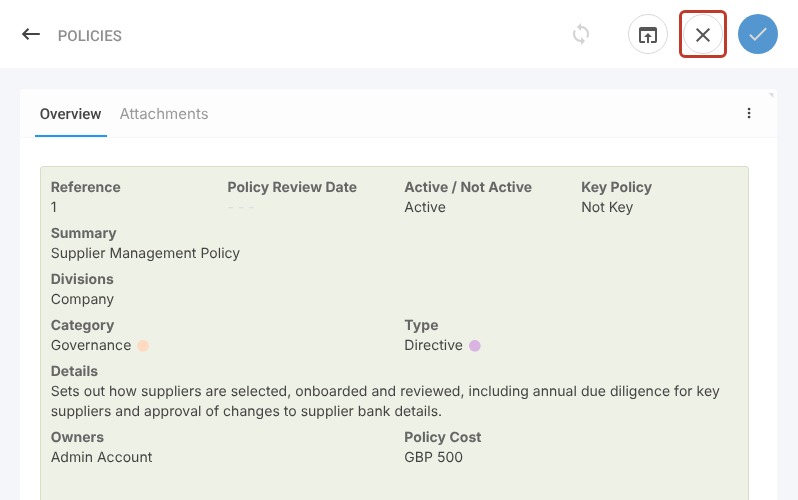
Select the policy in the grid. Its details open in a side panel. Select the X at the top to close it.
To remove a policy from the control, select the three dots at the end of its row, remove it and save.


