
 Doc Summary

In V6, the risks identified by a DPIA are kept in the Risk Register and linked to the DPIA, so they are scored, owned and reported alongside your other risks. You can also link controls and incidents.
Applies to: users with a DPIA role that can edit records; to add new risks you also need a Register Risks role that can add records · Module: DPIA
Opening Linked Connections #
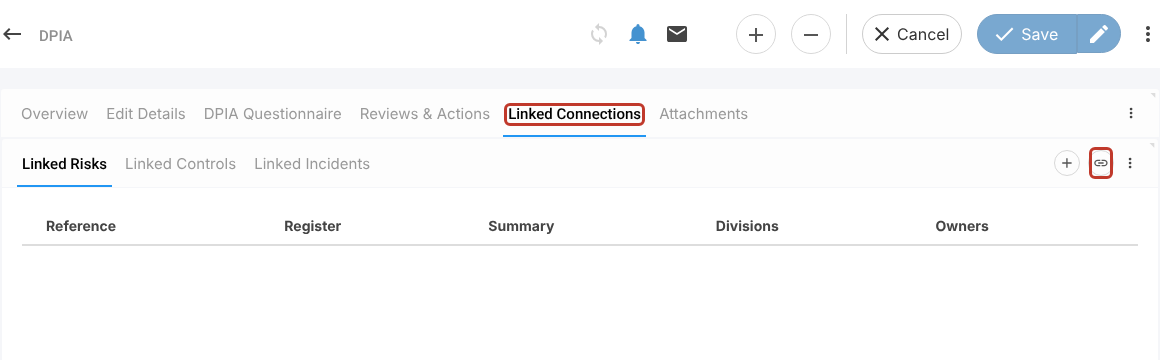
- Open the DPIA record and click the Linked Connections tab. It has three sub-tabs: Linked Risks, Linked Controls and Linked Incidents.
- On Linked Risks, use the icons at the top right:
- the link icon (chain) to link existing risks
- the + icon to create a new risk and link it
Linking Existing Risks #
- Click the link icon. The risk list opens on the right.
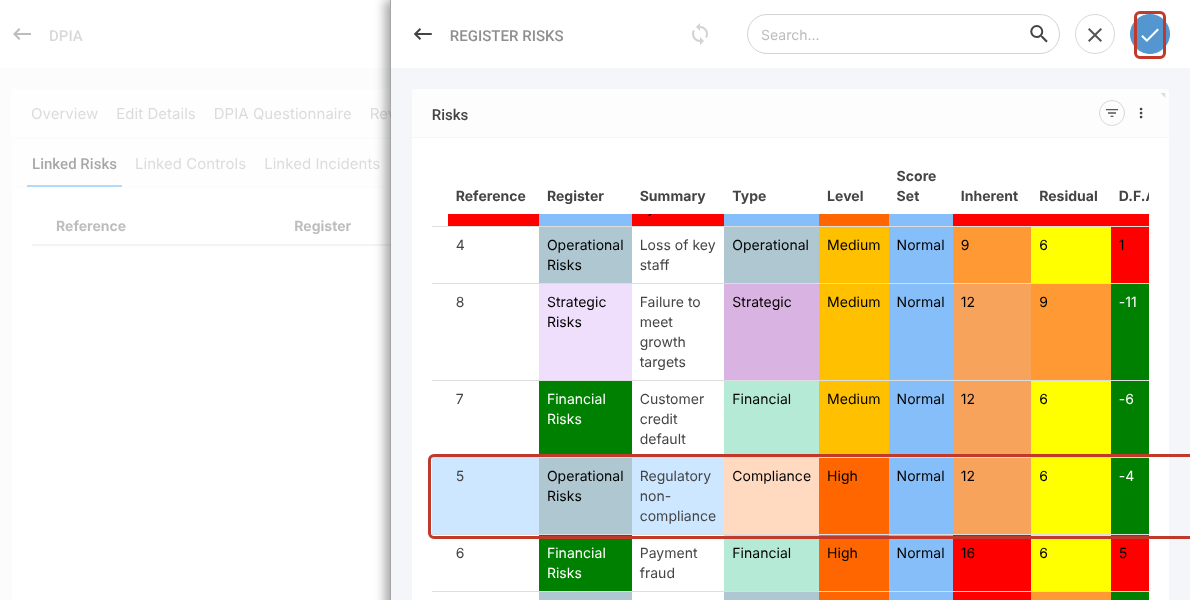
- Click each risk to select it (selected rows turn blue), then click the blue tick at the top right.
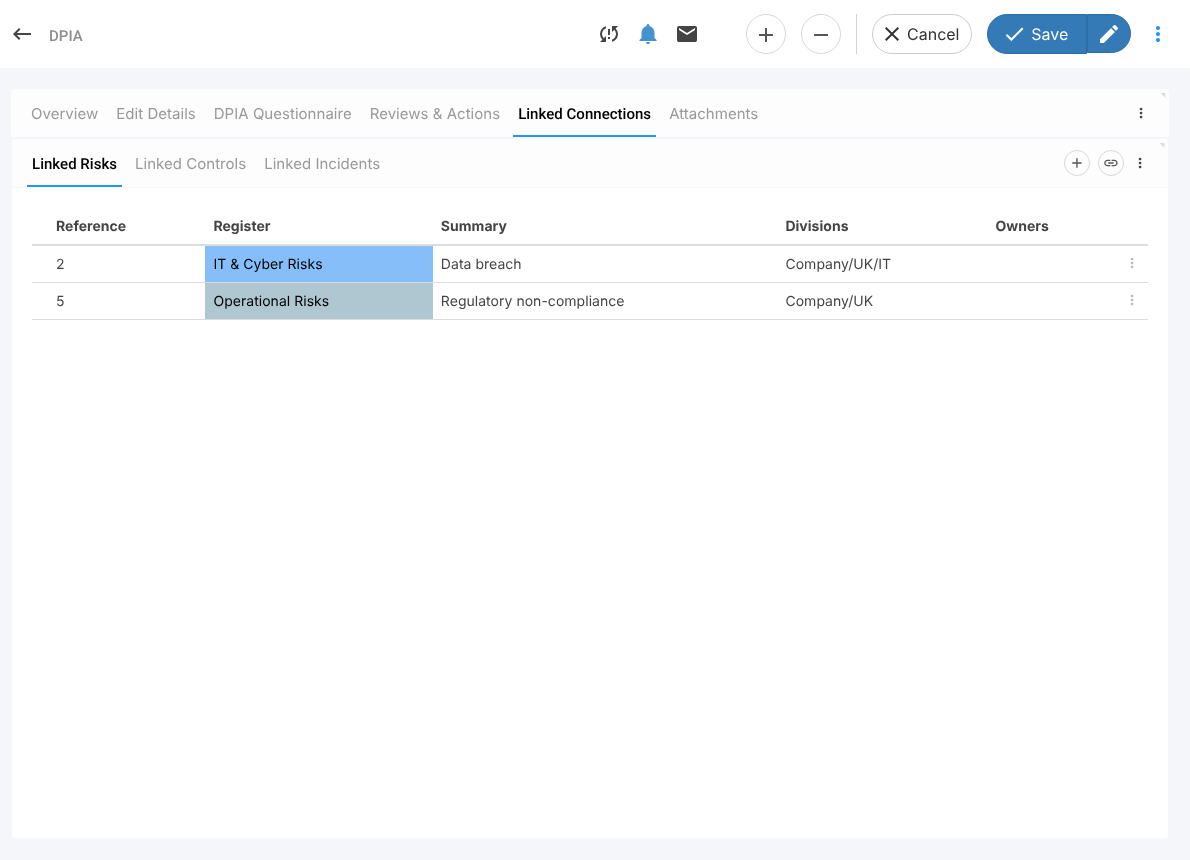
- The risks are listed on the DPIA. Click a row to open the risk, or use the row’s ⋮ menu to remove the link (this does not delete the risk).
Creating a New Risk #
Click the + icon instead to create a new risk in a popover. Fill in the risk details and scores as usual (see Adding a Record) and save it; it is linked to the DPIA.
Saving #
- Click Save (save and close) or the pencil icon (Save and edit) at the top right.
Note: Linked controls and incidents work the same way on their own sub-tabs.