
 Doc Summary

Questions hold the text the respondent reads and the options they answer with. Create the options first (see Creating a Question Option).
Applies to: users with admin rights on Questionnaires · Module: Questionnaires > Questions
Accessing Questions #
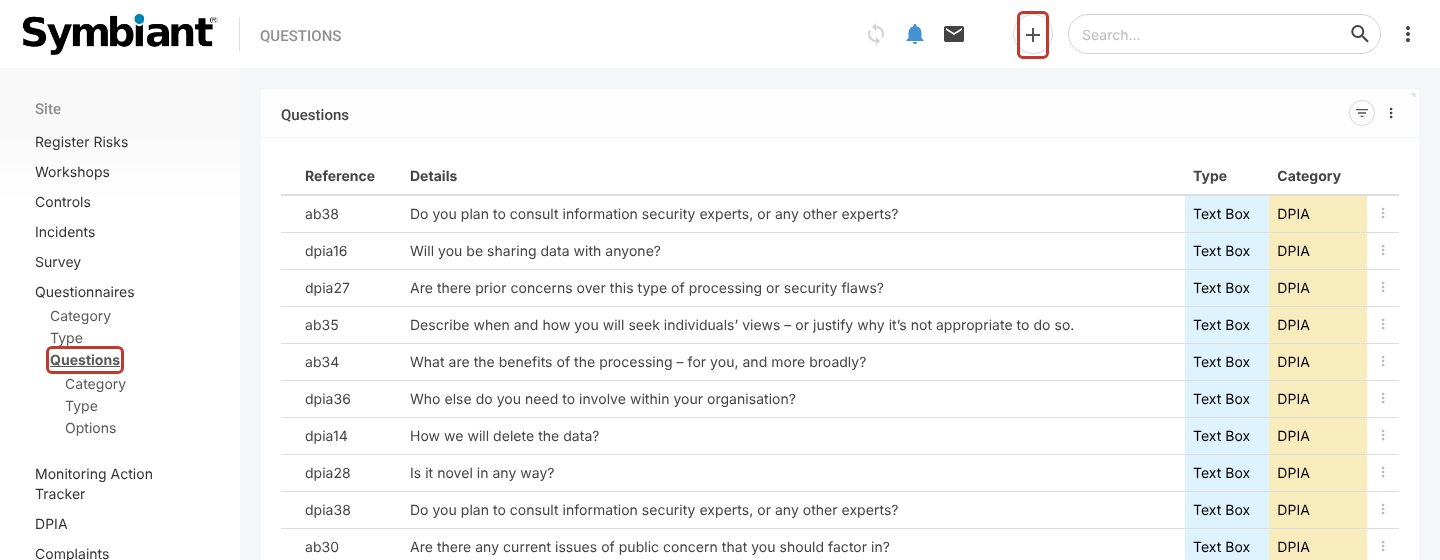
- In the left menu, click Questionnaires, then Questions.
- Click the + icon at the top right.
Entering the Question Details #
- Select a Type and Category. These only group your questions; they don’t change how the question works. You can add values in the Type and Category items under Questions.
- Enter the Question Text. This is the question as respondents will see it.
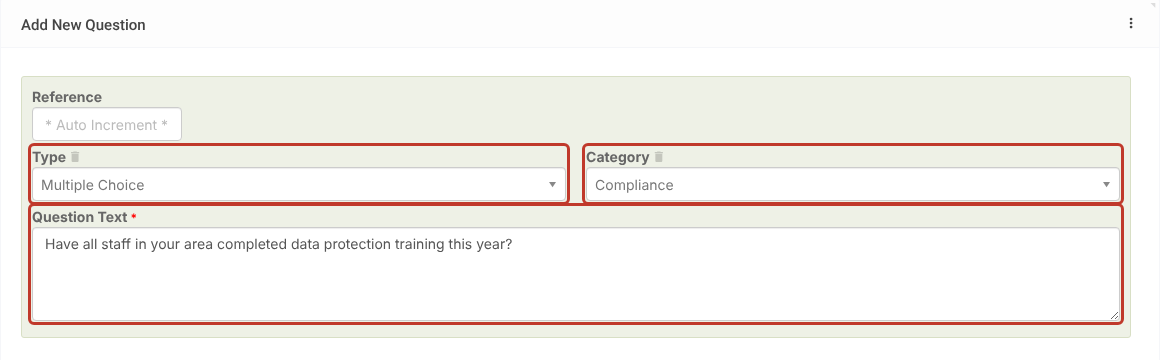
- Click Save. The question stays open and a Question Response Options section appears.
Linking Options #
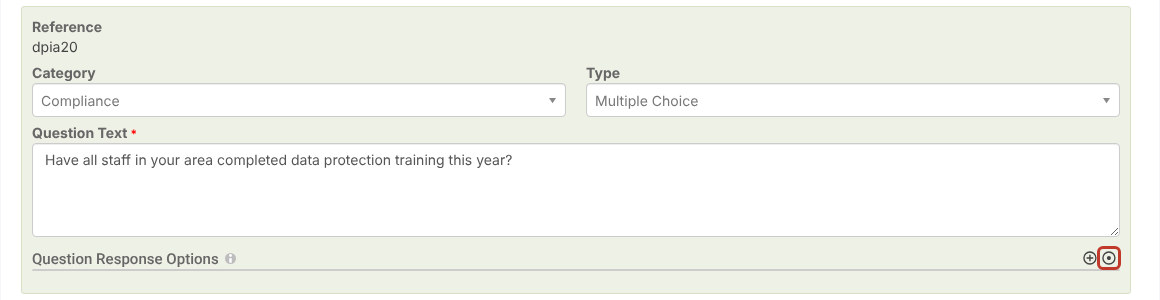
- In Question Response Options, click the link icon (circle with a dot) at the right.
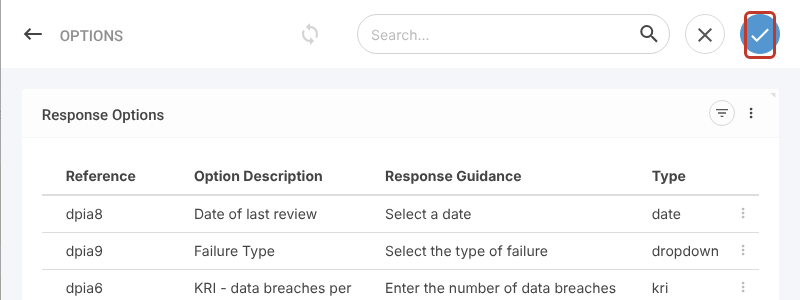
- Click each option you want to use. Selected options turn blue. Use the search box if the list is long.
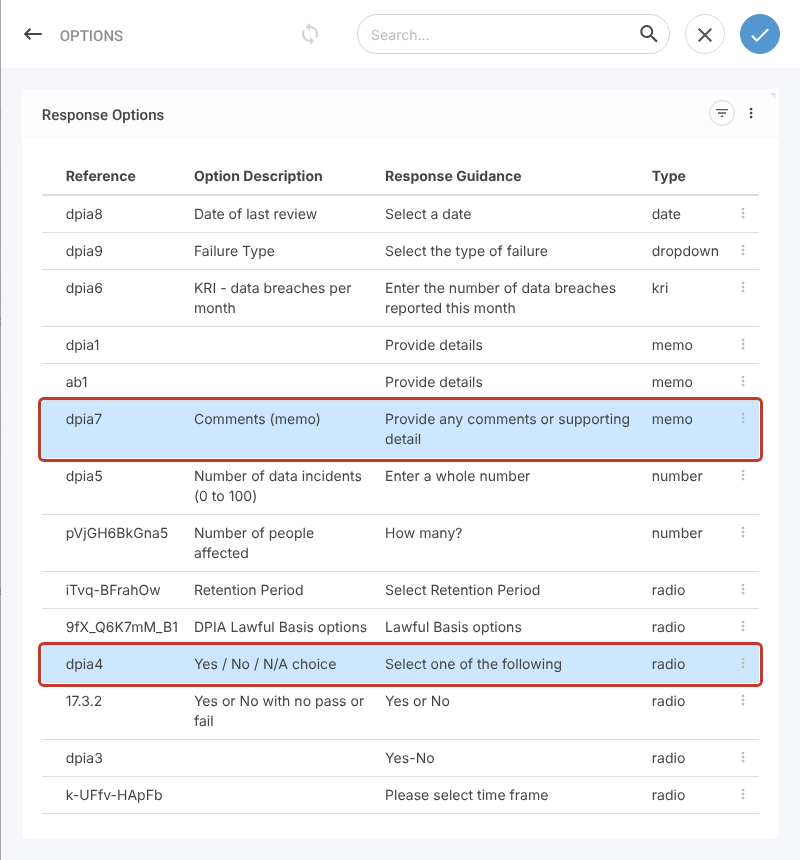
- Click the blue tick at the top right to link them.
Ordering and Editing Linked Options #
Hover over a linked option to show its icons. Drag the handle at the left to change the order. Click the pencil icon at the right to set Option Required and Visibility Rules, or the bin icon to unlink it.

- To force an answer, see How do I make a Question Required?
- To show an option only after a certain answer, see Question Option Visibility
Saving #
Click Save (save and close) or the pencil icon (Save and edit) at the top right.



