
 Doc Summary

Every module dashboard can be exported to a CSV file. You can export everything on the dashboard, or filter it first and export only the records you need.
Note: Applies to: anyone who can see the module. The export only includes records you have access to.
Exporting All Data #
- Click the module in the left-hand menu to open its dashboard (for example Register Risks).
- Click the three dots (⋮) at the top right, then Export….
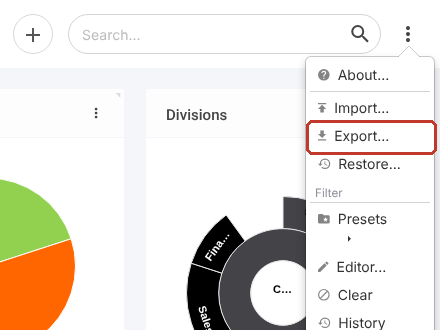
- A CSV file named after the module (for example Register risks.csv) downloads. Open it from your browser’s downloads.
The file has one row per record and a column for each of the module’s main fields.
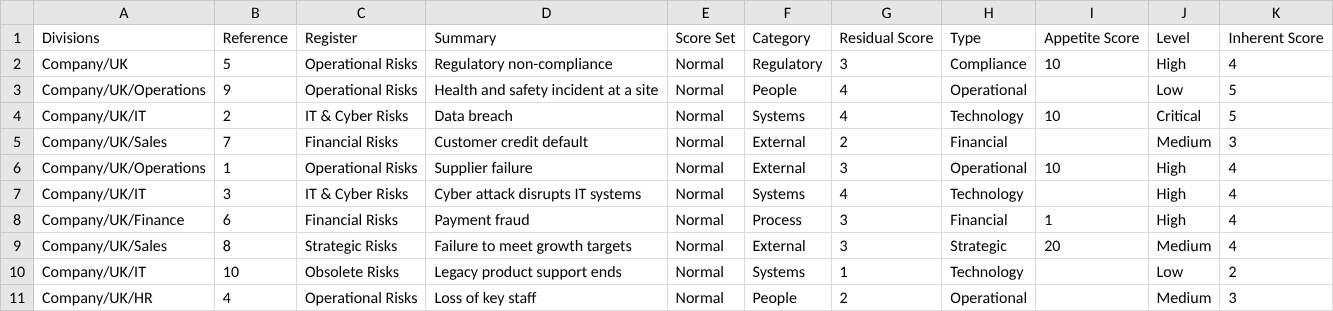
You can then sort, format and work with the data however you like, for example in Excel.
Exporting Filtered Data #
When the dashboard is filtered, only the filtered records are exported. You can filter by clicking a chart, by a grid column, or with the dashboard filter.
- Filter the dashboard. In this example, clicking Medium on the Risk Level chart shows only the three medium-level risks.
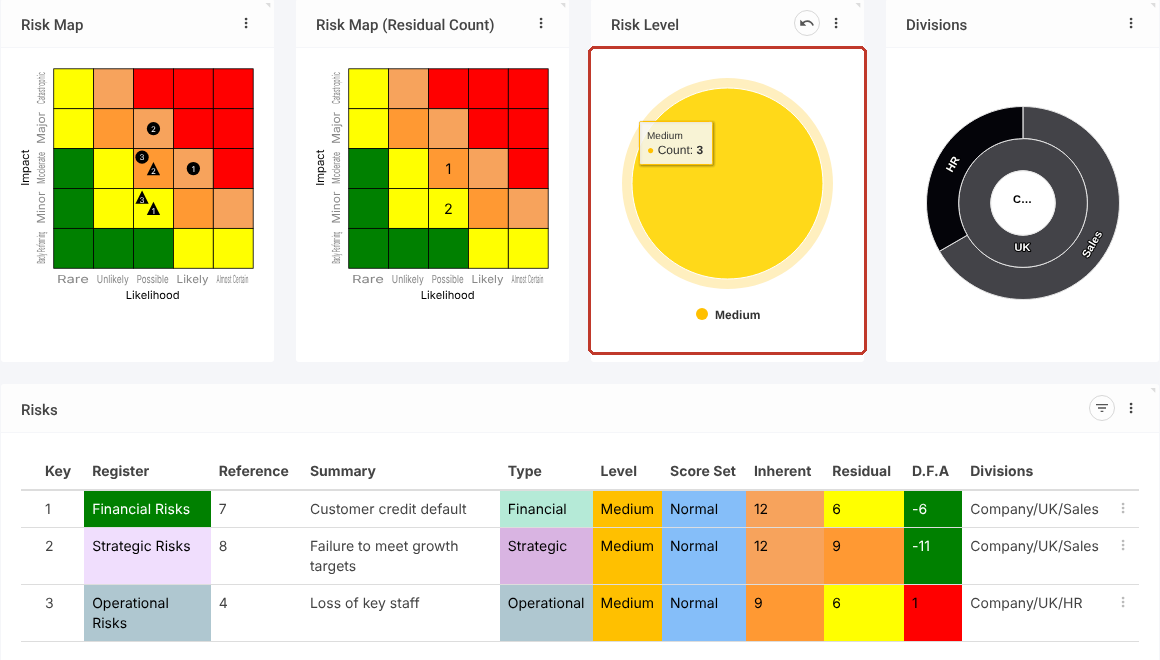
- Click ⋮ > Export… as before.
Only the filtered records are in the file.

- To remove a chart filter, click the undo arrow on the chart.

Tip: For formatted reports, such as Word or Excel documents with set layouts, use Reports in the left-hand menu instead. See Audit Trails for an example.


