Doc Summary

Symbiant keeps every version of every record, so you can view a module exactly as it was at any past date and time, and bring an earlier version of a record back.
Note: Applies to: users whose role includes History in the module’s ⋮ menu (usually admins). Restoring a historical version needs edit rights on the record.
Viewing a Past Point in Time #
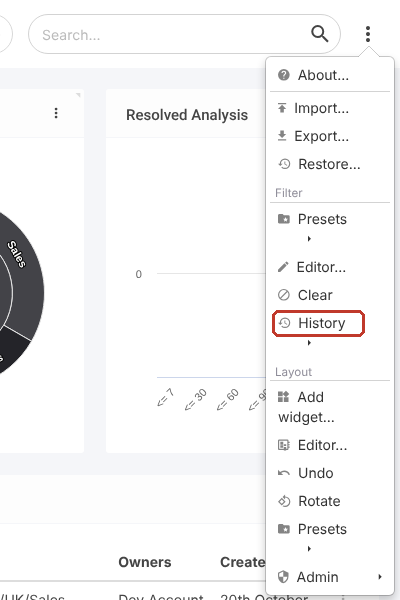
- Open the module (for example Incidents) and click the three dots (⋮) at the top right.
- Click History.
- Pick a quick option (for example 10 minutes ago or Yesterday), or Set time… to choose an exact date and time.
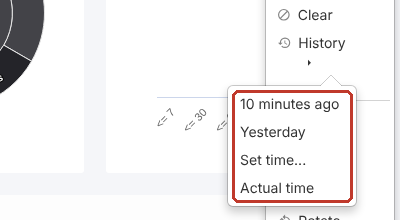
- If you chose Set time…, enter the date and time and click Set.

A red caution at the top of the screen shows you’re in History mode and the date and time you’re viewing. Charts, grids, records and reports all show the data as it was then.

Restoring a Historical Version of a Record #
- While in History mode, open the record. It shows the record as it was at that moment.
- Click the red Save button with the history icon at the top right (History Save), and confirm.

Critical: The historical version overwrites the current version of the record. Check you have the right record and time first. The change is itself recorded, so you can go back again if needed.
Returning to Actual Time #
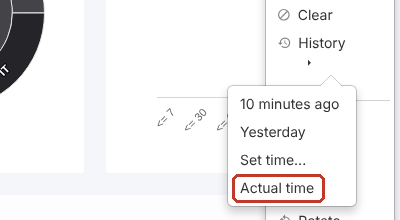
Click ⋮ > History > Actual time. The caution disappears and you’re back to live data.