Skip to content
Symbiant System Black Logo
  • Home
  • Knowledge Base
  • Symbiant Website
  • Symbiant Changelog
  • Submit a Ticket
  • My Support Tickets
  • Home
  • Knowledge Base
  • Symbiant Website
  • Symbiant Changelog
  • Submit a Ticket
  • My Support Tickets
Popular Keywords importuserdivisionsamlimport risk

Admin Basics

  • Sharing Dashboard Layouts with Other Users
  • Setup Mode/Admin Menu
  • Creating/Adding Users
  • Transferring Ownership from One User to Another (Assuming)
  • Making a User Active/Inactive
  • Delete a User
  • Changing a Record Reference
  • Managing Drop-Downs, Multi-Selects, and Multi-Levels
  • Resetting a User’s Password
  • Checking System Attachment Storage
  • Database History & Restoring Historical Records
  • Restoring a Deleted Record (Archived)
  • Audit Trails
  • Email Log Viewer
  • System Menu Layout & Options

System Translations

  • Adding a Translation Pack
  • Editing a Translation Pack
  • Mass Editing a Newly Created Translation Pack
  • Assigning a Translation Pack to a User
  • Exporting a Translation Pack
  • Importing a Translation Pack
  • Adding a Default Translation Pack
  • Creating a Locale Specific View (Translated View)
  • Editing a Locale Specific View (Translated View)

Importing Data

  • Preparing Data for Import (Default)
  • Imports with Hierarchical Data
  • Importing Data (Generic)
  • Preparing Data for Import (Risks)
  • Importing Data (Risk Register Specific)
  • Preparing Data for Import (Users)
  • Importing Users
  • Importing Divisions
  • Importing Errors & Issues

Automated Emails (Task Based)

  • How Automated Emails Work (Triggers and Schedules)
  • Activating and Deactivating an Automated Email (Trigger) and (Scheduler)
  • Creating an Automated Email โ€“ When a Record is Created (Trigger)
  • Creating an Automated Email โ€“ When a Record is Updated (Trigger)
  • Creating an Automated Email โ€“ When a Record is Deleted (Trigger)
  • How to Receive Module Specific Emails as System Admin (Trigger) and (Scheduler)
  • Editing an Automated Email โ€“ Sending to a Different Module Role (E.g. Risk Manager) (Trigger)
  • Editing an Automated Email โ€“ Sending to a Record User (Trigger)

Automated Email Reminders (Time Based)

  • How Automated Emails Work (Triggers and Schedules)
  • Activating and Deactivating an Automated Email (Trigger) and (Scheduler)
  • Creating an Automated Email Reminder โ€“ When a Record is Due (Scheduler)
  • Creating an Automated Email Reminder โ€“ When a Record is Overdue (Scheduler)
  • Setting up Recurring Schedules
  • How to Receive Module Specific Emails as System Admin (Trigger) and (Scheduler)
  • Editing an Automated Email Reminder โ€“ Sending to a Different Module Role (E.g. Risk Manager) (Scheduler)
  • Editing an Automated Email Reminder โ€“ Sending to a Record User (Scheduler)

System Views

  • Editing a Dashboard Chart
  • Sharing Dashboard Layouts with Other Users
  • System Views (Quick Explainer)
  • Creating Your Own Custom Views
  • View Editor Tool Overview
  • Editing a View
  • How to Hide/Unhide Fields
  • Loading/Saving a Particular User’s View
  • What are Widgets?
  • Adding, Removing and Editing a Grid Column
  • Adding Help Tips & Placeholder text
  • Modifying a User Field to Limit or Allow Specific Users
  • Modifying a Currency Field to Set Default

Exporting Data

  • Exporting Dashboard Data
  • Exporting Divisions
  • Exporting Users
  • Generating the System User Details Report

System Errors & Issues

  • Resolving System Issues
  • System Error Messages
  • Login Issues

Reporting Suite Tutorial

  • Creating a Word Report (Basic Data Output)
  • Creating an Excel Report (Basic Data Output)
  • Creating a PowerPoint Report (Basic Data Output)
  • Creating an Excel Tabular Report (Perfect for CSV)
  • Creating an Excel Audit Report (Audit Log Of Changes)
  • Adding a new column to an Excel Report
  • Removing a column in an Excel Report
  • Creating an Advanced Word Report (Adding Functions)
  • Advanced Report Coding (Using Owners, Divisions & Assignees in a Report)
  • Advanced Report Syntax
  • Advanced Filtering on Reports (Filtering Via Code)
  • Reporting Permissions

Advanced System Functionality

  • Symbiant API

Document Management (System Setup)

  • Setting Up Document Types
  • Setting Up Document Statuses
  • Document Storage Limits and File Sizes
View Categories
  • Home
  • Knowledge Base
  • Admin Information
  • Automated Email Reminders (Time Based)
  • How Automated Emails Work (Triggers and Schedules)

How Automated Emails Work (Triggers and Schedules)

0:00 / 3:56
  • View as Markdown Open this page as plain Markdown (opens in a new tab)
  • Open in ChatGPT Ask questions about this page (opens in a new tab)
  • Open in Claude Ask questions about this page (opens in a new tab)
  • Open in Google AI Studio Ask questions about this page (Google account required) (opens in a new tab)
AI Doc Summarizer Doc Summary
AI Doc Summarizer Thinking Thinking

This article explains how Symbiant’s automated emails work, so you can choose, activate and adjust them with confidence.

Applies to: System administrators (admin role) ยท Module: Set up > Triggers, Schedules and Log viewer

Two Kinds of Automated Email #

Trigger (task-based)Schedule (time-based)
Fires whenA record is created, updated or deletedAt set times (the Recurring grid, in UTC)
Typical use“New risk added”, “Action assigned”, “Level set to High”“Review due tomorrow”, “Action overdue”
Finds its records byThe record being savedA query on the module
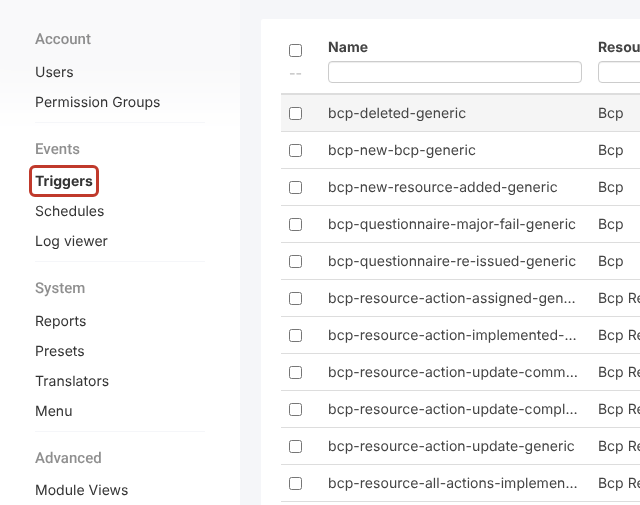
WhereSet up > TriggersSet up > Schedules

Triggers and Schedules in the Set up menu

Shipped Emails #

Each module comes with a set of ready-made emails named <module>-<what>-generic, for example register-risks-new-risk-generic or register-risks-risk-review-overdue-generic. The Info column describes each one. They all arrive inactive, so nothing is sent until you choose what your organisation needs and activate it. See Activating and Deactivating an Automated Email.

Note: Don’t edit a shipped email heavily. If you need something different, build a copy with your company name in the name and leave the generic one inactive.

The Function Chain #

Both kinds of email are built from a function chain (the ฦ’ chain panel): a list of steps called interceptors that run from top to bottom. Each interceptor can use the result of the ones above it, chosen in its Data source. If a step finds nothing, the chain stops and no email is sent.

InterceptorWhat it does
tx-checkTriggers: continue only if the change matches, for example Level equals High
tx-entityTriggers: load the record, After change (create and update) or Before change (delete)
tx-userTriggers: collect the user who made the change
querySchedules: find the records that match a condition, for example Review Date equals Tomorrow
managerFind users with a role (for example risk_admin) through a user field such as Owners
format-dateSet how dates appear in the email, for example dd MMMM yyyy
templateWrite the email (From, To, Cc, Subject, body), or a reminder tag in schedules
tag-filter / tag-recordSchedules: skip records already emailed, then remember the ones just emailed
emailSend the template as HTML or plain text
logRecord the email in the Log viewer

Who Fires a Trigger and Who Receives It #

  • A trigger’s Assignments (who can cause this trigger to fire) decide whose changes fire it. They are not the recipients. Assign the root division to cover everyone.
  • The recipients are set on the template’s To: and Cc: lines with names, addresses or recipient codes:
Send toCode
Record owners{{<generic/owners}}{{sm.user/name}}, {{>generic/owners}}
Record creator{{<created/user}}{{sm.user/name}}, {{>created/user}}
Last person to change the record{{<modified/user}}{{sm.user/name}}, {{>modified/user}}
Users with the manager interceptor’s role{{<generic/owners}}{{<manager}}{{sm.user/name}}, {{>manager}}{{>generic/owners}}
  • Emails sent “to the admins” use module roles such as risk_admin. The system admin role on its own doesn’t receive module emails. See How to Receive Module Specific Emails as System Admin.

What Triggers Can and Can’t React To #

  • Update triggers react to a field changing to a value (for example a Status set to Submitted), checked by tx-check. They don’t fire on every edit.
  • Saving is what fires a trigger: changing a field and cancelling sends nothing.
  • Some module features depend on a schedule being active, for example re-issuing scheduled surveys or assessments (...-scheduled-re-issuing-generic).

Checking What Was Sent #

Set up > Log viewer lists the emails each automated email has logged, by log group. Search it to confirm an email went out and to whom.
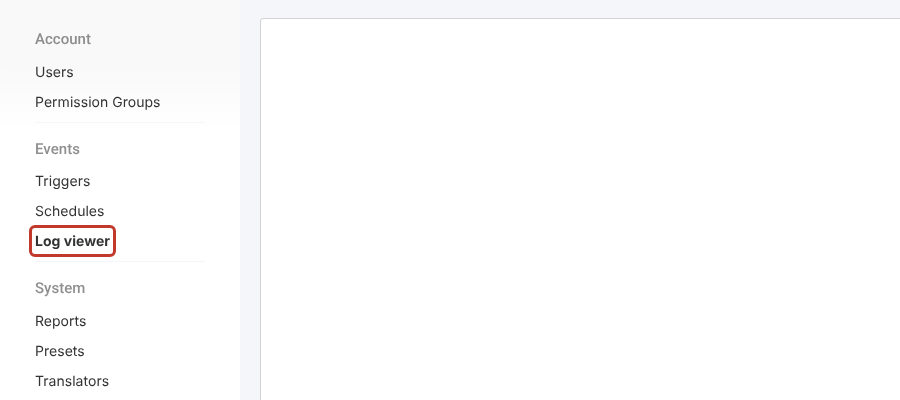
The Log viewer

If Emails Don’t Arrive #

  1. Is the trigger or schedule Active?
  2. For a trigger, does its Assignments cover the user who made the change?
  3. Does the recipient have the right module role, and an email address?
  4. Is there an entry in the Log viewer? If yes, the email left Symbiant: ask IT to check spam filtering and allow Symbiant’s no-reply address.

Related articles #

  • Creating an Automated Email โ€“ When a Record is Created (Trigger)
  • Creating an Automated Email โ€“ When a Record is Updated (Trigger)
  • Creating an Automated Email Reminder โ€“ When a Record is Due (Scheduler)
  • Setting up Recurring Schedules
Did this help?

Share This Article :

  • Facebook
  • X
  • LinkedIn
Require Additional Information? Please Contact Support

How can we help?

Updated on 30 October 2026
Editing an Automated Email Reminder โ€“ Sending to a Record User (Scheduler)Activating and Deactivating an Automated Email (Trigger) and (Scheduler)
Table of Contents
  • Two Kinds of Automated Email
  • Shipped Emails
  • The Function Chain
  • Who Fires a Trigger and Who Receives It
  • What Triggers Can and Can't React To
  • Checking What Was Sent
  • If Emails Don't Arrive
  • Related articles
Symbiant System White Logo

20-22 Wenlock Road

London

N1 7GU

Linkedin
Telephone Numbers
  • UK - 0113 5263 755
  • Support - 0204 5514 735 option 2
  • USA - 347 991 7130
Information
  • Home
  • Knowledge Base
  • Symbiant Website
  • Submit A Ticket
  • Change Requests
  • Support Staff Login

Copyright ยฉ 2025 Symbiant All Rights Reserved - Risk, Audit and Compliance Management Software

We use cookies on our website to give you the most relevant experience by remembering your preferences and repeat visits. By clicking โ€œAccept Allโ€, you consent to the use of ALL the cookies. However, you may visit "Cookie Settings" to provide a controlled consent.
Cookie SettingsAccept All
Manage consent

Privacy Overview

This website uses cookies to improve your experience while you navigate through the website. Out of these, the cookies that are categorized as necessary are stored on your browser as they are essential for the working of basic functionalities of the website. We also use third-party cookies that help us analyze and understand how you use this website. These cookies will be stored in your browser only with your consent. You also have the option to opt-out of these cookies. But opting out of some of these cookies may affect your browsing experience.
Necessary
Always Enabled
Necessary cookies are absolutely essential for the website to function properly. These cookies ensure basic functionalities and security features of the website, anonymously.
CookieDurationDescription
cookielawinfo-checkbox-analytics11 monthsThis cookie is set by GDPR Cookie Consent plugin. The cookie is used to store the user consent for the cookies in the category "Analytics".
cookielawinfo-checkbox-functional11 monthsThe cookie is set by GDPR cookie consent to record the user consent for the cookies in the category "Functional".
cookielawinfo-checkbox-necessary11 monthsThis cookie is set by GDPR Cookie Consent plugin. The cookies is used to store the user consent for the cookies in the category "Necessary".
cookielawinfo-checkbox-others11 monthsThis cookie is set by GDPR Cookie Consent plugin. The cookie is used to store the user consent for the cookies in the category "Other.
cookielawinfo-checkbox-performance11 monthsThis cookie is set by GDPR Cookie Consent plugin. The cookie is used to store the user consent for the cookies in the category "Performance".
viewed_cookie_policy11 monthsThe cookie is set by the GDPR Cookie Consent plugin and is used to store whether or not user has consented to the use of cookies. It does not store any personal data.
Analytics
Analytical cookies are used to understand how visitors interact with the website. These cookies help provide information on metrics the number of visitors, bounce rate, traffic source, etc.
SAVE & ACCEPT
Loading...

Insert/edit link

Enter the destination URL

Or link to existing content

    No search term specified. Showing recent items. Search or use up and down arrow keys to select an item.