
 Doc Summary

You can download a list of all your system users as a CSV file, for example to review access or to prepare a bulk update.
Note: Applies to: admins with access to Set up > Users.
Opening the Users List #
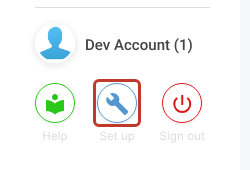
- Click the spanner (Set up) at the bottom left.
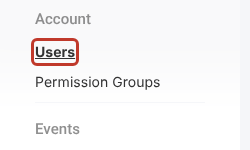
- Under Account, click Users.
Exporting the Users #
- Click the three dots (⋮) at the top right.
- Click Export….
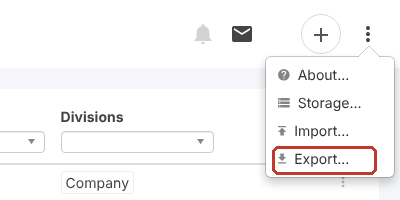
- A file called users.csv downloads. Open it from your browser’s downloads, for example in Excel.
What the File Contains #
There is one row per user, with these columns: Name, Email, Active?, Locale, Last Name, First Name, Middle Name, Phone Number and Time Zone.

Tip: You can match these columns to the user fields when importing, so the export is a good starting point for a bulk update. See Importing Users. For roles, divisions and last login dates, use the System User Details report instead.


