
 Doc Summary

This article shows you how to change who a trigger’s email goes to, so it reaches the record’s owners, its creator or the person who last changed it.
Applies to: System administrators (
adminrole) · Module: Set up > Triggers
Opening the Trigger #
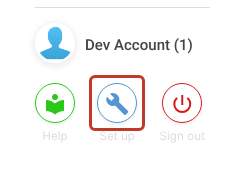
- Click the Set up spanner at the bottom left of the screen.
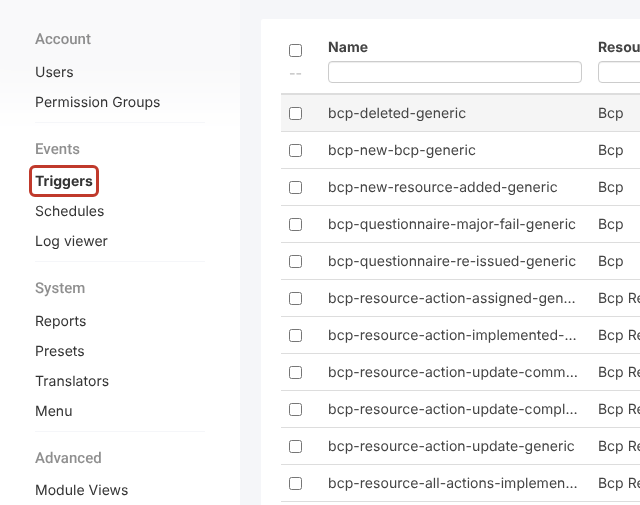
- In the Set up menu, under Events, click Triggers.
- Type part of the name in the Name filter box (for example
register-risks), then click the trigger you want to change.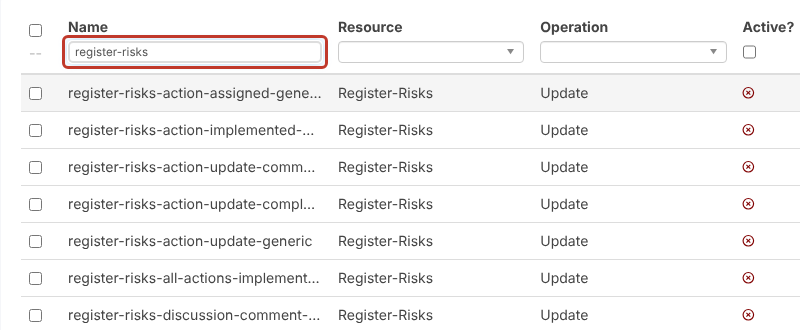
Editing the Template #
In the ƒ chain panel on the right, find the template card. The recipients are on the To: and Cc: lines of Content.
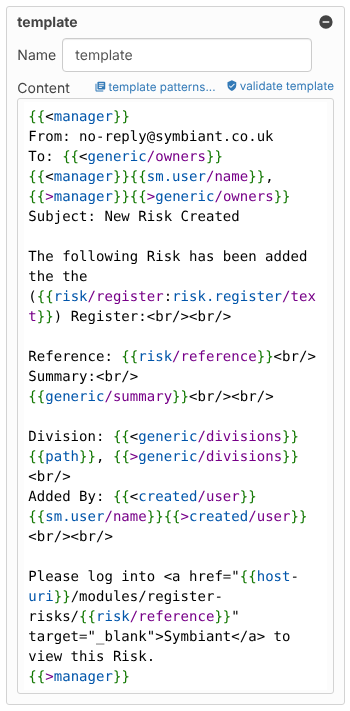
Add one of these codes to the To: or Cc: line.
Sending to the Record Owners #
{{<generic/owners}}{{sm.user/name}}, {{>generic/owners}}
Sending to the Record Creator #
{{<created/user}}{{sm.user/name}}, {{>created/user}}
Sending to the Last Person Who Changed the Record #
{{<modified/user}}{{sm.user/name}}, {{>modified/user}}
On an update trigger this is usually the person whose change fired the email.
Sending to Action Assignees #
On action triggers, the shipped templates send to the action’s assignees with {{<action:generic/assignees}}{{sm.user/name}}, {{>action:generic/assignees}}.
You can put several codes, names or email addresses on one line. Click validate template to check your changes.
Note: These codes work on the standard configuration of each module. If your site has renamed or customised user fields, the field key may differ: check it in the tx-check Contains? list or in Set up > Translators.
Saving the Changes #
- Click Save at the top right.



