
 Doc Summary

This article builds on Creating a Word Report. It shows you how to add repeating tables, hide empty sections and use data source functions.
Applies to: System administrators (
adminrole) · Module: Set up > Reports
Before You Start #
Set up the report, its graph data source and its fields as in Creating a Word Report (Basic Data Output). Tick the linked data you want to list too, for example Impact Controls with their reference and summary.
Repeating Tables for Linked Records #
To list linked records (such as a risk’s controls), put a table in the template with one row of markers. That row repeats for each linked record.
- Above the table, add a heading with a section marker that names the linked data, for example
[[rd:risk.impact/controls]:collapse:hide]. - In the table row, use markers that go through the link, for example
[[rd:risk.impact/controls:risk.control/ref:control/reference]].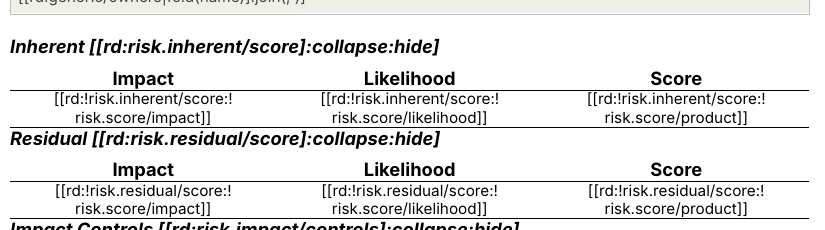
:collapse:hide hides the whole section, heading included, when the record has nothing linked.
Showing Many Values in One Place #
Fields that can hold several values, such as Owners and Divisions, need fold and join, for example [[rd:generic/owners|fold(name)]:join(, )]. See Advanced Report Coding.
Colouring a Cell by Level #
The shipped template colours a table cell with the level’s colour using [[rd:risk/level:generic/colour]:merge-xml]. Tick the level’s colour in the graph for this to work.
Data Source Functions #
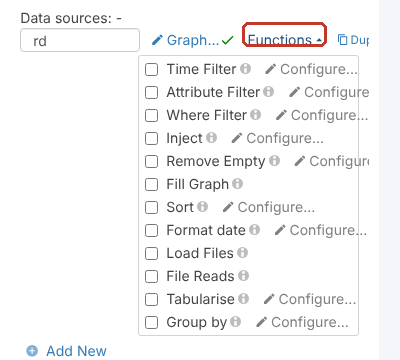
Click Functions next to a data source to switch on extra processing, such as Time Filter, Where Filter, Sort, Format date and Group by. Tick a function, then click its Configure… to set it up.
Uploading the Template #
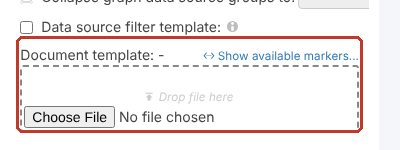
- Under Document template, click Choose File (or drag the file onto Drop file here) and pick your template.
- Click Save at the top right.

Generating the Report #
- Click the Set up button at the bottom left to leave Set up.
- Click Reports at the bottom of the menu on the left.
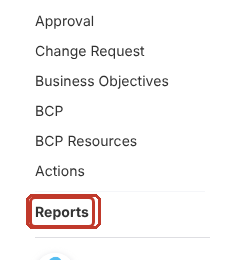
- Find the report (type part of its name in the Name filter) and click Generate. The file downloads to your computer.

Tip: Click Filter next to Generate to limit which records go into the report. See Advanced Filtering on Reports.


