
 Doc Summary

A record’s reference is its unique ID and can’t be edited. To change it, duplicate the record with the new reference and then delete the original. For example, to change reference 8 to 10.
Note: Applies to: users who can create and delete records in the module (usually the module admin).
Duplicating the Original #
- Open the module’s list (dashboard).
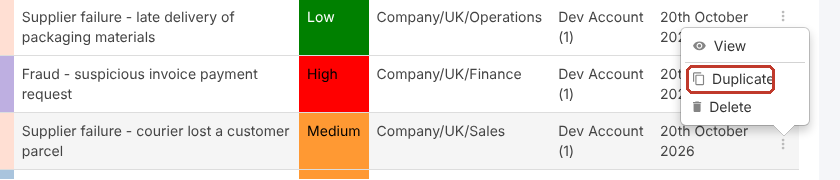
- Click the three dots (⋮) at the end of the record’s row and select Duplicate.
Entering the New Reference #
- A new record opens with the original’s details copied in. In Reference, replace Auto Increment with the new reference, for example
10.
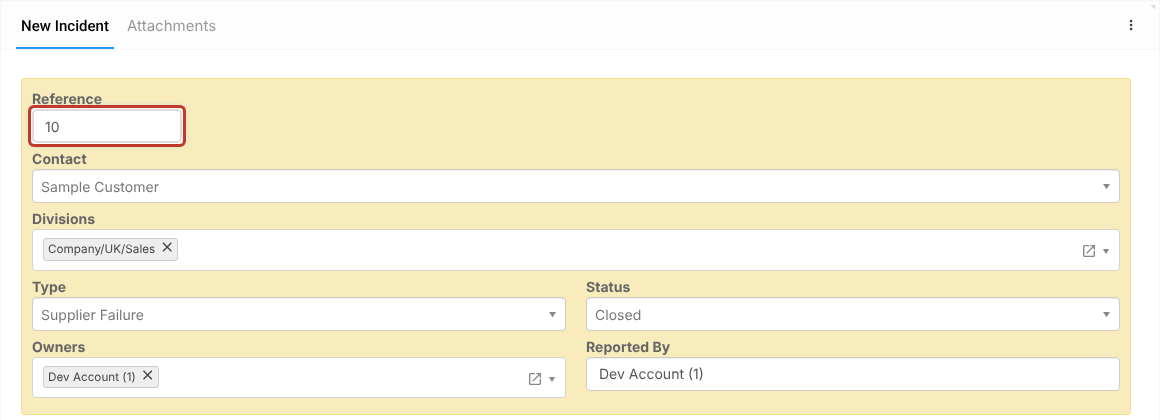
- Check the other fields, then click Save at the top right (or Save and Edit to stay on the record).
Critical: Automatic numbering continues from the reference you enter. After saving 10, the next new record gets 11.
Note: Duplicating copies the record’s fields. Check its attachments, reviews and actions, and linked records, and add any that weren’t copied before deleting the original.
Deleting the Original #
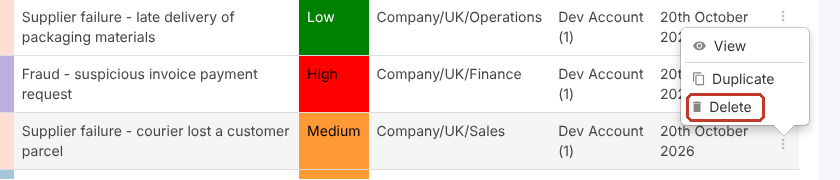
- Back in the list, click ⋮ on the original record’s row and select Delete.
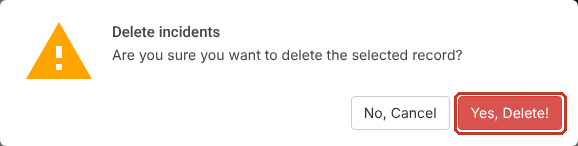
- Confirm with Yes, Delete!.
The original is retracted, not erased, so it can be restored if needed: see Restoring a Deleted Record (Archived).


