Doc Summary

How to add the statuses used by document revisions.
Applies to: admins · Module: Document Management
Status Kinds #
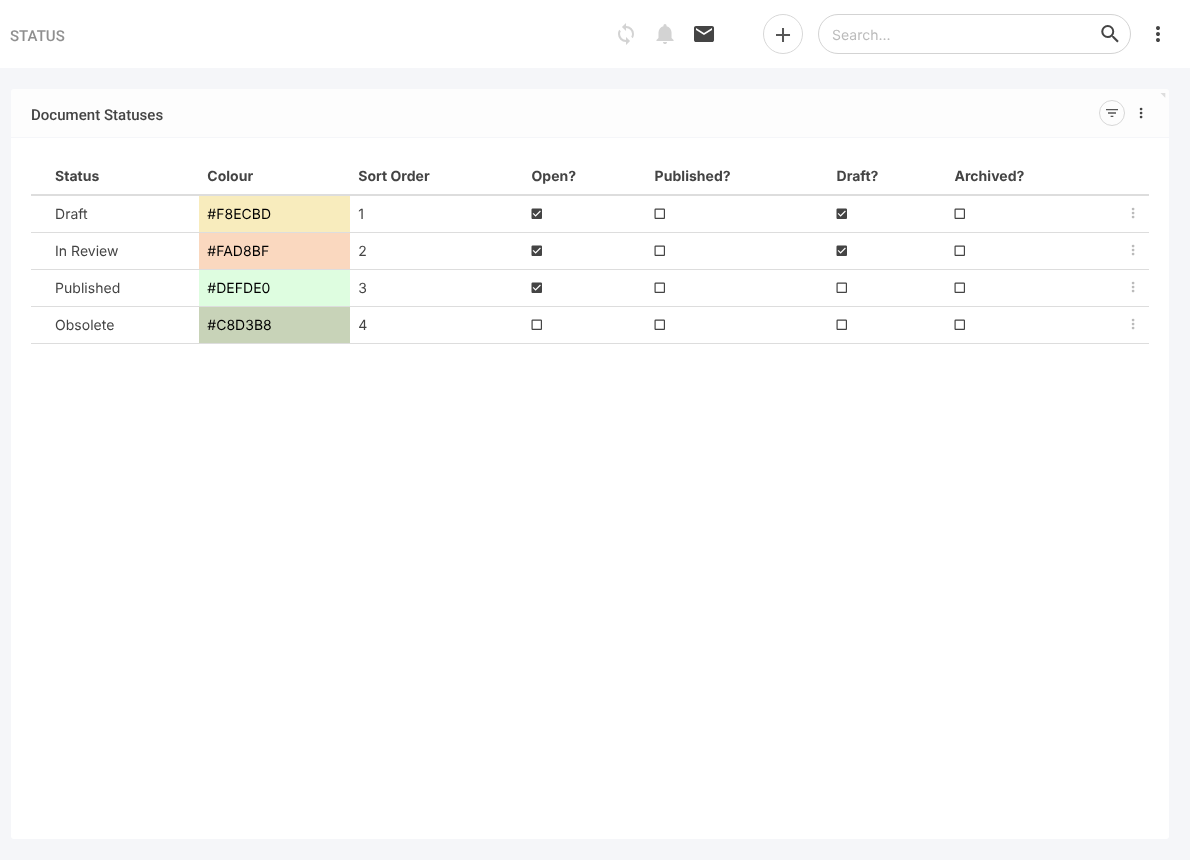
Document Management uses three kinds of status: Draft, Published and Obsolete (see Document Status Logic). There can be only one Published status, but as many Draft and Obsolete statuses as you need, and you can name them however you like.
| Flag | Effect |
|---|---|
| Open? | The status counts as open. |
| Draft? | Revisions with this status are treated as drafts. |
| Published? | Revisions with this status are the published version. Only one status has this flag. |
| Archived? | Shows whether the status itself has been archived. |
A status with neither Draft? nor Published? ticked is an Obsolete status.
Opening Document Statuses #
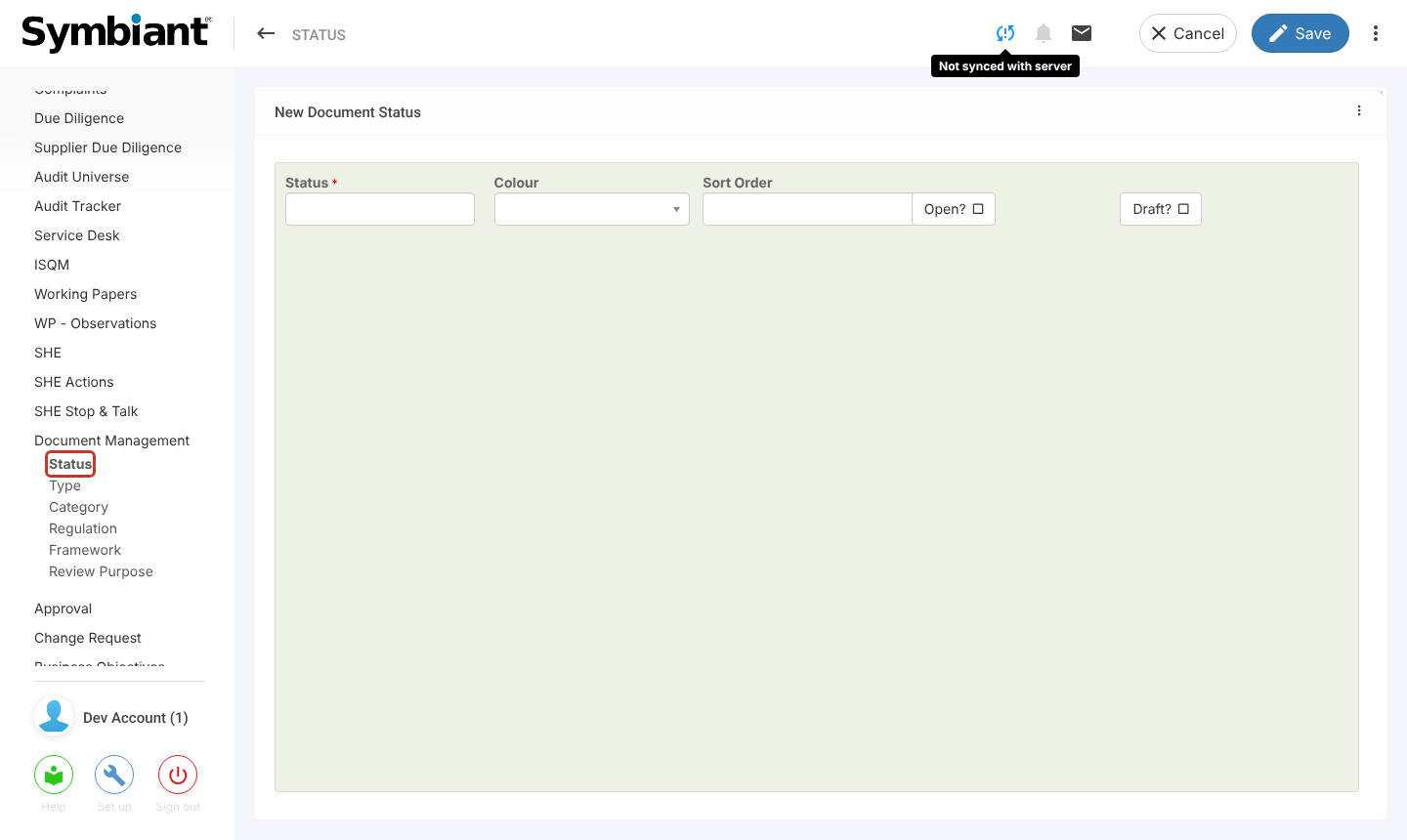
- In the left menu, under Document Management, click Status, then the + icon at the top right.
Adding a Status #
- Enter the Status name, a Colour and a Sort Order.
- Tick Open? and, for a draft status, Draft?. For another obsolete status, leave Draft? unticked.
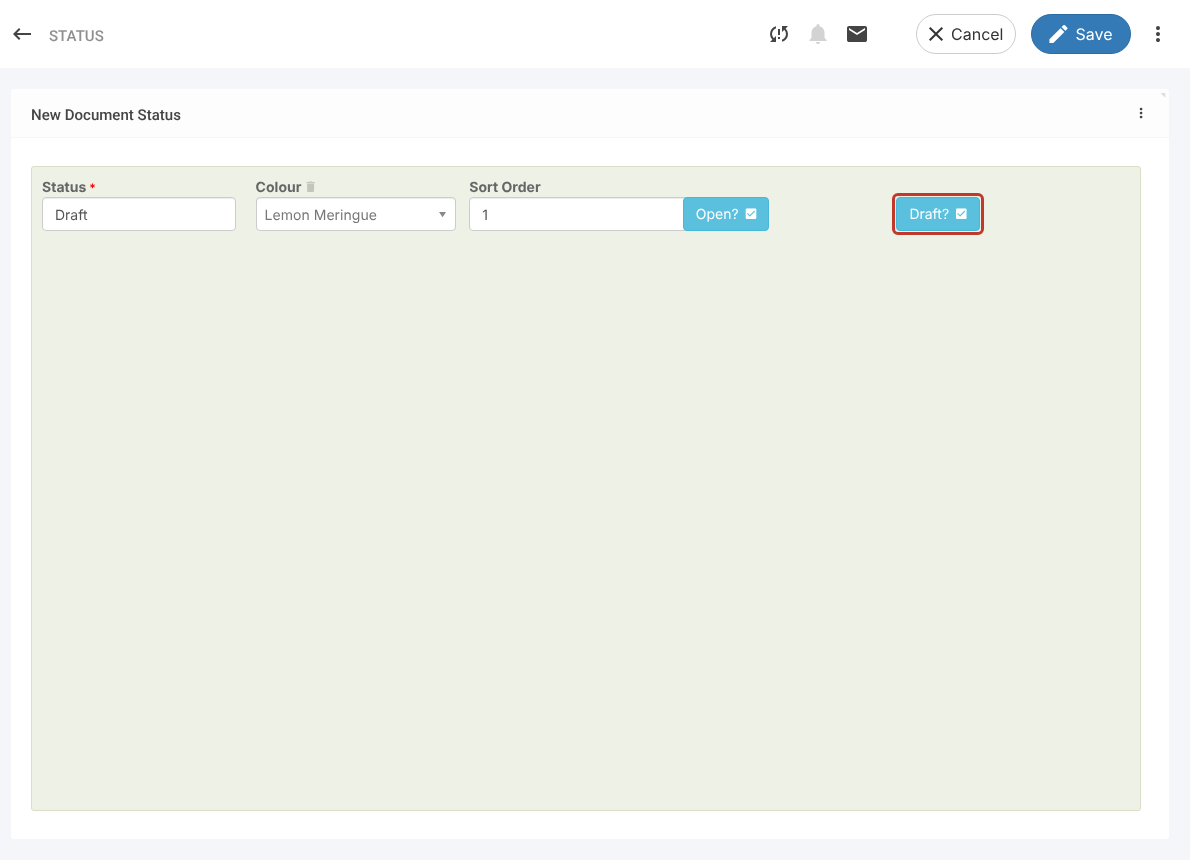
- Click Save.
Note: Published? and Archived? appear once the status is saved. Published? cannot be changed from this screen. If your organisation has no published status, contact Symbiant Support.
Viewing Statuses #
- The Status list shows each status with its colour, sort order and flags.