
 Doc Summary

This article shows you the ways to limit which records go into a report: the Filter on the Reports page, and data source filters set up by an administrator.
Applies to: Anyone who can generate the report (Filter), and system administrators (
adminrole) for data source filters.
Filtering When You Generate #
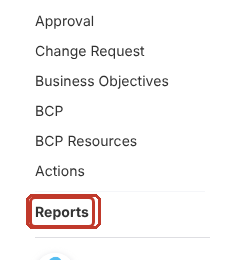
- Click Reports at the bottom of the menu on the left.
- Find the report and click Filter.

- Click AND and pick the field to filter on, for example Level, then set the condition and value. Add more conditions with AND or OR. This works like the record filters elsewhere in Symbiant.
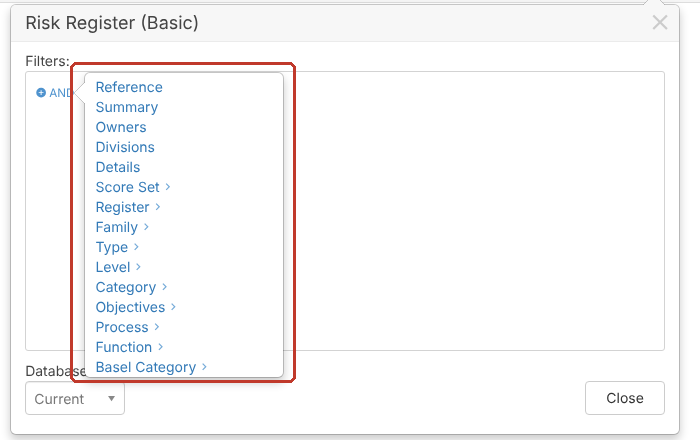
- Database is normally Current.
- Click Close, then Generate. Only matching records go into the report.
Filters Built Into the Report (Administrators) #
To make a report always filter its data, an administrator can add a filter to the data source in Set up > Reports.
Make Sure the Fields Are Ticked #
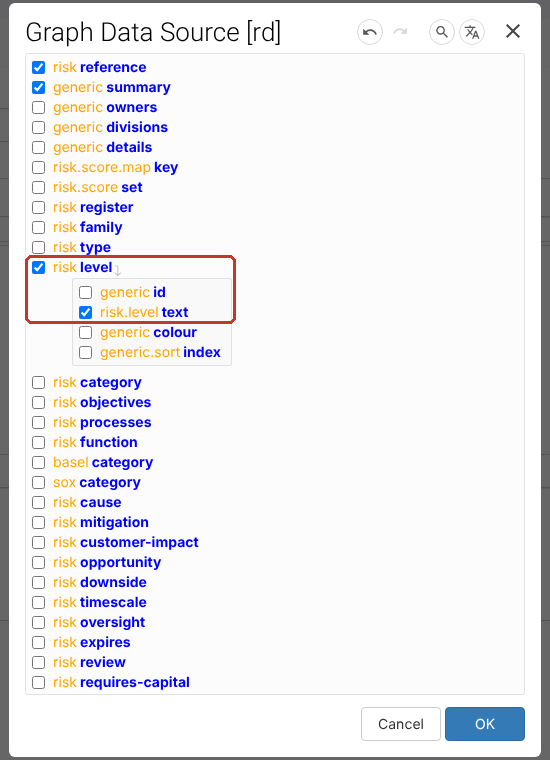
A filter can only use fields the data source pulls. Open the data source with Graph… and tick every field you want to filter on, as here for Level and its text. For scores, tick the whole score set you’re filtering, for example the residual score with its impact, likelihood and score values.
Data Source Functions #
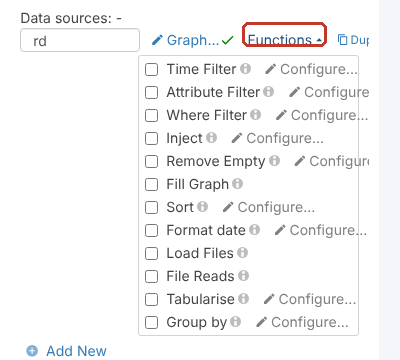
Click Functions next to the data source. Where Filter, Attribute Filter and Time Filter limit the data; tick one and click its Configure….
Data Source Filter Template #
Tick Data source filter template to open a box where the filter is written as code, using the same markers as the template. The code compares a value from the data source with what you want, for example only risks whose residual score (risk.residual/score and its product) is 8 or more.
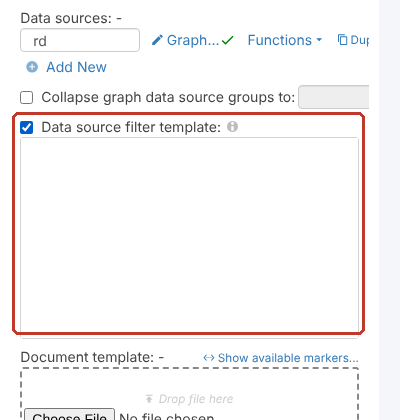
The code starts with the data source name followed by square brackets. For example, the shipped Risks By Register (Overview) report has data[$ << :generic.sort/index] in its filter template.
Note: The filter code must match your data source exactly. If you’d like a coded filter written or checked, contact Symbiant Support with the report name and the rule you need.
Click Save at the top right when you’re done, then generate the report to check the results.


