
 Doc Summary

This article shows you how to load translations from a CSV file into a translation pack.
Applies to: System administrators (
adminrole) · Module: Set up > Translators
Before you start #
Critical: Importing overwrites any translation that already exists for each label in the file.
- Import only a file that came from Export… or Template… on the Translators screen. See Exporting a Translation Pack and Mass Editing a Newly Created Translation Pack.
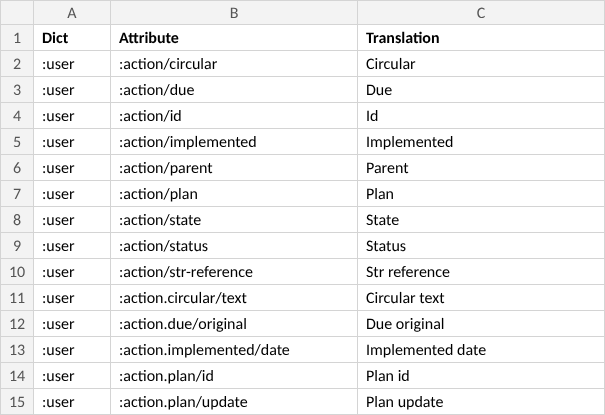
- Make no layout changes to the file: exactly three columns, Dict, Attribute and Translation, with the same names and in the same order.
Accessing the Translators #
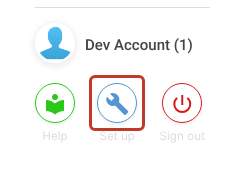
- Click the Set up spanner at the bottom left of the screen.
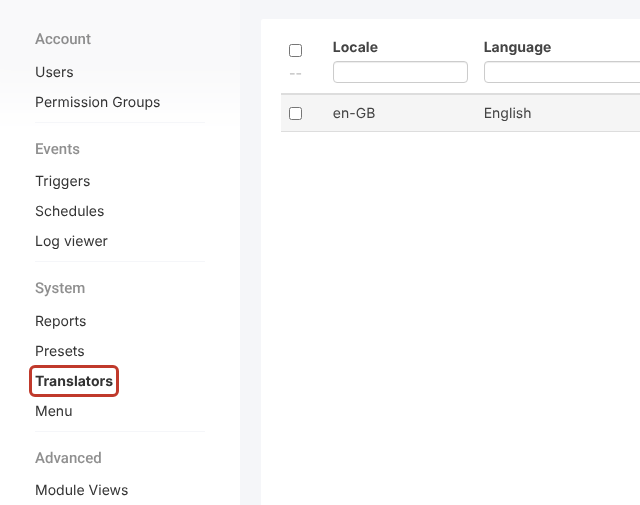
- In the Set up menu, click Translators.
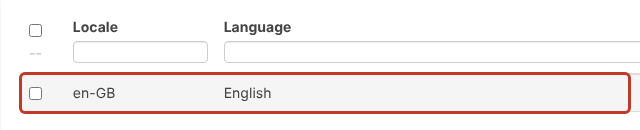
- Click the translation pack you want to import into.
Importing the File #
- In the pack’s Details, under Import, click Choose File.

- Select your CSV file. The import starts straight away and a success message appears in the notifications when it finishes.
- Check a few labels on the User Translations and System Translations tabs.
Note: The import isn’t final until you save. Click Cancel instead if something looks wrong.
Saving the Translation Pack #
- Click Save at the top right.

- Sign out and sign back in to see the imported labels.


