
 Doc Summary

Multi-factor authentication (MFA) adds a second check when you sign in: as well as your password, you enter a six-digit code from an authenticator app on your phone. Symbiant uses time-based one-time passwords (TOTP), which work with Google Authenticator, Microsoft Authenticator and similar apps.
Note: You set up MFA for your own account. Sites that use single sign-on (SAML) can’t use Symbiant’s MFA, because sign-in is handled by your company’s identity provider.
Setting Up MFA #
- Install an authenticator app on your phone, such as Google Authenticator.
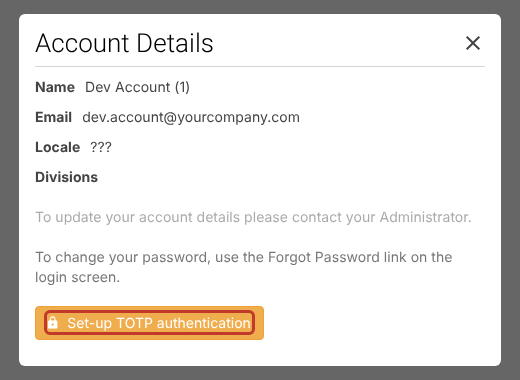
- In Symbiant, click your name at the bottom left. Your Account Details open.
- Click Set-up TOTP authentication.
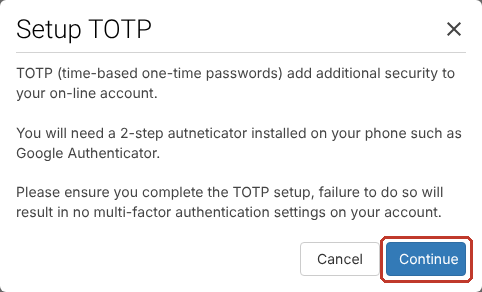
- Read the Setup TOTP message and click Continue. Once you continue, finish the set-up: if you stop part-way, MFA won’t be turned on.
- Symbiant shows a QR code. A setup key is shown below it if you’d rather type it in.

- In the authenticator app, tap +, then Scan a QR code (or Enter a setup key). If you type the key, name the account Symbiant and make sure the type is Time based.

- The app shows a six-digit code for Symbiant. Type it into Symbiant to confirm.

- A message confirms MFA is set up.

Note: The screenshots from step 5 onwards are from an earlier version of Symbiant. If you have problems, raise a support ticket.
Signing In with MFA #
Each time you sign in, after your email and password, Symbiant asks for a code. Open the authenticator app, enter the current code for Symbiant, and continue as normal.

Tip: Codes change every 30 seconds. If one is rejected, wait for the next code and try again. Check your phone’s time is set automatically.
Turning Off MFA #
- Click your name at the bottom left.
- Click Disable TOTP authentication.

- Confirm with Yes, Disable!.

MFA is now off for your account.
Important: If you lose your phone, you won’t be able to get codes. Raise a support ticket and we’ll help you get back in.


