
 Doc Summary

How to create a new record as a copy of an existing one, so you don’t have to fill in the same details again.
Applies to: Users who can create records in the module · Module: All
Duplicating from the Dashboard #
- Open the module and find the record you want to copy.
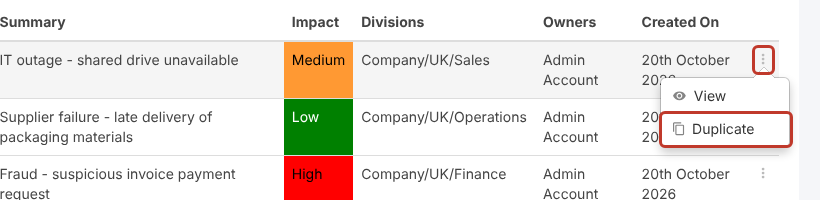
- Click the three dots (⋮) at the end of its row.
- Select Duplicate.
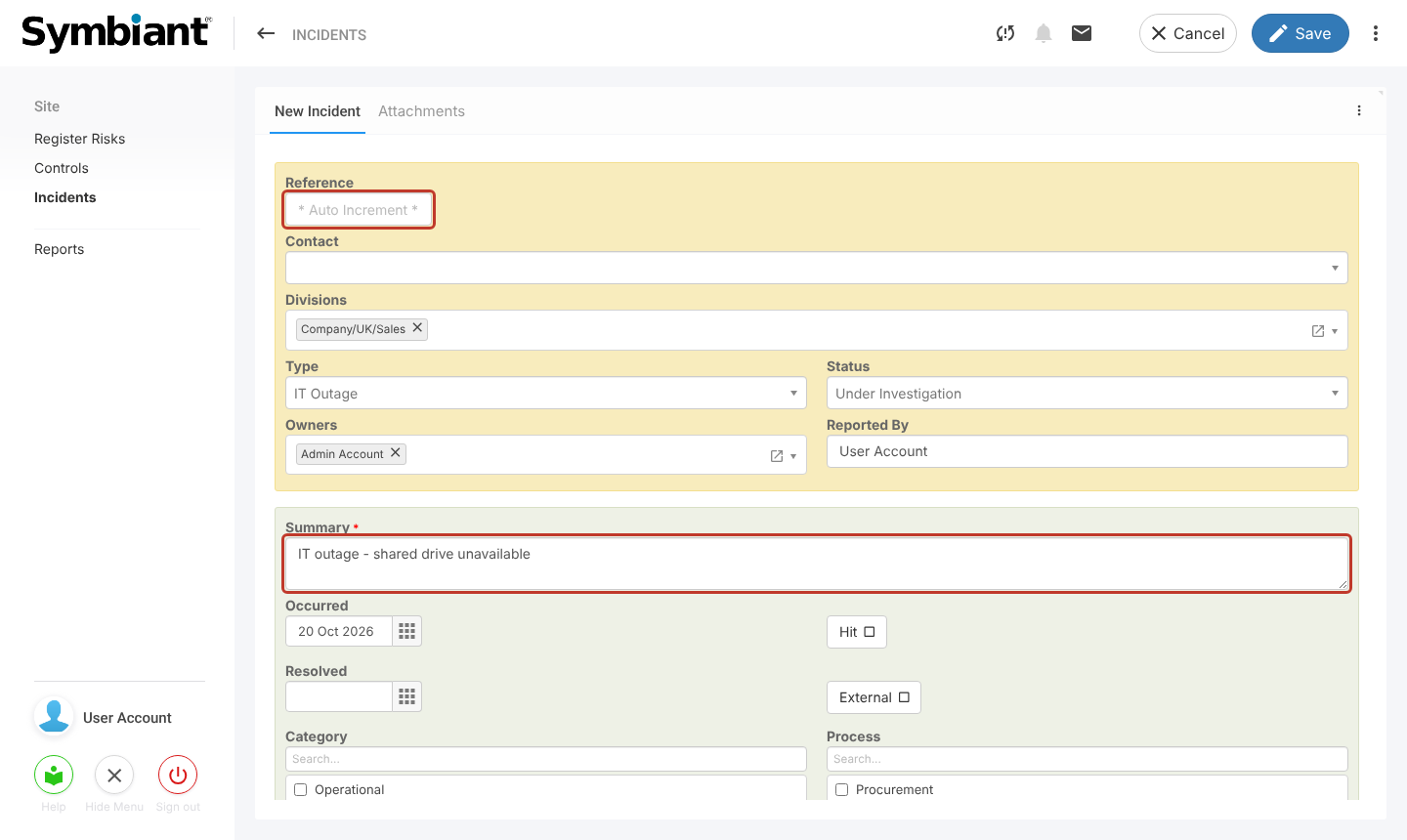
A new record form opens with the fields already filled in from the original. The Reference is blank (Auto Increment), so the copy gets the next number when you save.
Changing and Saving the Copy #
- Change anything that should be different, for example the Summary.
- Click Save.
The copy is saved as a separate record with its own reference. The original is not changed.
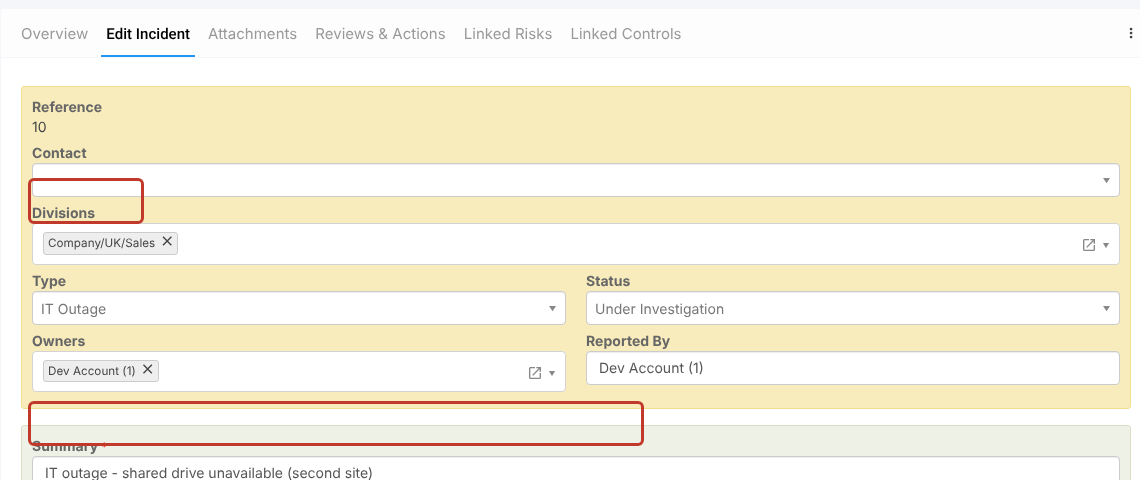
Note: Duplicating copies the fields on the form. Before relying on the copy, check its other tabs (attachments, reviews and actions, linked records), as these may not be carried across.
Tip: Duplicating is also how an administrator changes a record’s reference, because references can’t be edited. See Changing a Record Reference.