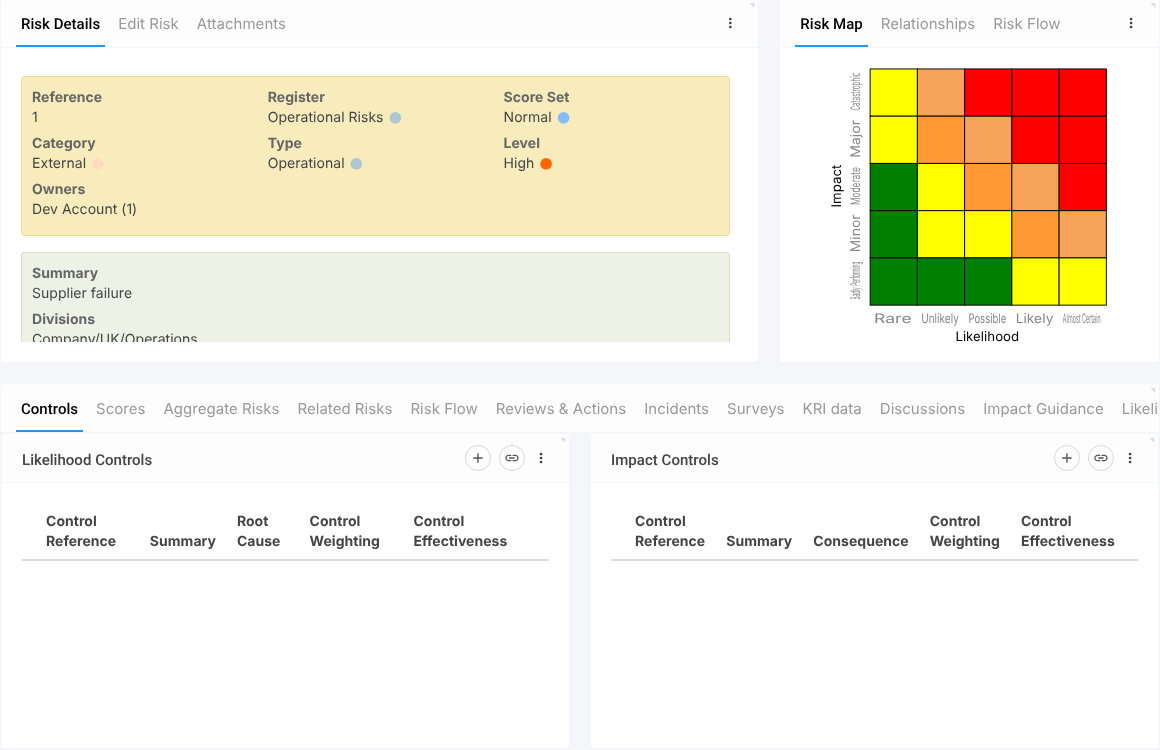
 Doc Summary

How to add a new risk to a Risk Register.
Applies to: Users with a risk admin, manager or record owner role · Module: Register Risks
Before you start #
At least one register must exist, otherwise the risk won’t appear in the Risk Registers dashboard. See Creating a Risk Register.
Opening a New Risk #
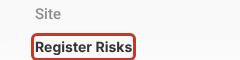
Select Register Risks in the left-hand menu.
Select the + icon at the top right.

Filling in the Risk Details #
The Reference is added automatically when you save. Choose the Register and Score Set (both required), then the Category, Type and Level. Owners defaults to you; add or remove owners as needed.

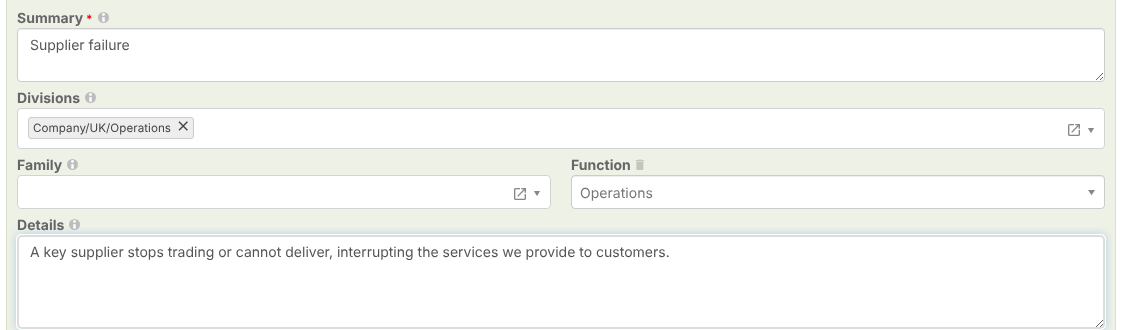
Enter a short Summary (required), for example “Supplier failure”, and a fuller description in Details. Pick a Function if your organisation uses them.
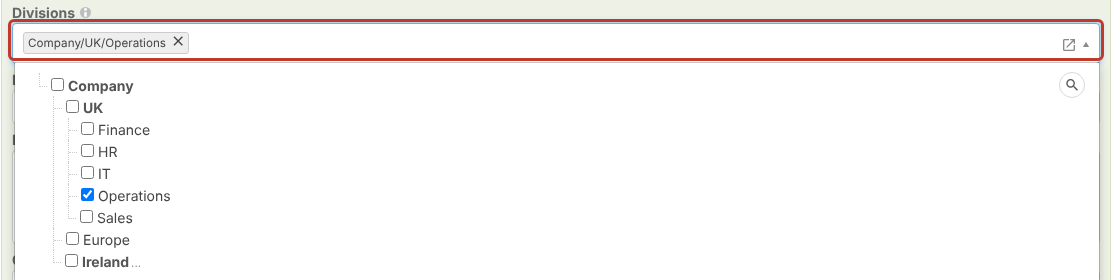
Select the Divisions the risk belongs to. Open the list, expand the tree and tick the division, for example Company/UK/Operations. Users with divisional roles only see risks in their own divisions.
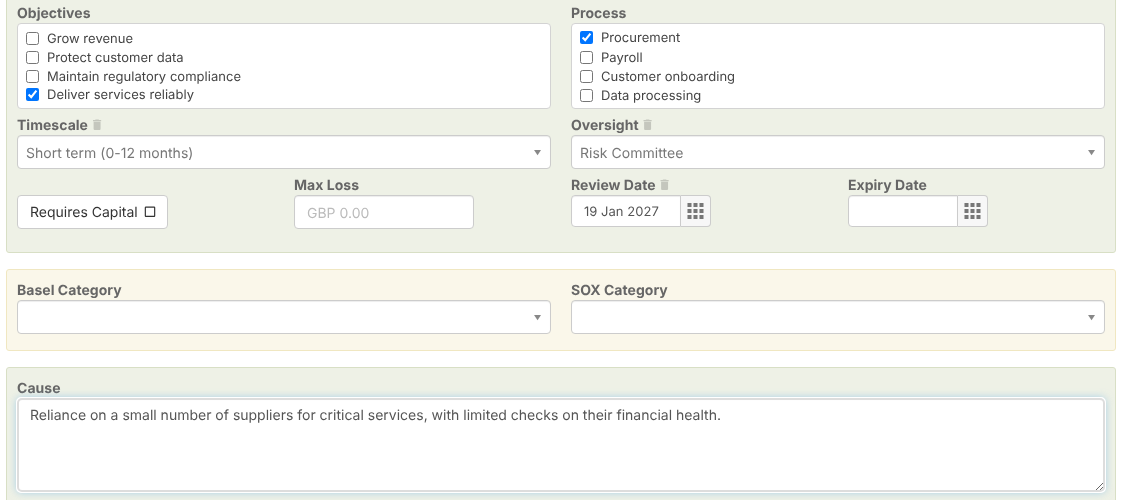
Fill in any other fields your organisation uses, such as Objectives, Process, Timescale, Oversight, Review Date, Basel Category, SOX Category and Cause.
Note: Fields with a red asterisk are required. If you save without them, the field is highlighted and a “Validation Failure” message appears under the bell icon.
Saving the Risk #
Select Save at the top right.

The risk opens in its details view with its new reference. From here you can score it, link controls and use the other tabs.