
 Doc Summary

An introduction to the BCP (Business Continuity Planning) module: what a BCP record holds and how the dashboard is laid out.
Applies to: all users with a BCP role. Module: BCP.
What the BCP Module Is For #
The BCP module records the disruptive scenarios you plan for (for example loss of a building or a key supplier) and the incidents that actually happen. Each record says who is responsible, which parts of the business are impacted, how quickly the business must recover and which resources it depends on.
- BCP records: one per scenario or incident.
- BCP Resources: the people, premises, systems and suppliers the business depends on, with their own impacts and action plans (see BCP Resources Overview).
- Actions: actions raised on BCP resources appear in the Actions module alongside actions from other modules.
The BCP Dashboard #
Select BCP in the left-hand menu. The dashboard shows four charts across the top: Type Breakdown, Impacts Breakdown, Divisions Responsible and Divisions Impacted. Below them, the BCP Incidents/Scenarios grid lists every record you can see, with its reference, type, summary, priority, divisions and owners.
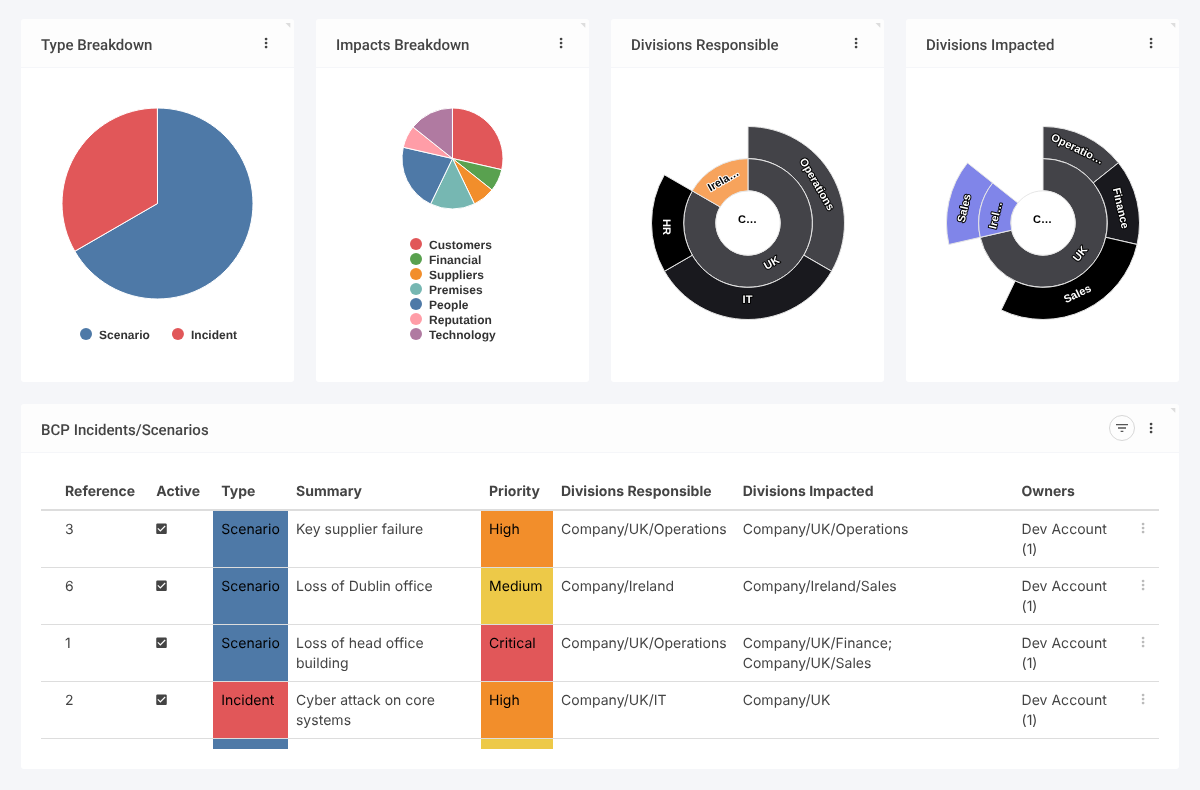
Click a chart segment to filter the grid, or use the filter icon on the grid. Click a row to open the record.
Inside a BCP Record #
A saved record opens on its Overview tab. The other tabs are:
- Edit BCP: change the record details.
- Resources: the BCP resources this scenario or incident depends on.
- BCP Assessment: answer a questionnaire about the plan.
- Attachments: plans, call trees and other files.
BCP Drop-Down Lists #
Under BCP in the menu, admins see the lists that feed the form: Type, Priority, Impacts and Timescale. To change them, see Managing Drop-Downs, Multi-Selects, and Multi-Levels.
Note: Menu names, tabs and lists can be renamed for your site, so your screens may differ slightly from these examples.