
 Doc Summary

How revisions work in Document Management and how to add a new version of a document.
Applies to: document owners and users with a Document Management role that can edit records · Module: Document Management
What a Revision Is #
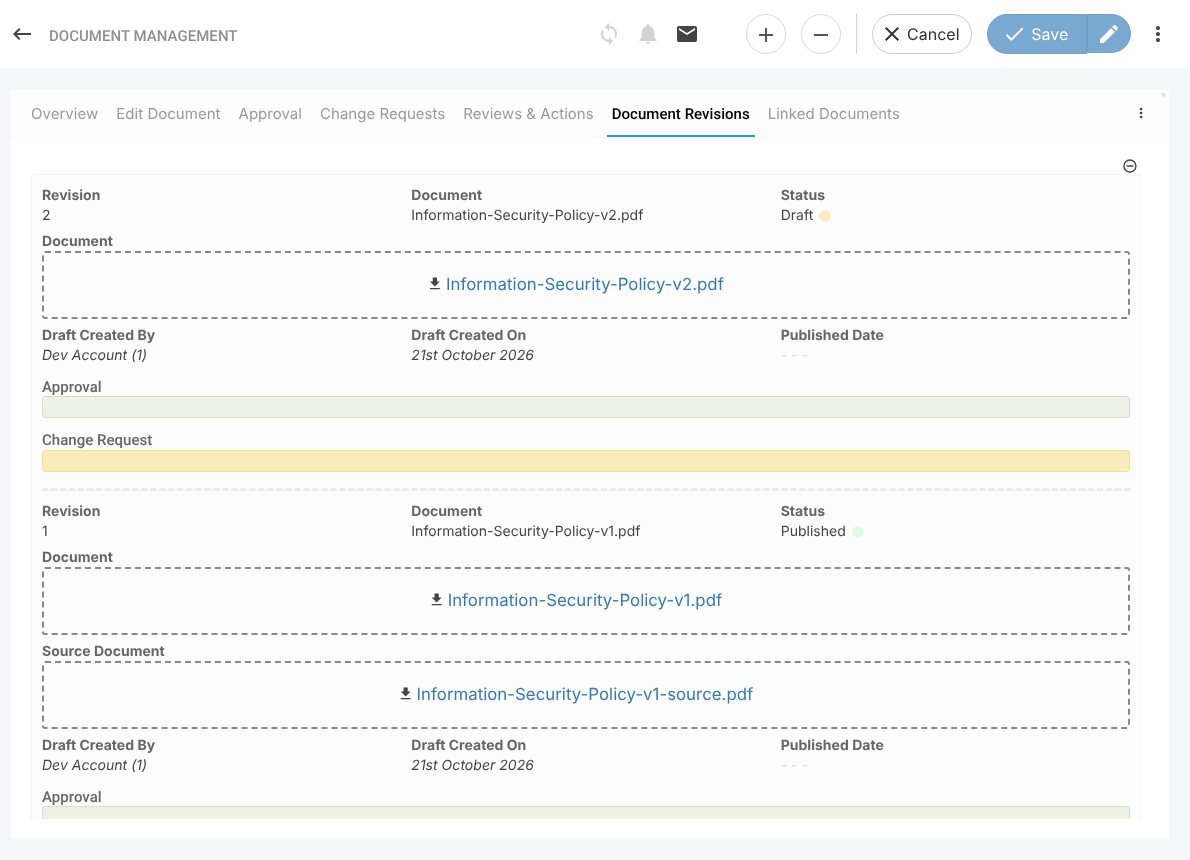
Each document record holds one or more revisions. A revision is one version of the file, with its own number, status, optional source file, approvals and change requests. The record keeps every revision, so you always have a full history of who drafted, approved and published each version.
Viewing the Revision History #
- Open the document from Document Management and click the Document Revisions tab.
- Each revision is listed newest first, with its Revision number, Status, file, Draft Created By, Draft Created On, Published Date, and any Approval and Change Request entries.
Adding a New Revision #
- Click the Edit Document tab and scroll to Document Revision.
- Click Add Document Revision. The Revision number is filled in with the next number; you can change it if your numbering differs.
- Enter the Revision Reason, describing every change made in this version.
- Drop the new file into the Document box and choose whether to Include Source File?.
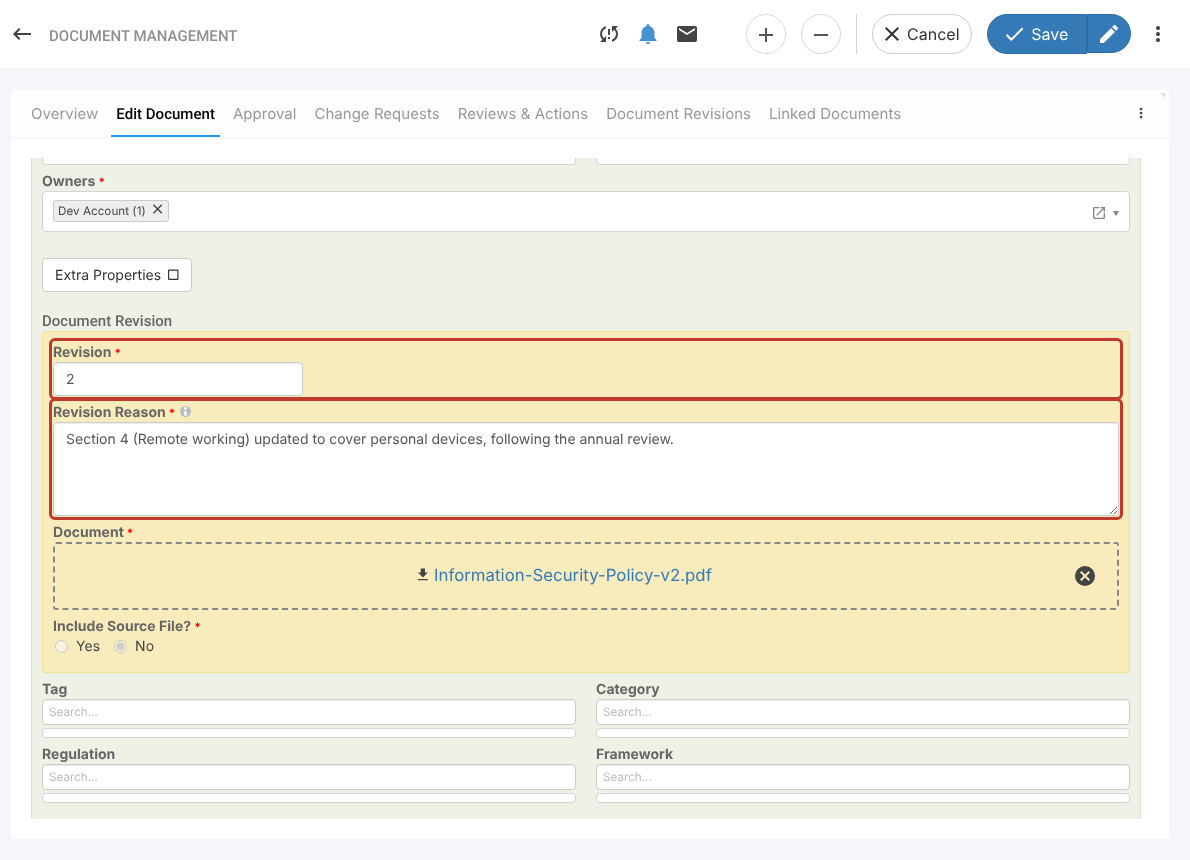
- Click Save (or the pencil icon to Save and edit). The new revision starts in Draft.
Tip: Users who can only see published documents keep getting the latest published revision until the new one is approved and published, so you can prepare a new version without disrupting anyone.
Next Steps #
- Send the new revision for approval on the Approval tab. See Document Approval Process.