
 Doc Summary

What each button at the top of an open record does, and how to check or reverse your changes before you save.
Applies to: All users who can edit records · Module: All
The Record Buttons #
When a record is open, these buttons appear at the top right:

- Cancel: closes the record without saving. If you’ve changed anything, Symbiant asks Cancel changes? first; click Yes, cancel changes to discard them or No, don’t cancel to go back.
- Save (Save and close): saves your changes and returns you to the module’s dashboard. On a brand-new record, Save stores the record and opens it so you can see its new reference.
- Pencil (Save and edit): saves your changes and keeps the record open, so you can carry on working on other tabs.
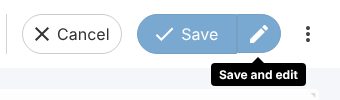
Note: Save and the pencil are pale until you change something. A Synchronisation successful! message confirms each save.
Checking What You’ve Changed #
While you have unsaved changes, the Sync icon (circular arrows) shows that your screen is not synced with the server. Click it for these options:
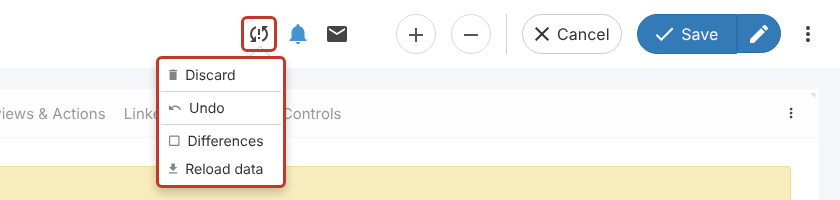
- Discard: throws away all your unsaved changes.
- Undo: reverses your last change. Click again to step further back.
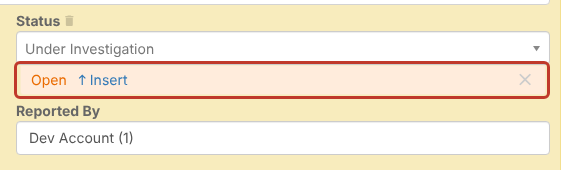
- Differences: shows, under each changed field, the value currently saved, with an Insert option to put it back.
- Reload data: loads the latest saved version from the server, for example after a Data Conflict.
When a Save Doesn’t Work #
- Invalid! Please review the highlighted problems. A required field is empty; fill in the highlighted fields. See System Error Messages.
- Data Conflict! Someone else changed the same field; see What Does “Data Conflict!” Mean?.
Critical: Changes are only stored when you save. If you leave a record without saving, or your session times out, unsaved changes are lost.