
 Doc Summary

How to issue and answer a questionnaire on a BCP record using the BCP Assessment tab.
Applies to: users who can edit BCP records, and assessment assignees. Module: BCP (uses the Questionnaires engine).
Before You Start #
A suitable questionnaire must exist in the Questionnaires module. See Survey & Questionnaire Basics for how questionnaires are built.
Setting Up the Assessment #
- Open the BCP record and select the BCP Assessment tab.
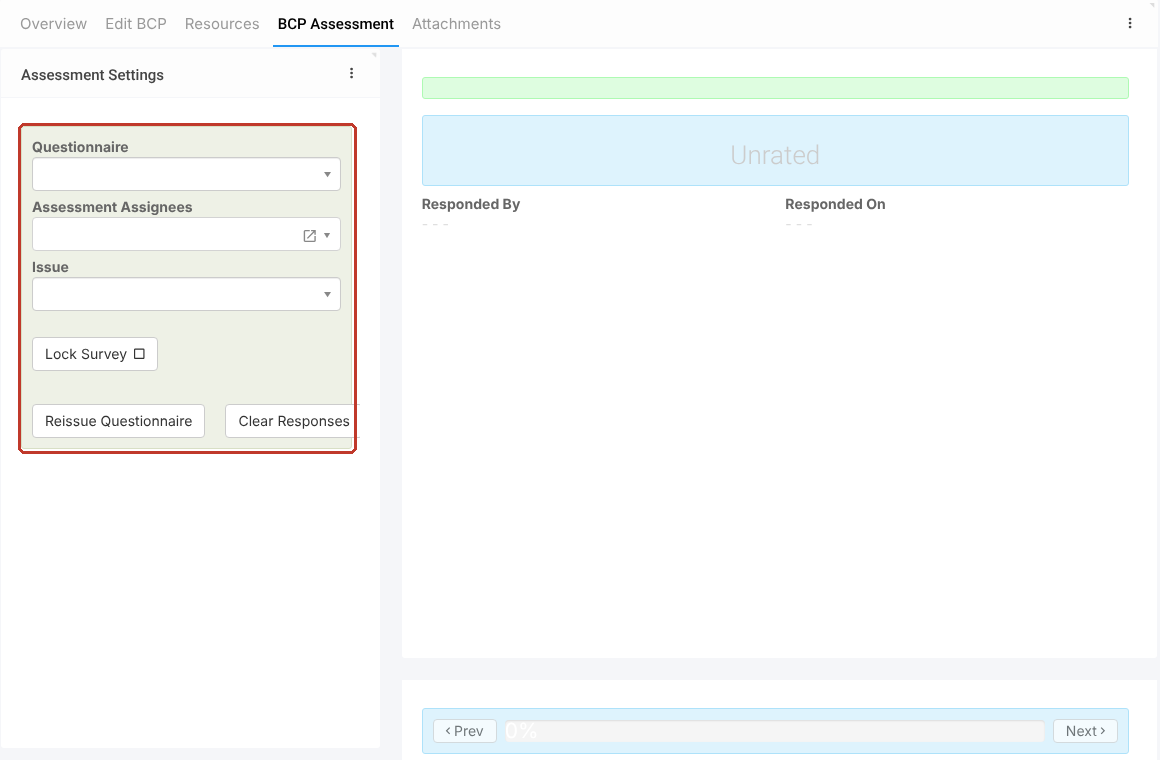
- Under Assessment Settings, choose the Questionnaire.
- Pick the Assessment Assignees who will answer it.
- If the questions do not appear straight away, click Save and Edit (the pencil next to Save) to save and stay on the record.
Answering the Questions #
- The questions appear on the right. Answer each one and move between pages with Prev and Next; the progress bar shows how far you are.
- The rating at the top updates as you answer.
- Click Save when finished.
Other Assessment Buttons #
- Lock Survey stops further changes to the answers.
- Reissue Questionnaire issues a fresh copy, for example after the questionnaire has been updated.
- Clear Responses removes the answers so the assessment can be started again.
Critical: Clear Responses and Reissue Questionnaire remove the existing answers. Use History if you need to see earlier answers.