
 Doc Summary

Observations are points an auditor notes during an audit that are worth raising with the area being audited, but are not serious enough to become an audit issue. Each observation is recorded on its working paper, and the person responsible records whether they agree and what they have done about it.
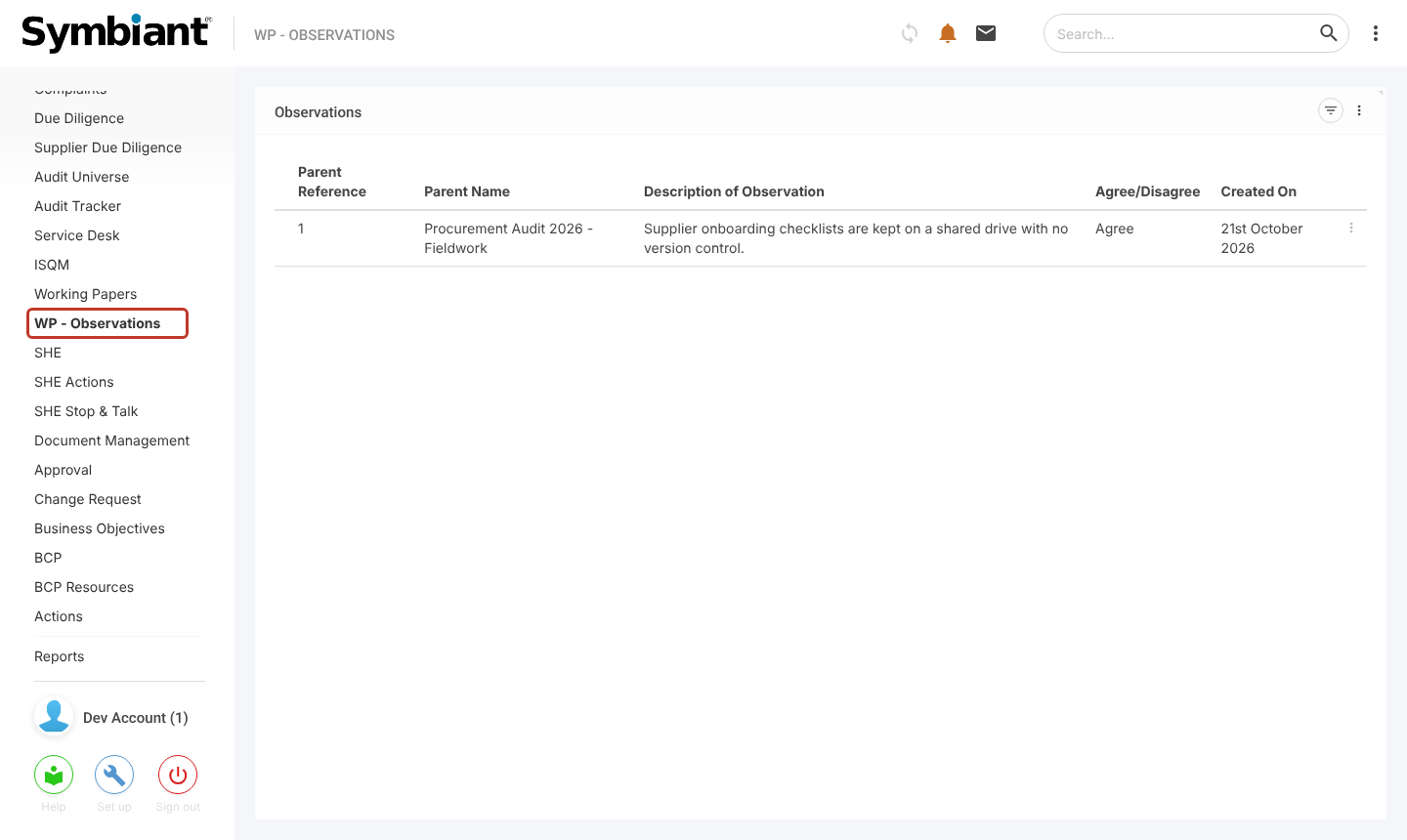
The WP – Observations page lists every observation across all working papers in one place.
Note: Applies to: auditors who can edit working papers, and the users observations are assigned to.
Viewing All Observations #
- In the left menu, select WP – Observations. The list shows each observation with the working paper it belongs to, whether it was agreed, and when it was raised.
Adding an Observation #
- Open the working paper and select the Observations tab, then click Add WP – Observations.

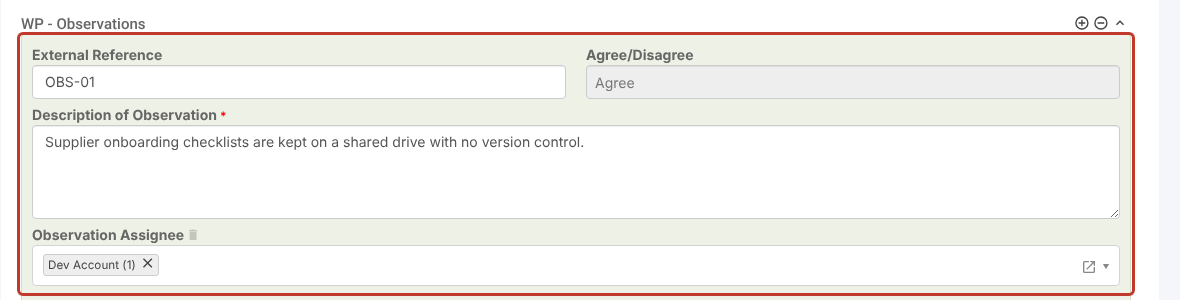
- Enter an External Reference if you use one, such as the reference in your audit report.
- Enter the Description of Observation. This is required.
- Choose the Observation Assignee: the person who needs to respond to it.
Recording the Response #
- Choose Agree or Disagree under Agree/Disagree.
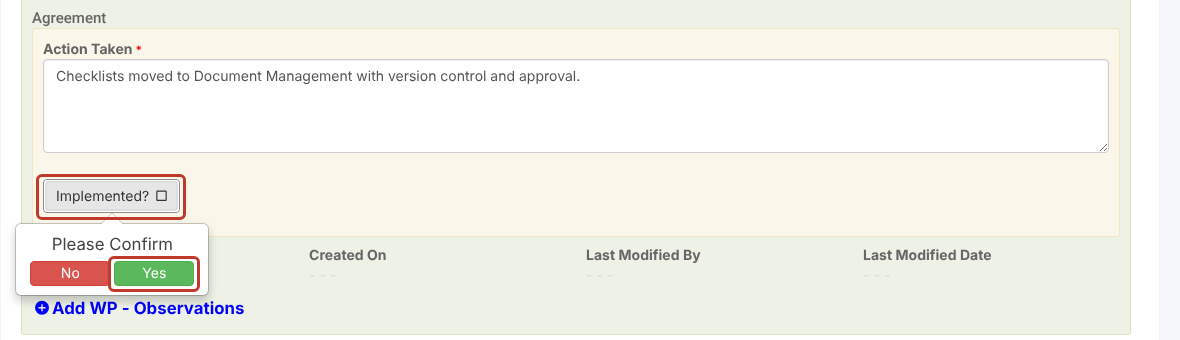
- If the observation is agreed, the Agreement section appears. Describe the Action Taken. This is required.
- When the action is complete, click Implemented? and confirm with Yes.
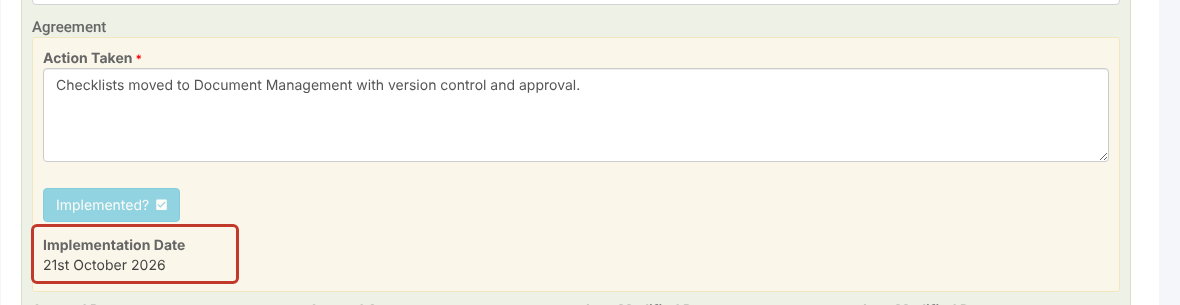
- The Implementation Date is filled in for you.
Saving #
- Click Save, or the pencil icon beside it to save and stay on the working paper.
The observation now appears on the WP – Observations page.

Tip: To export observations, use the Working Papers (Observations) report. See Generating a Working Paper Report.