 Doc Summary

Presets let you save a filter or a dashboard layout and load it again later, so you don’t have to set it up each time.
Filter Presets and Layout Presets #
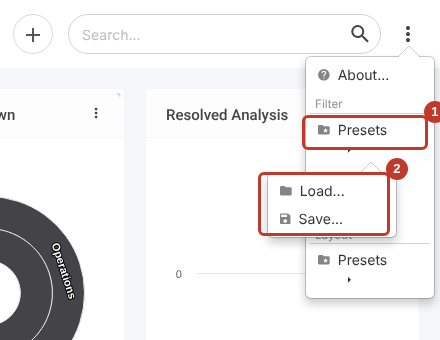
There are two kinds of preset on a module’s dashboard, both under the three dots (⋮) at the top right:
| Preset | Saves | Menu |
|---|---|---|
| Filter preset | The filter you built with the Filter Editor | Filter > Presets |
| Layout preset | How the charts and grids are arranged | Layout > Presets |
Note: What you can save depends on your role. Most users can save and load filter presets, but can only load layout presets that an administrator has set up. If you don’t see Save… under Layout > Presets, ask your system administrator.
Reports have their own presets on each report’s three dots menu. See Filtering on Reports.
Saving a Preset #
- Set up the filter or layout you want to keep.
- Click the three dots (⋮) at the top right, then Presets under Filter or Layout (1), then Save… (2).
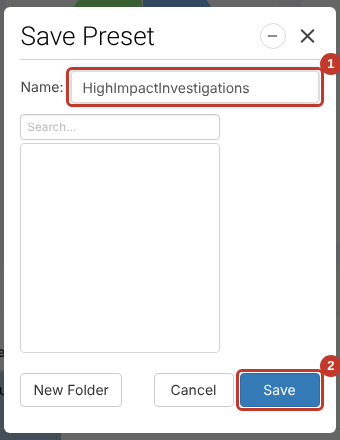
- Enter a Name (1). Names can’t contain spaces, so use a name such as HighImpactInvestigations.
- Optionally click New Folder to group your presets.
- Click Save (2).
Loading a Preset #
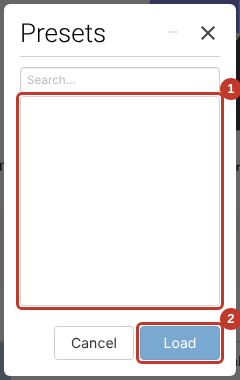
- Click the three dots (⋮), then Presets under Filter or Layout, then Load….
- Select the preset (1) and click Load (2).
Note: A loaded preset stays in place until you leave the module. Coming back to the module shows the default view again.