
 Doc Summary

Assessments let you attach a survey to a working paper, for example a control self-assessment for the area being audited. The survey’s questions are answered from inside the working paper, and its rating is shown on the Assessments tab.
Note: Applies to: auditors who can edit the working paper. Surveys are based on questionnaires set up in the Questionnaires module.
Opening the Assessments #
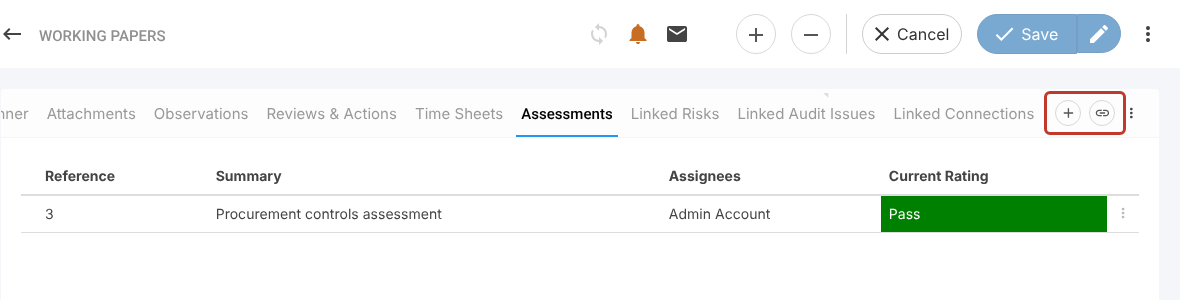
- Open the working paper and select the Assessments tab. If you cannot see the icons at the end of the tabs, scroll the row of tabs to the right.
- Click + to create a new survey for this working paper, or the link icon to attach a survey that already exists.
Creating a New Assessment #
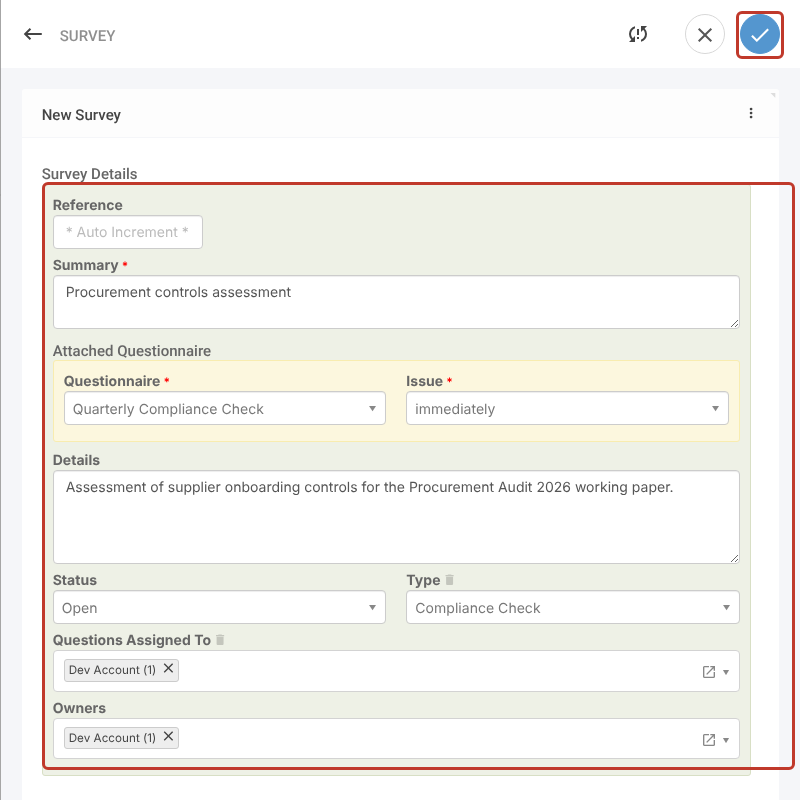
- After clicking +, enter a Summary. This is required.
- Choose the Questionnaire to use, and when to Issue it: immediately or scheduled.
- Add any Details, and set the Status and Type.
- Choose who the questions are assigned to under Questions Assigned To, and check the Owners.
- Click the blue tick at the top right.
Linking an Existing Assessment #
- After clicking the link icon, click the survey you want in the list, then click the blue tick at the top right.
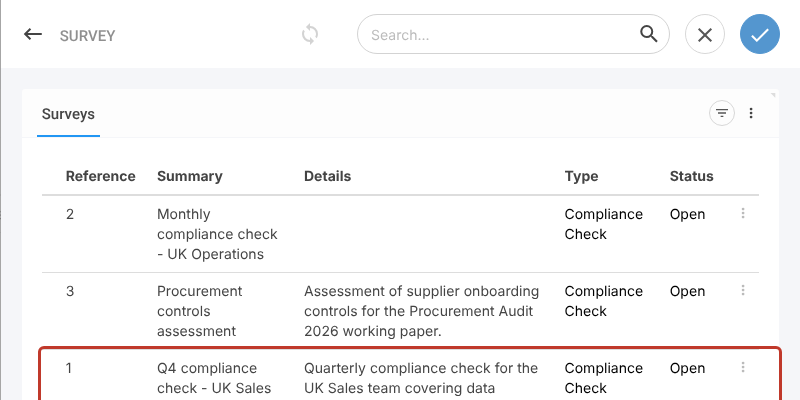
Either way, the assessment is listed on the tab alongside any others.

- Click Save, or the pencil icon to save and stay on the working paper.
Answering an Assessment #
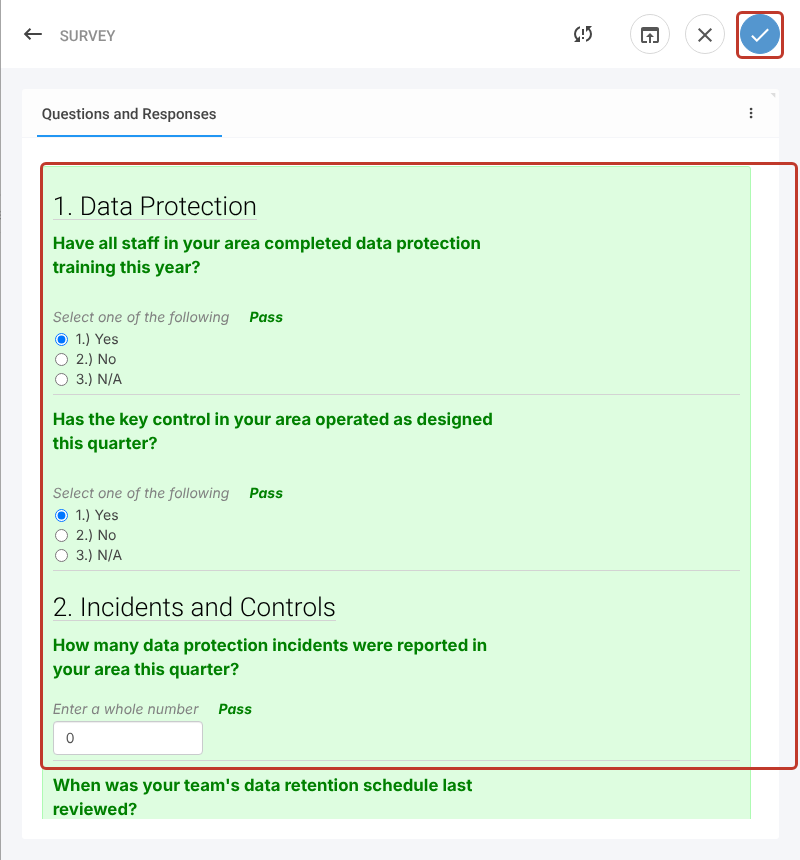
- Click the assessment in the list to open its questions.
- Answer each question. A result such as Pass appears beside each answer.
- Click the blue tick at the top right to save your responses.
The Current Rating column now shows the assessment’s overall result.



