
 Doc Summary

Options are the answer types a question uses (a text box, a list of choices, a number, a date and so on). You build options first, then link them to questions.
Applies to: users with admin rights on Questionnaires · Module: Questionnaires > Questions > Options
Accessing Options #
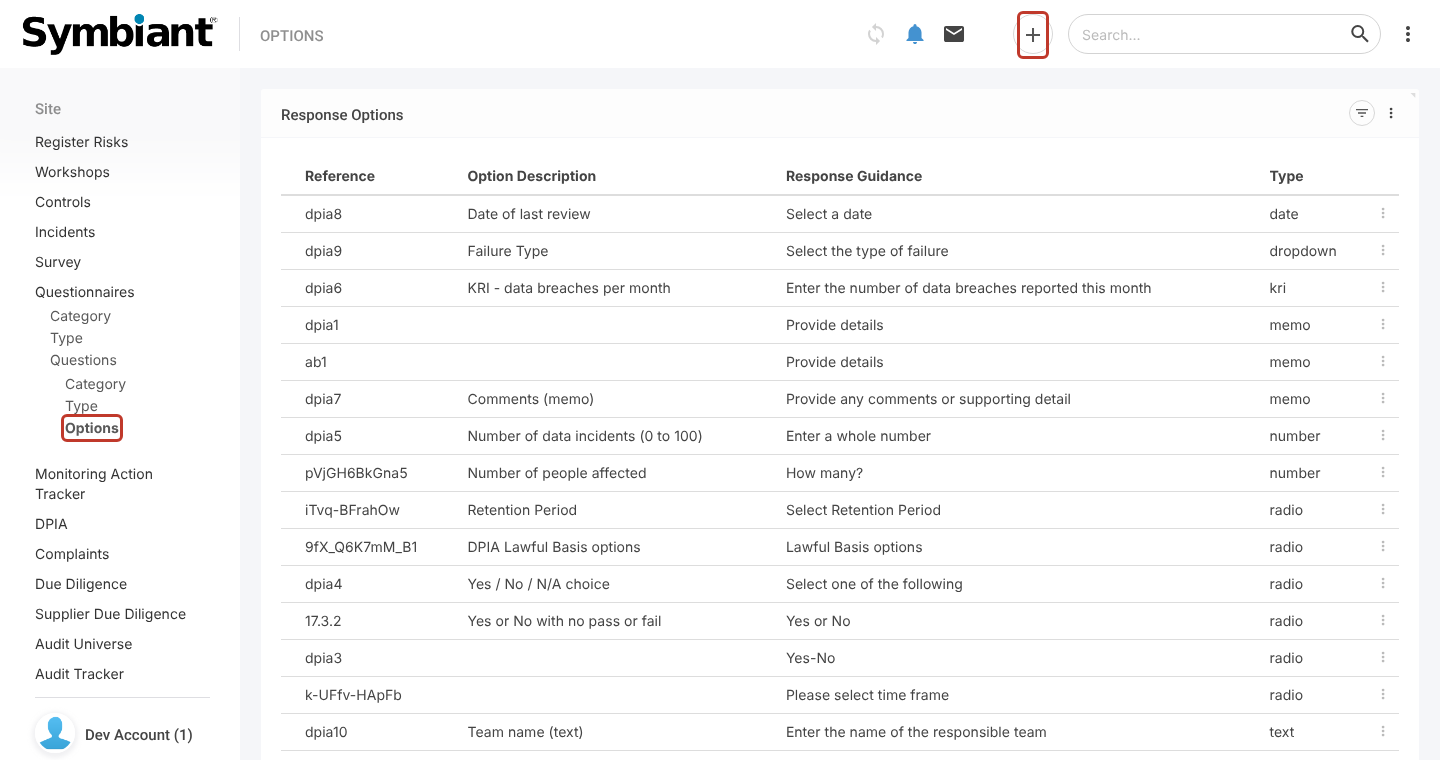
- In the left menu, click Questionnaires, then Questions, then Options.
- Click the + icon at the top right.
Choosing the Option Type #
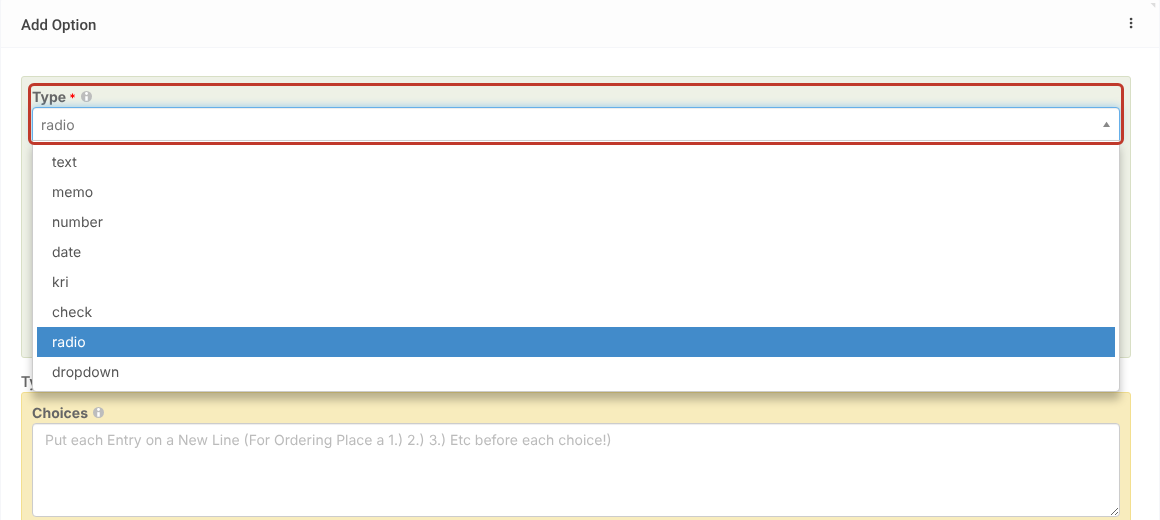
- Select the Type. The type decides how the answer is entered:
| Type | What the respondent sees |
|---|---|
| text | A single-line text box |
| memo | A larger text box for comments |
| number | A number box, with optional decimal places and minimum and maximum values |
| date | A date picker |
| kri | A number scored against Red, Amber and Green thresholds |
| check | A tick box |
| radio | A list of choices where one can be picked |
| dropdown | A dropdown list where one choice can be picked |
| multiselect | A list where several choices can be picked |
| file | A file upload |
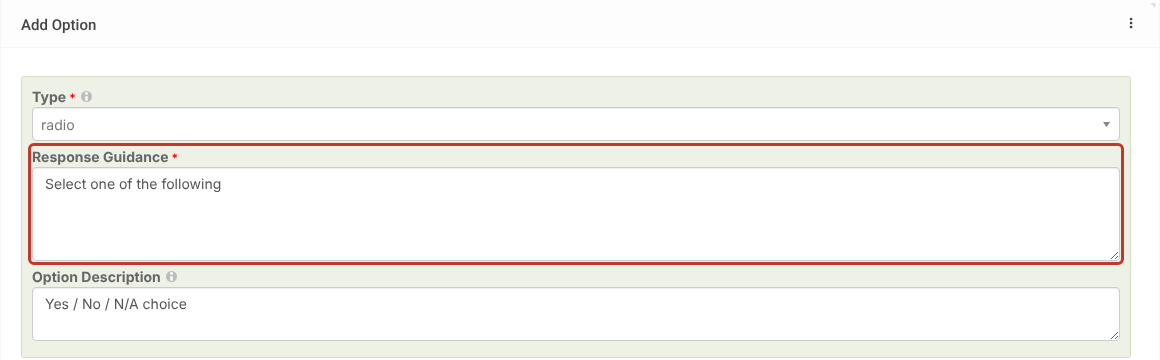
- Enter the Response Guidance. This text is shown under the question and tells the respondent how to answer, for example “Select one of the following” or “Enter a whole number”.
- Optionally, enter an Option Description. Respondents don’t see it; it helps you find the option when linking it to questions.
Number Options #
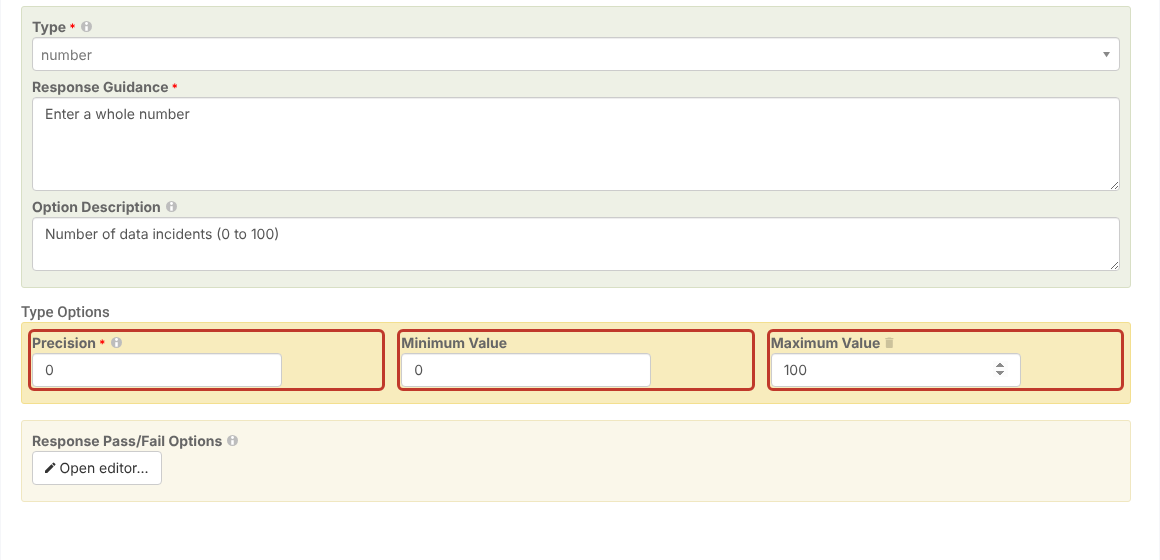
Selecting number shows extra fields under Type Options:
- Precision: the number of decimal places allowed (0 means whole numbers only).
- Minimum Value and Maximum Value: the lowest and highest answers allowed.
KRI Options #
Selecting kri shows a Threshold bar as well as Precision, Minimum Value and Maximum Value. Enter the two values where the colour changes. In the example below, an answer below 5 is Green, 5 to 9 is Amber and 10 or more is Red.
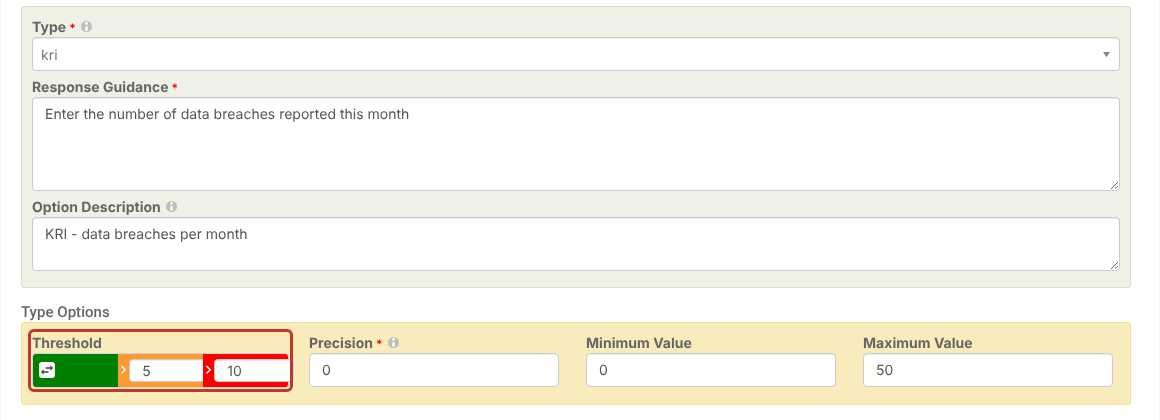
Click the arrows icon at the left of the bar (Swap Red and Green) to choose whether low or high values are good.
Radio, Dropdown and Multiselect Options #
Selecting radio, dropdown or multiselect shows a Choices box. Enter each choice on a new line.
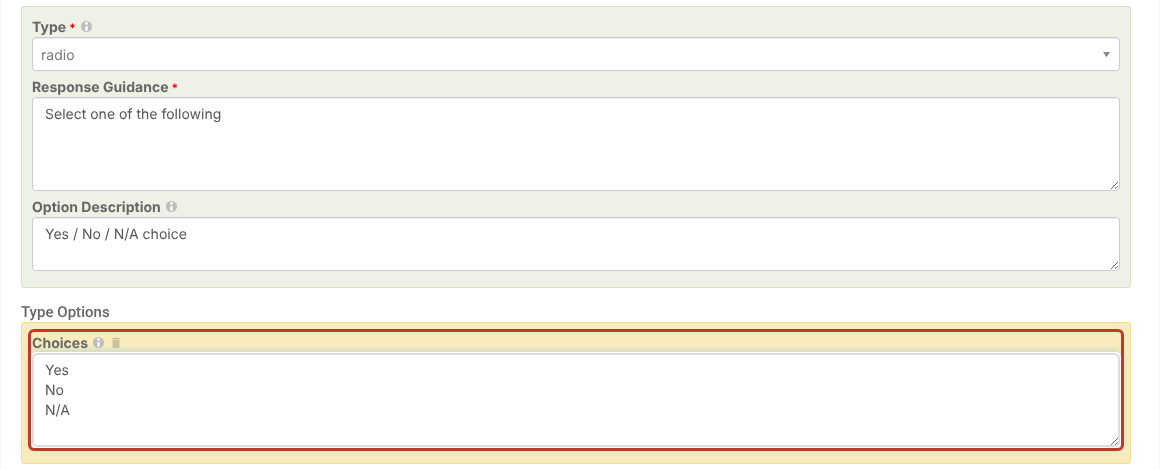
Tip: Choices are sorted alphabetically. To keep them in your own order, start each line with a number, for example 1.) Yes, 2.) No, 3.) N/A. The number is shown to respondents as part of the choice.
Text Options #
Selecting text shows a Regex box, where you can enter a regular expression the answer must match. Leave it blank to accept any text.
Adding Pass and Fail Criteria #
Every option has a Response Pass/Fail Options section with an Open editor… button. Use it to say which answers pass or fail. See Adding Option Pass and Fail Criteria.
Saving the Option #
Click Save at the top right. On a new option you stay on the record once it is saved. On an existing option, Save saves and closes, and the pencil icon next to it (Save and edit) saves and keeps the record open.



