
 Doc Summary

How to test a control with a questionnaire on its Control Assessment tab, answer it, and read the rating. Requires the Controls and Survey modules.
Applies to: Users who can edit the control · Module: Controls
Opening the Control Assessment #
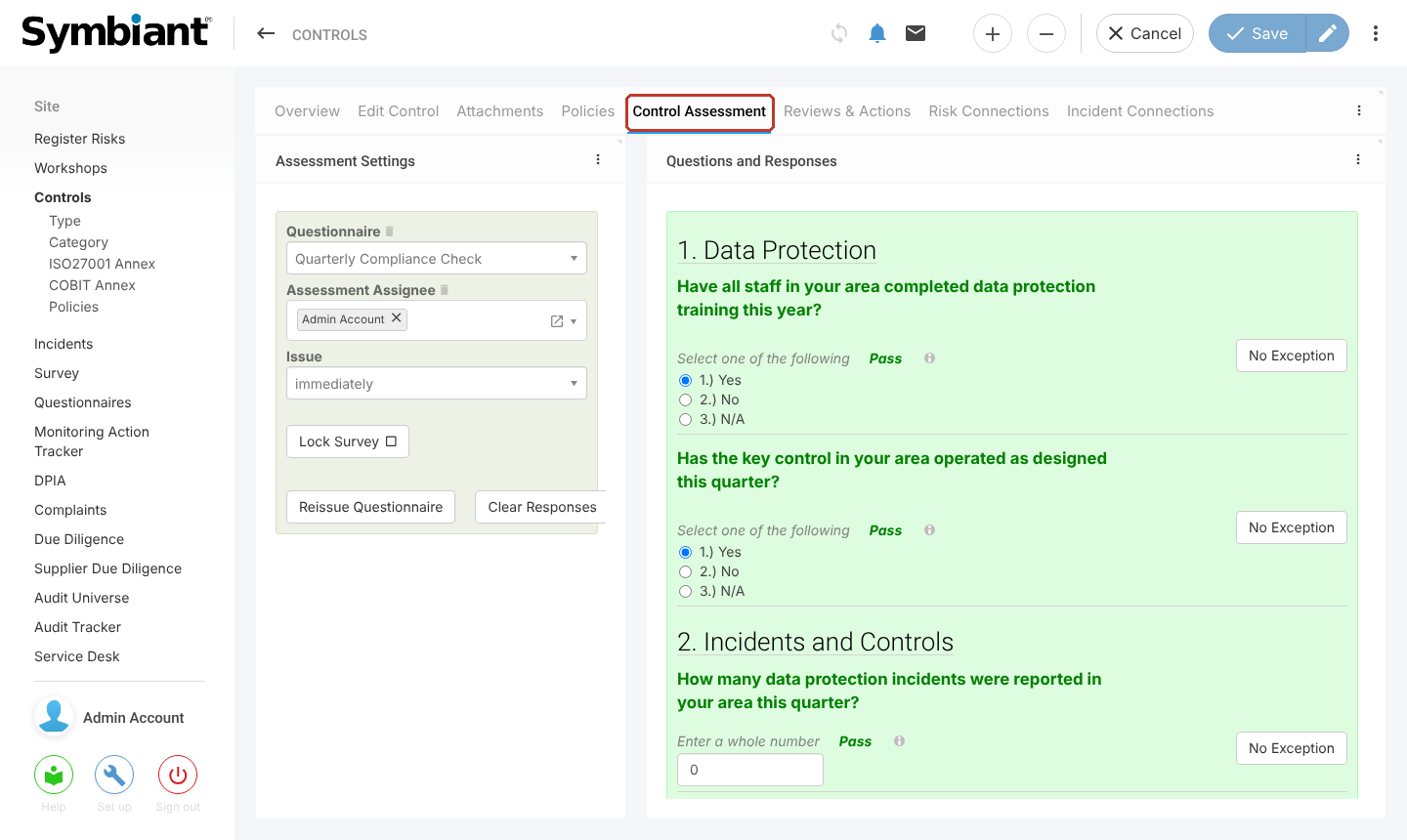
Select Controls in the left-hand menu, open the control and select the Control Assessment tab.
Setting Up the Assessment #
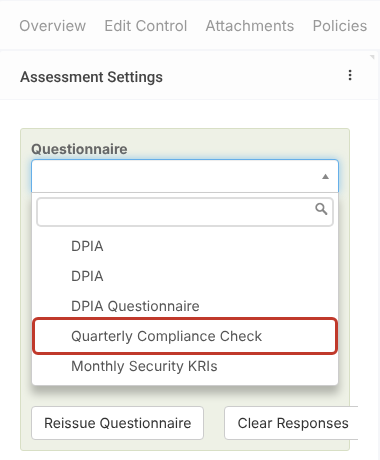
In Assessment Settings, select the Questionnaire to test the control with. The list shows the questionnaires built in Questionnaires.
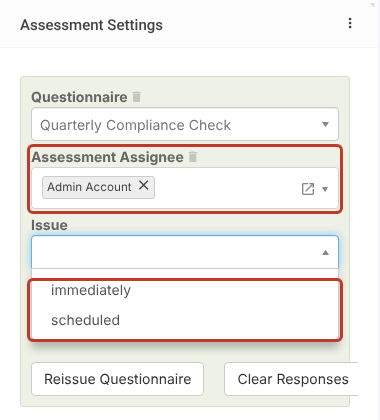
Assessment Assignee is optional: pick the person who should answer. If you leave it blank, the control owner, a manager or an admin can answer. Then choose when to Issue it: immediately, or scheduled to send it on a repeating schedule (see Scheduling a Survey).
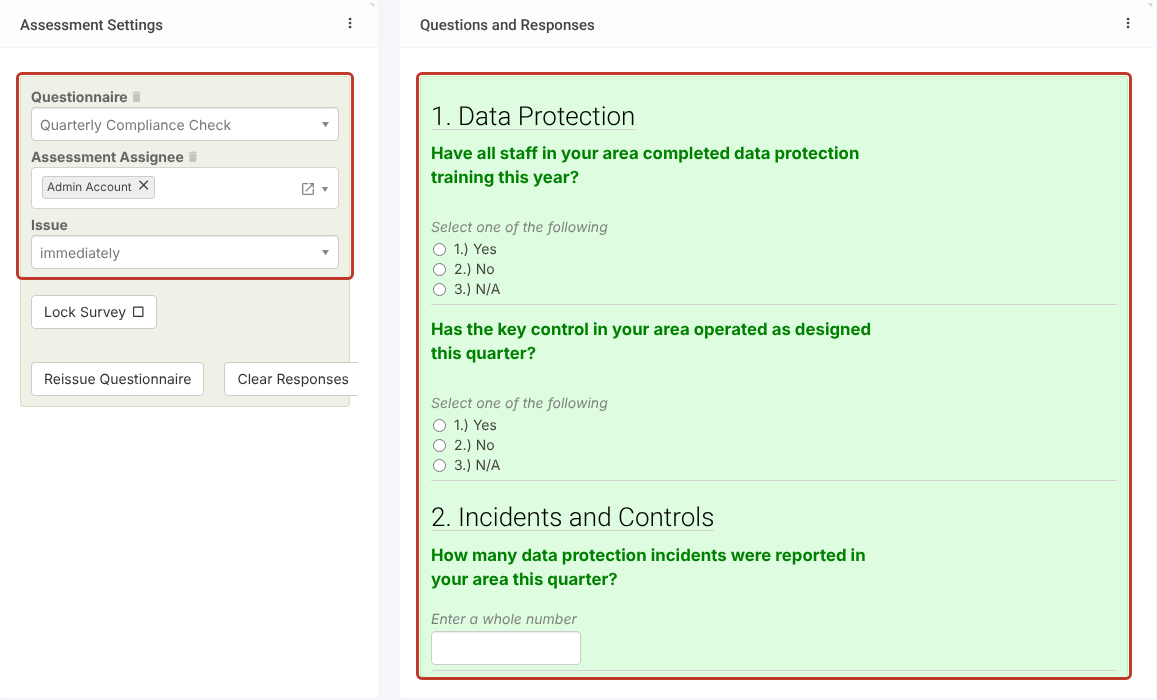
Select Save (or the pencil to save and stay on the control). The questions from the questionnaire now appear under Questions and Responses.
Answering the Assessment #
Answer each question and save. Each answer shows whether it passes, and the rating bar at the bottom shows the overall result, here Pass at 100%.
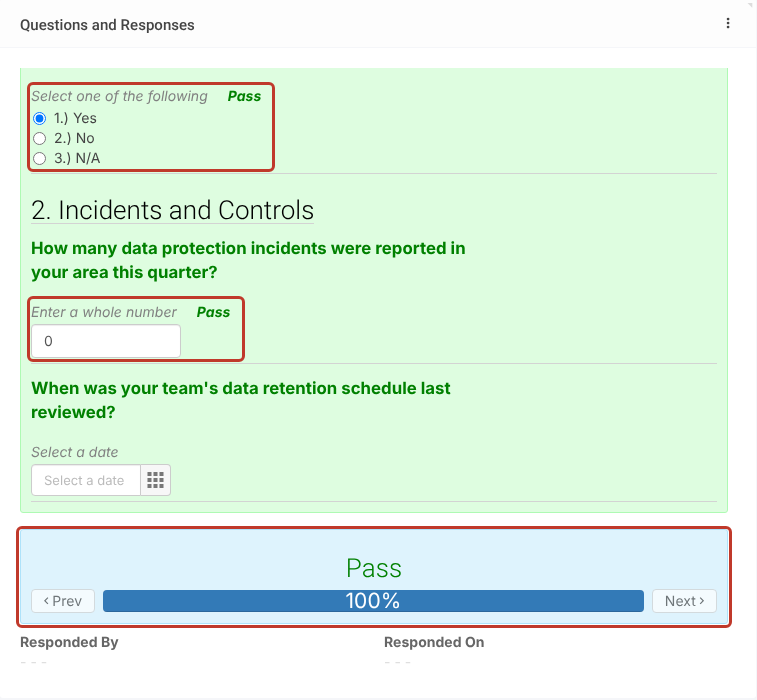
Admins and managers can override the overall rating by selecting it in the rating bar and choosing a different one, then saving.
Other Options #
- Lock Survey stops further changes to the responses.
- Reissue Questionnaire sends the questionnaire out again for a new round of answers.
- Clear Responses removes the current answers.


