
 Doc Summary

Monitoring Action Tracker reports give you the trackers and their findings as a Word or Excel file, ready to share with management or an audit committee.
Note: Applies to: users who have a Monitoring Action Tracker role and have been given access to the reports. You only see reports assigned to you, and they only include records you are allowed to read.
Opening Reports #
- Select Reports in the left menu.
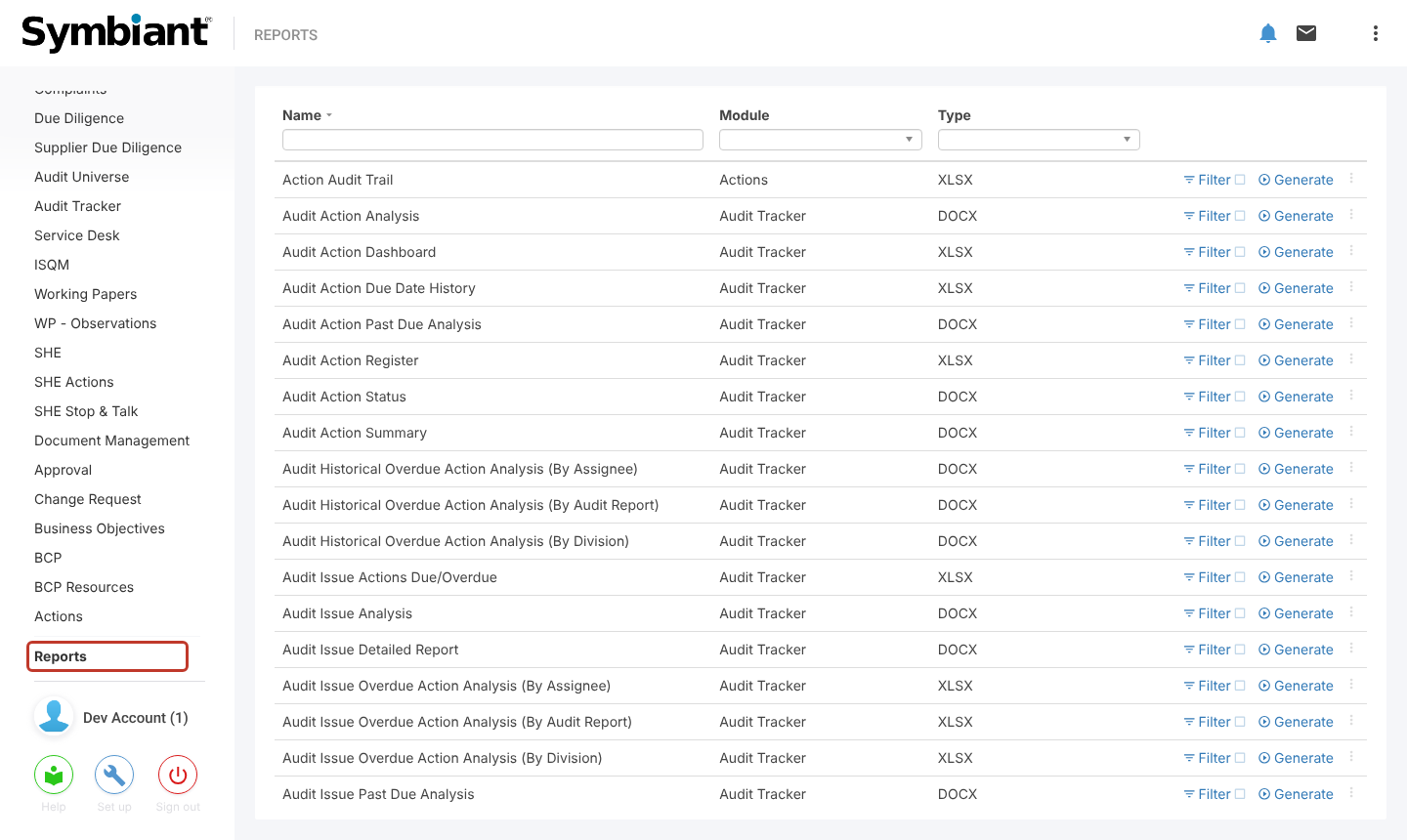
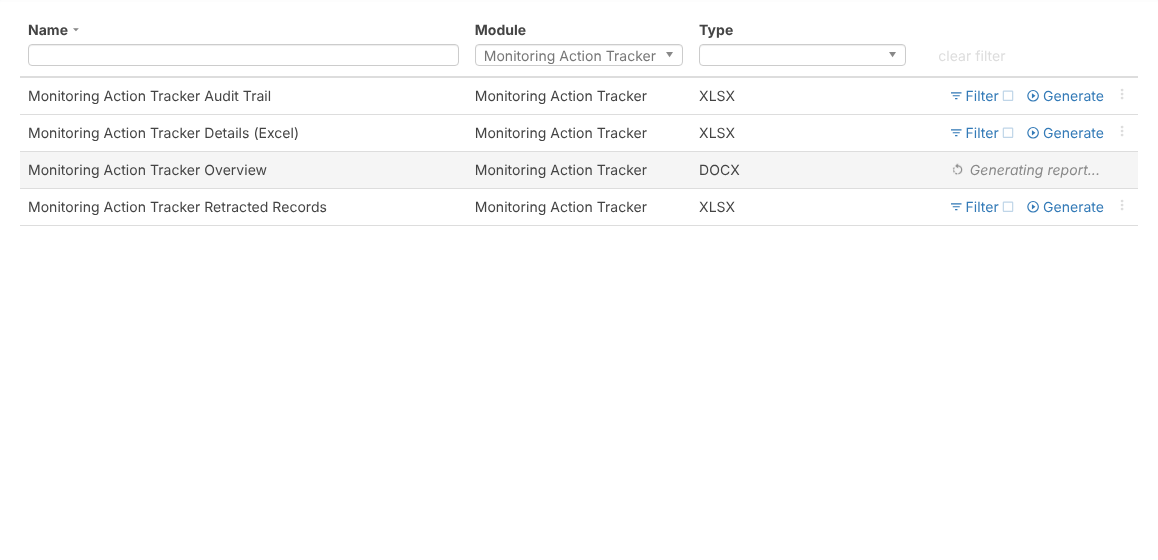
- In the Module filter at the top of the list, select Monitoring Action Tracker.
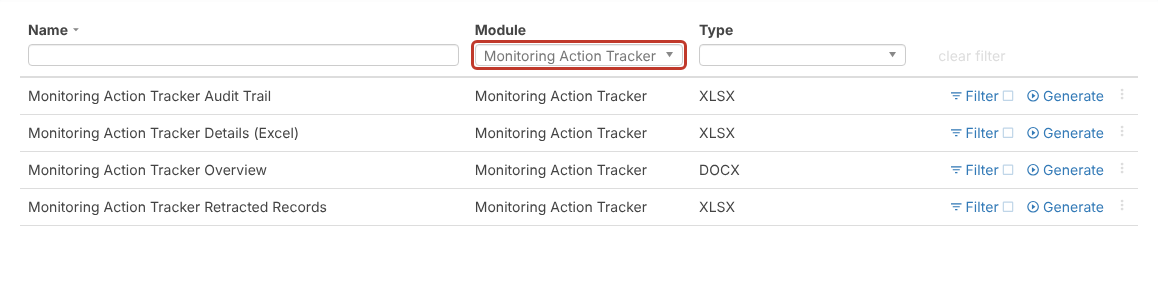
- Find the report you need. The standard reports are:
- Monitoring Action Tracker Overview (Word): a formatted summary of the trackers and their findings.
- Monitoring Action Tracker Details (Excel): one row per tracker and finding, for sorting and filtering.
- Monitoring Action Tracker Audit Trail (Excel): every addition and change, with who made it and when.
- Monitoring Action Tracker Retracted Records (Excel): trackers that have been deleted.
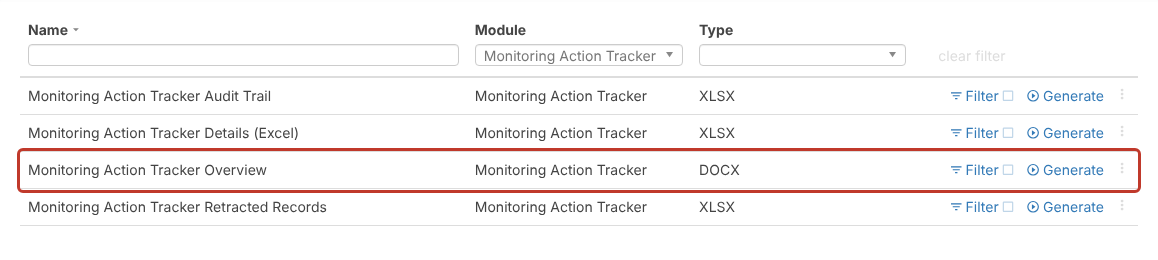
Filtering a Report (Optional) #
To report on only some trackers, for example only Open ones, click Filter on the report’s row before generating. See Filtering on Reports.
Generating the Report #
- Click Generate on the report’s row.
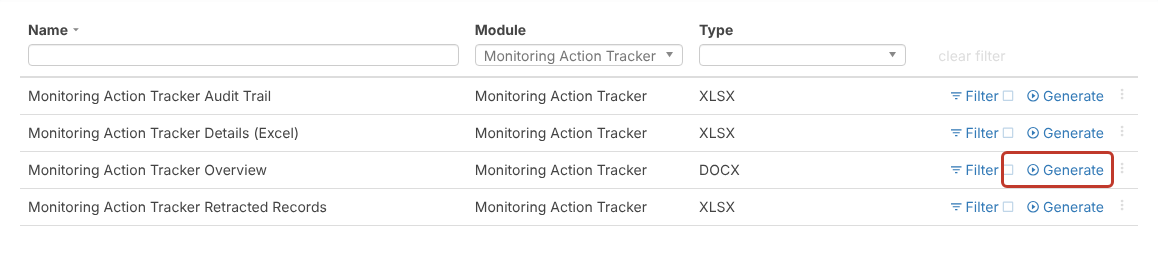
- The row shows Generating report… while the file is built. Large reports can take up to a few minutes.
- When it is ready the file is saved by your browser (usually to your Downloads folder). Open it from there.
Note: Your administrator can add more reports or change these ones in Set up > Reports.


