
 Doc Summary

The Complaints module logs customer complaints from the day they are received to the day they are closed. Each complaint records the customer’s details, what the complaint is about, who is handling it and how it was resolved.
Note: Applies to: users with a Complaints role that can create records.
Opening the Complaints Module #
- In the left menu, select Complaints. The page shows charts by status and type, a resolved analysis, and the list of complaints.
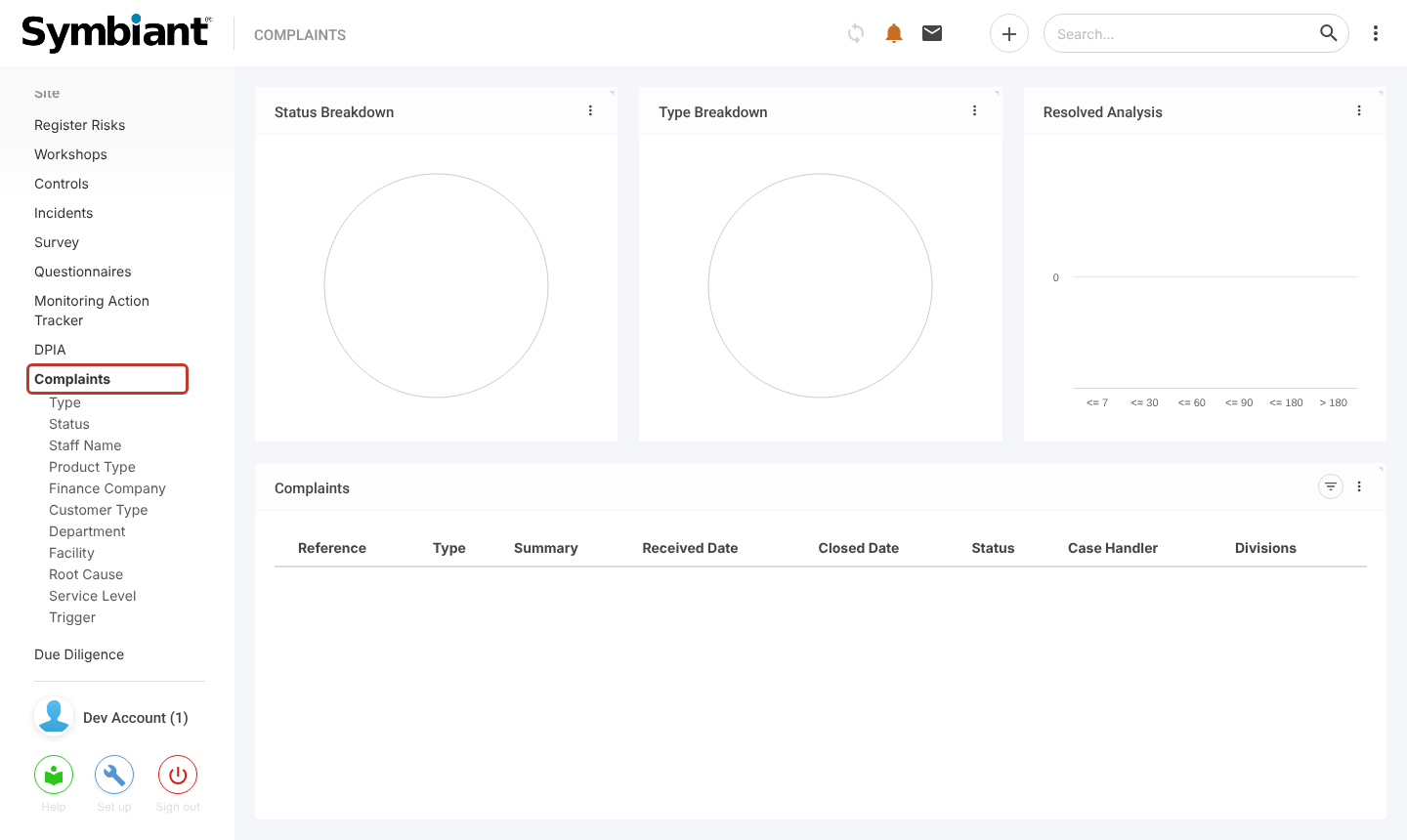
- Click the + icon at the top right.

Entering the Case Details #
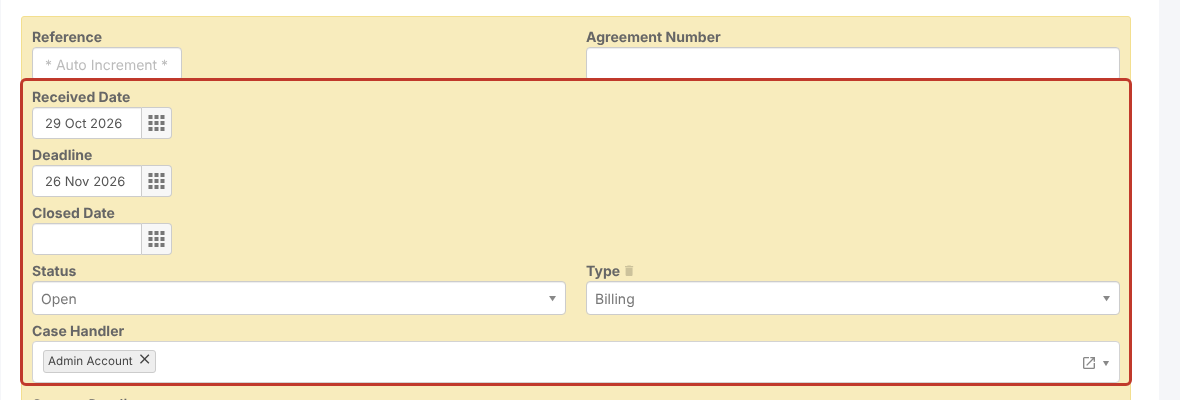
- The Reference is given automatically when you save. Enter an Agreement Number if the complaint relates to one.
- Received Date defaults to today. Change it if the complaint arrived earlier, and set a Deadline for the response.
- Leave Closed Date blank until the complaint is closed.
- Choose the Status (new complaints start as Open) and the Type of complaint, such as Billing or Service.
- The Case Handler defaults to you. Add or remove users as needed.
Entering the Contact Details #
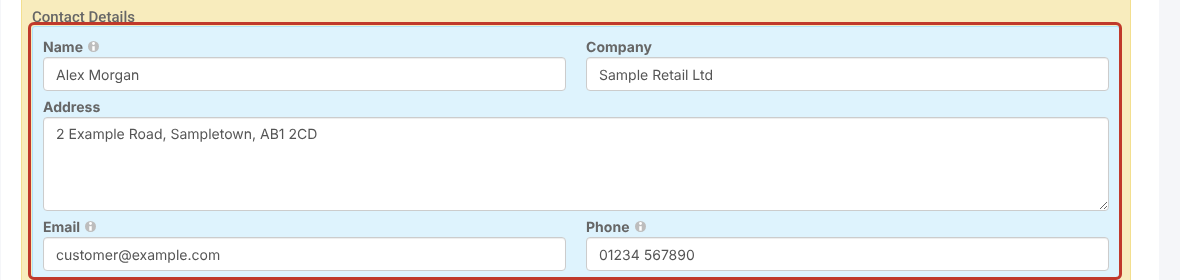
- Under Contact Details, enter the customer’s Name, Company, Address, Email and Phone.
Describing the Complaint #
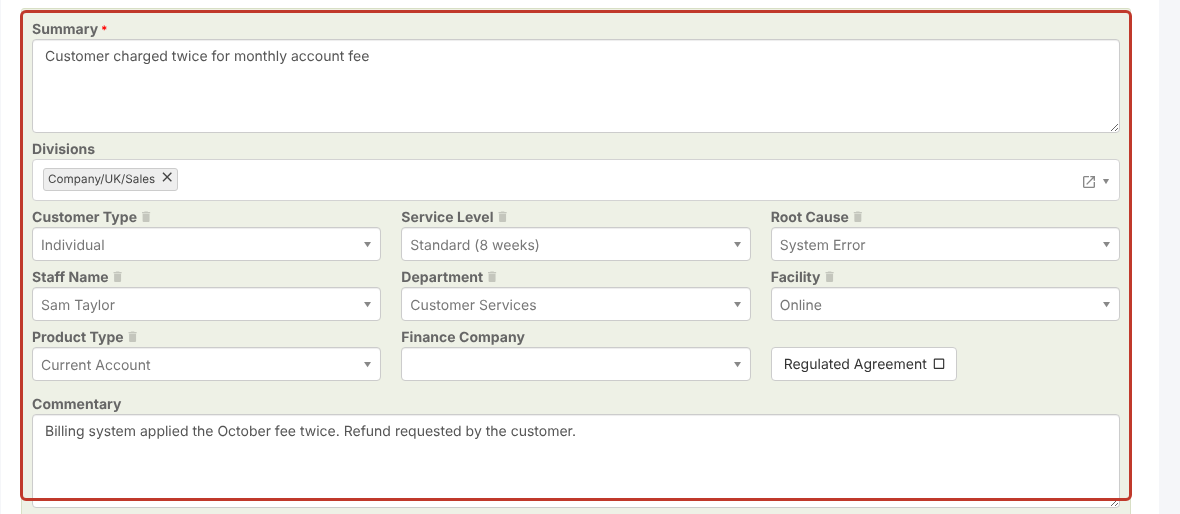
- Enter a Summary of the complaint. This is the only required field.
- Choose the Divisions the complaint relates to.
- Fill in the drop-downs that apply: Customer Type, Service Level, Root Cause, Staff Name, Department, Facility, Product Type and Finance Company. Turn on Regulated Agreement if the complaint is about a regulated agreement.
- Add any notes in Commentary.
Tip: If a drop-down has no values to choose from, ask an administrator to add them. The lists are under Complaints in the left menu (for example Customer Type or Root Cause). See Creating Dropdown Option Selections.
Resolution Details #
Fill in Resolution Details when the complaint is resolved. You can leave them blank for now.
- Resolution: choose Upheld or Not Upheld.
- Compensation and Redress: any amounts paid to the customer.
- Vulnerable Customer: turn on if the customer is vulnerable.
- FOS Referral: turn on if the complaint has been referred to the Financial Ombudsman Service. Symbiant asks you to confirm first.

Saving the Complaint #
- Click Save at the top right.

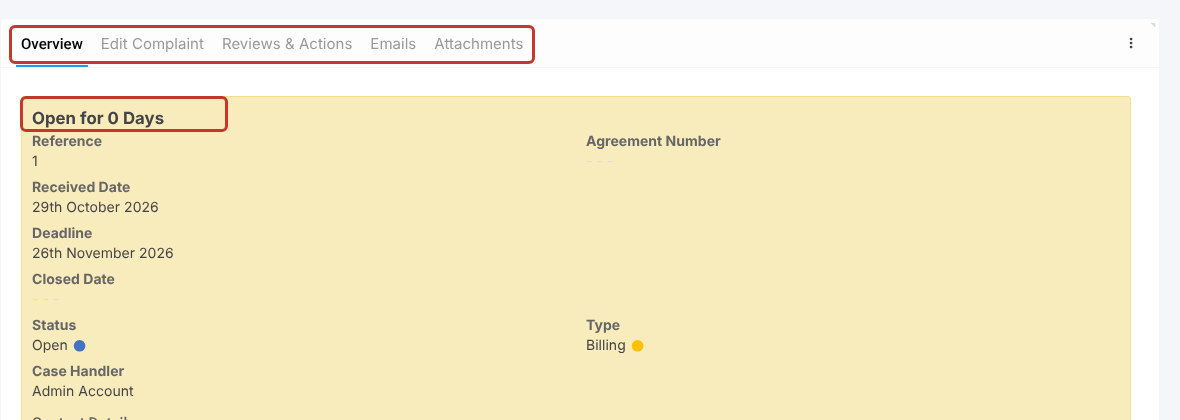
The complaint opens on its Overview tab, showing how many days it has been open. The other tabs let you edit the complaint, add reviews and actions, send emails and add attachments.
The complaint also appears in the list on the Complaints page.