
 Doc Summary

How to find and decide on document approvals from the Approval module.
Applies to: approvers and admins · Module: Approval
What the Approval Universe Is #
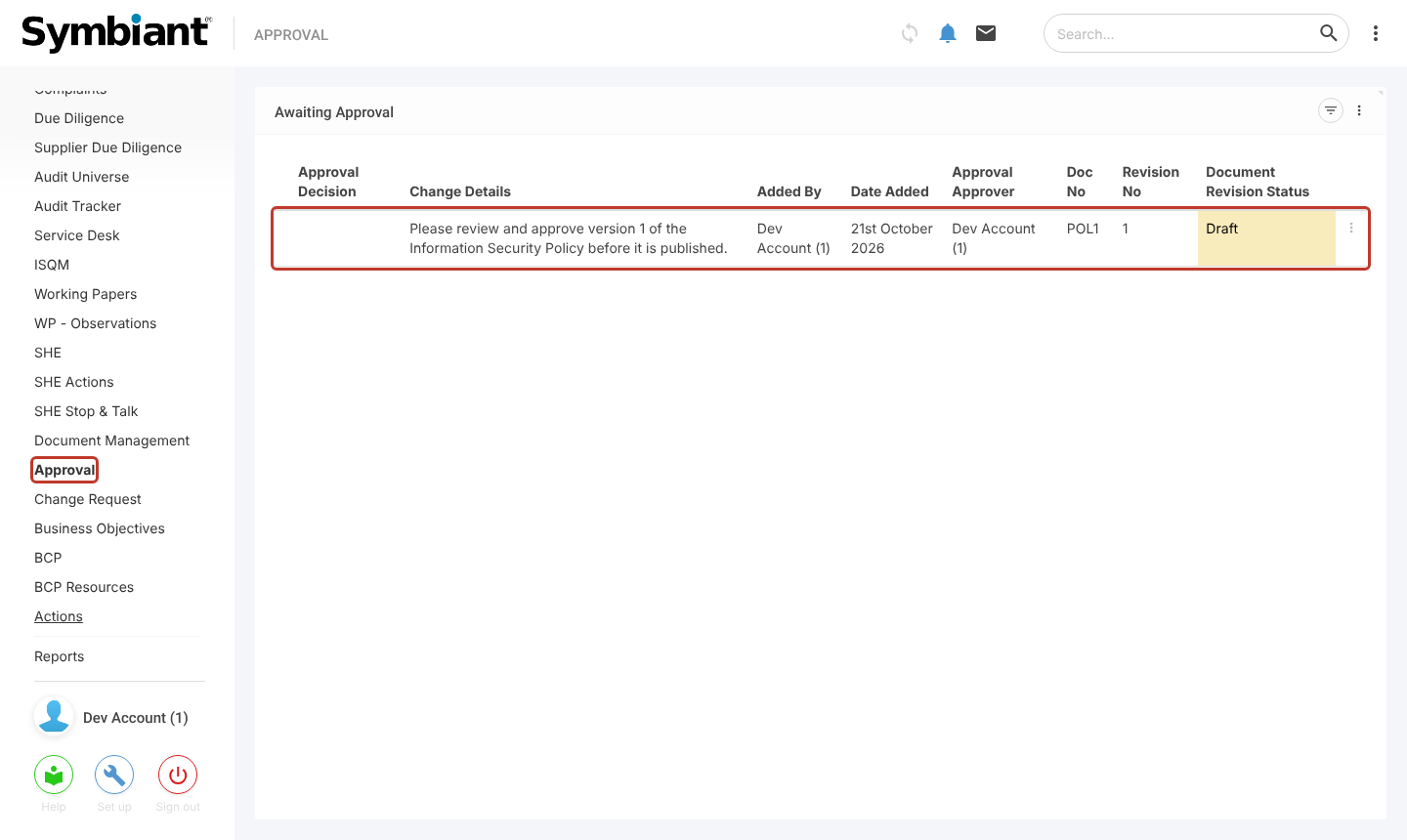
The Approval item in the left menu lists document approvals in one place, so approvers do not need to open each document. Which approvals you see depends on your role. Approvals are added on the document itself (see Document Approval Process), so there is no + icon here.
Finding an Approval #
- In the left menu, click Approval. The Awaiting Approval view lists each approval with its Change Details, Added By, Date Added, Approval Approver, Doc No, Revision No and Document Revision Status.
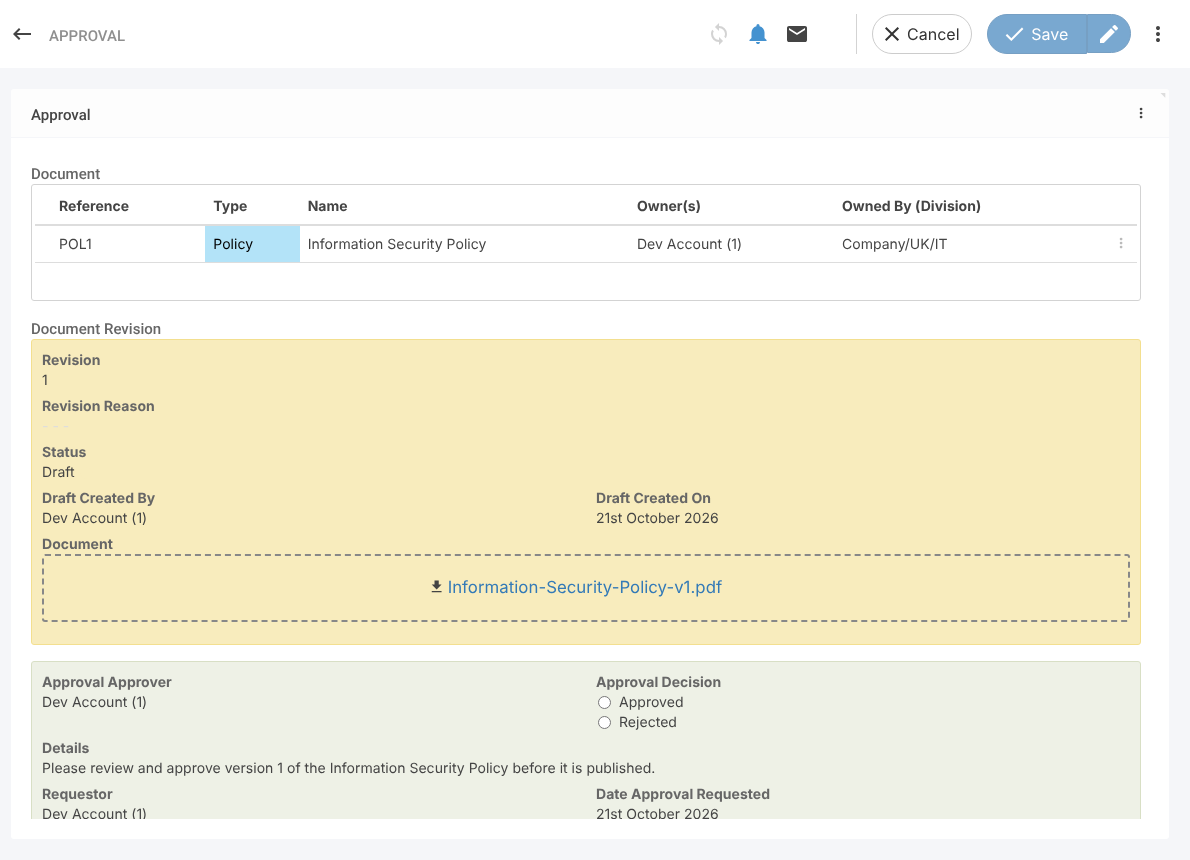
- Click a row to open the approval. It shows the document, the revision with its file, and the approval details.
Giving a Decision #
- In Approval Decision, select Approved or Rejected. Only the assigned approver can choose. If you reject, add a comment explaining why.
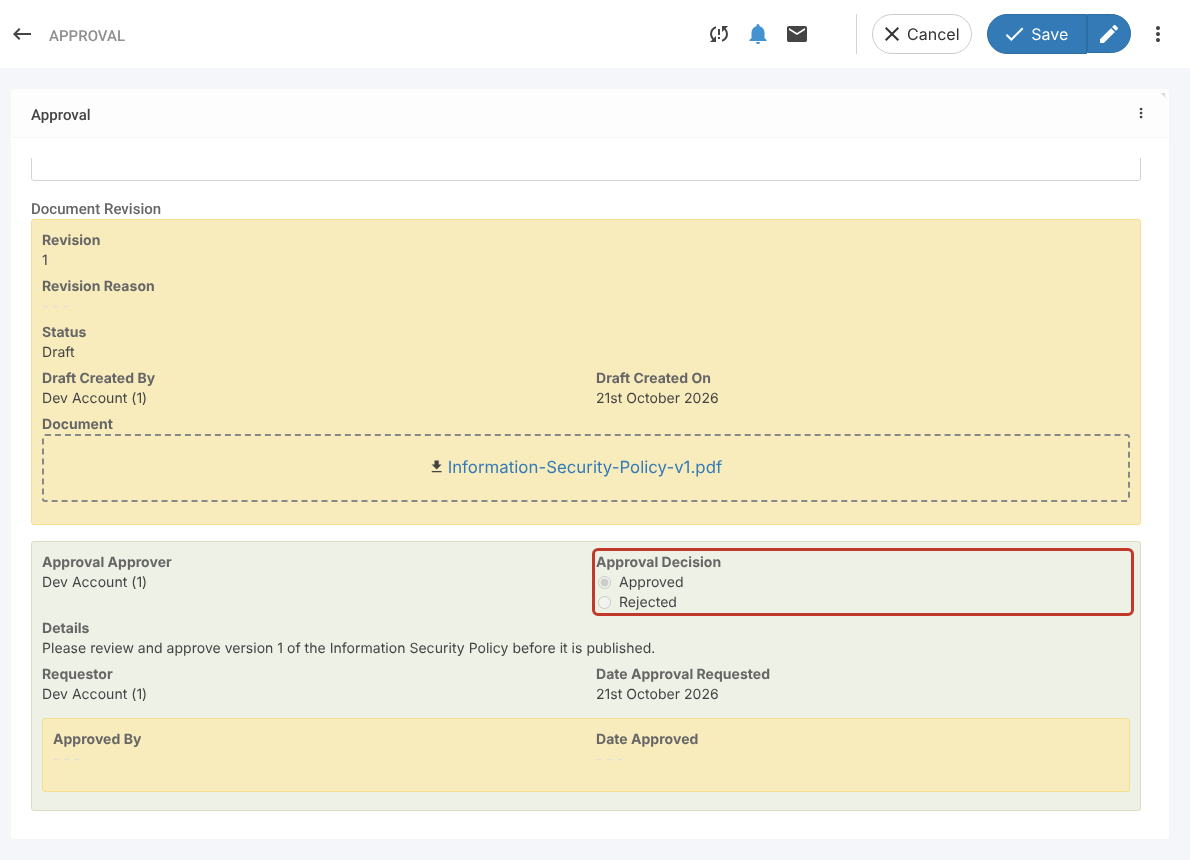
- Click Save. Approved By and Date Approved are filled in, and the decision shows on the document’s Approval tab.