
 Doc Summary

How assignees record progress on an action, comment on updates and mark the action as implemented.
Applies to: action assignees and users who can edit the parent record. Module: Actions and the module the action belongs to.
From the Actions Module #
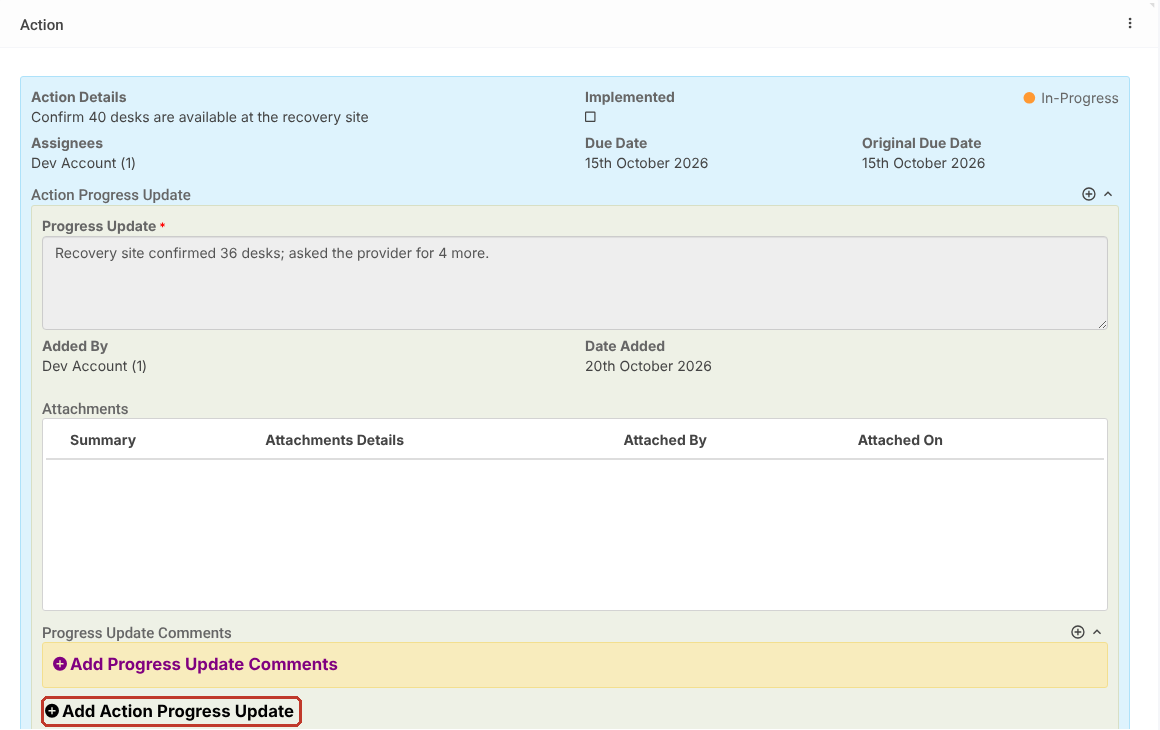
- Select Actions and click the action in one of the grids.
- The action opens with its details, assignees and due dates.
- Click Add Action Progress Update, describe the progress and click Save.
From the Parent Record #
- Open the record the action belongs to (for example a BCP resource) and go to the tab holding its actions.
- Under the action, click Add Action Progress Update.
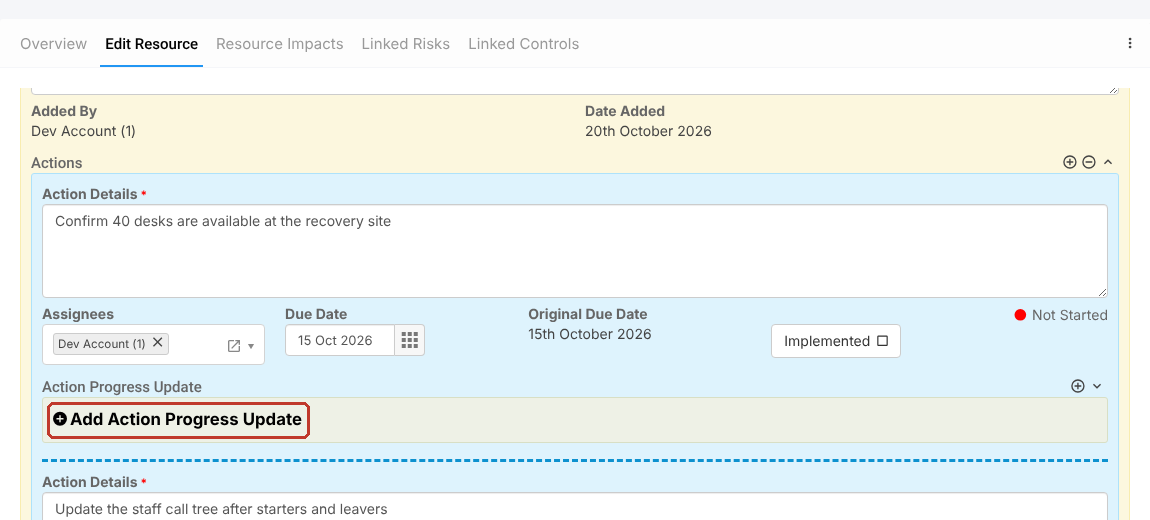
- Enter the Progress Update (required). Added By and Date Added fill in on save.
- Tick Completed if this update finishes the work, and add Attachments as evidence if needed.
- Others can reply under Progress Update Comments with Add Progress Update Comments.
- When the action is done, tick Implemented on the action.
- Click Save.
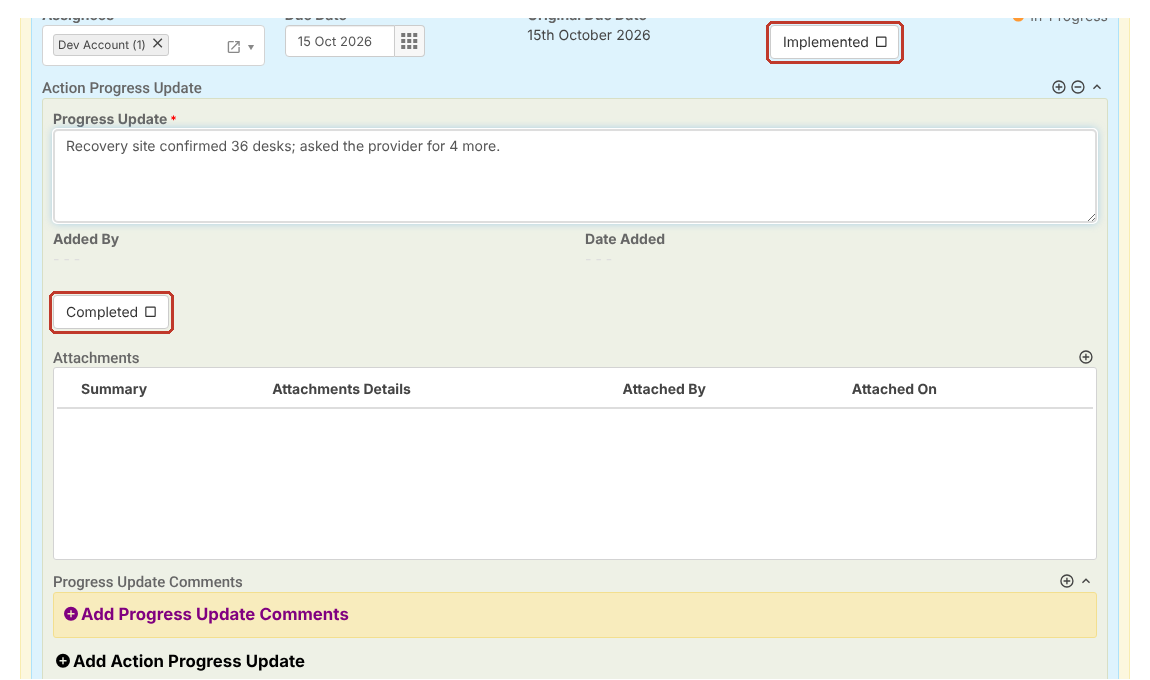
The action status changes from Not Started to In-Progress once it has a progress update, and moves to the Implemented Actions list once Implemented is ticked.
Note: Changing the Due Date keeps the Original Due Date, so overdue reporting still shows the first date agreed.