
 Doc Summary

The Audit Planner breaks a working paper into stages, such as planning and fieldwork. Each stage has an estimated start date, a duration and the users working on it.
Note: Applies to: auditors who can edit the working paper. You need a working paper first. See Creating a Working Paper.
Opening the Audit Planner #
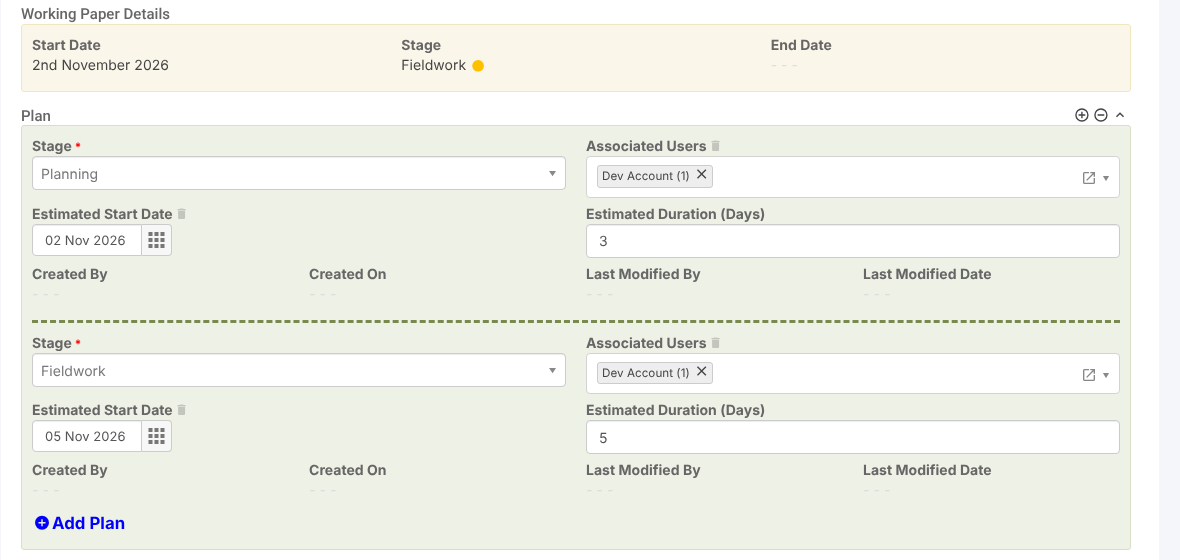
- Open the working paper and select the Audit Planner tab. The top of the tab shows the working paper’s start date, stage and end date.

Adding a Plan #
- Click Add Plan.

- Choose the Stage you are planning. This is required.
- Set the Estimated Start Date and Estimated Duration (Days).
- Choose the Associated Users who will work on this stage.
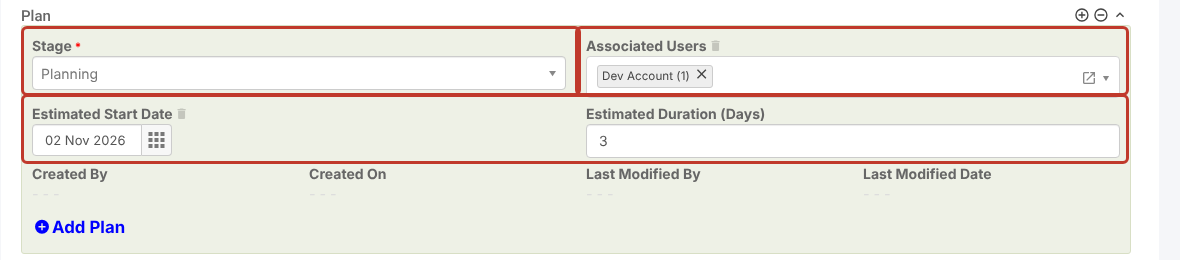
- Click Add Plan again to add the next stage, with its own dates and users.
Removing a Plan #
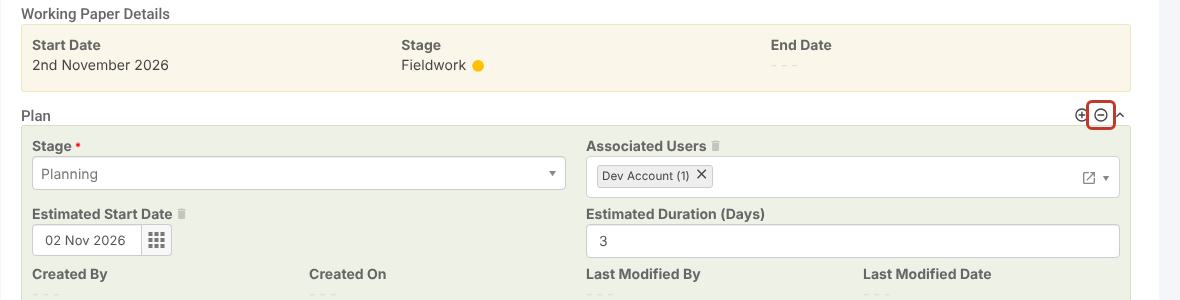
- Click the minus icon at the top right of the Plan section.
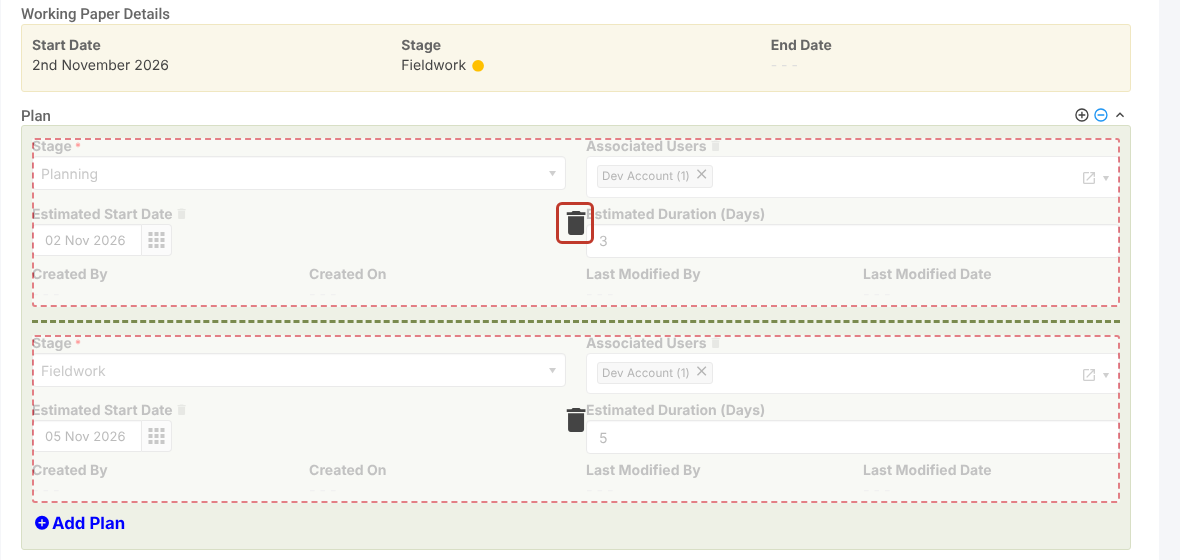
- A bin icon appears over each plan. Click the bin on the plan you want to remove.
Saving #
- Click Save to save and close, or the pencil icon beside it to save and stay on the working paper.

Once saved, each plan shows who created it and when.


