
Skip to content
Symbiant System Black Logo
  • Home
  • Knowledge Base
  • Symbiant Website
  • Symbiant Changelog
  • Submit a Ticket
  • My Support Tickets
  • Home
  • Knowledge Base
  • Symbiant Website
  • Symbiant Changelog
  • Submit a Ticket
  • My Support Tickets
Popular Keywords importuserdivisionsamlimport risk

Navigation & Accessibility

  • Notifications and Messages
  • Saving Filter and Layout Presets
  • System Navigation Overview
  • Dashboard Layout Tools
  • Filtering Data
  • Advanced Filtering

User Basics

  • Duplicating a Record
  • Saving a Record: Save, Save and Edit, Cancel and Undo
  • Action Progress Updates and Comments
  • Getting Started: Your First Login
  • Signing Out and Session Timeout
  • Workflow Statuses Explained
  • Glossary of Symbiant Terms
  • Adding a Record
  • Adding an Attachment
  • Editing a Record
  • Deleting a Record (Retractions)
  • Resetting your Password
  • Generating A Report
  • Filtering on Reports
  • Linking Records Between Modules
  • Unlinking Records from a Module
  • Reviews & Actions
  • Multi-Factor Authentication (Google Authenticator)

Risk Register Basics

  • Adding a Risk
  • Risk Universe
  • Tracking Risk Score Changes Over Time
  • Scoring a Risk (Inherent, Residual, Target & Appetite)
  • Risk Heat Map (Risk Matrix)
  • Risk Appetite Logic
  • Risk Score Aggregation
  • Risk Relations (Related Risks)
  • Risk Flows
  • Risk Bow Tie
  • Key Risk Indicators (KRIs)
  • Basel II and SOX Categories
  • Template Risks
  • Generating a Risk Register Report
  • Generating a Risk Aggregate Report

Control Basics

  • Adding a Control
  • Adding a Control Policy
  • Attaching a Policy to a Control
  • Attaching a Control to a Risk
  • Control Weightings
  • Activating/Deactivating a Control
  • Control Assessments
  • Generating a Control Report

Workshop Basics

  • Creating a Workshop
  • Workshops Stages
  • Workshop Risk Treatment Plans
  • Workshop Escalating Risks to a Register

Incident Basics

  • Adding an Incident Contact
  • Creating an Incident
  • Linking Risks to Incidents
  • Linking Controls to Incidents
  • Generating an Incident Report

Survey & Questionnaire Basics

  • Creating a Survey
  • Scheduling a Survey
  • Responding to a Survey
  • Generating a Survey Report
  • Locking a Survey
  • Why can’t I see Questions in a Survey?
  • Questionnaire Basics
    • Creating a Questionnaire and Linking Questions
    • Questionnaire Question Visibility
    • Adding Questionnaire Pass and Fail Override Criteria
    • Question Basics
      • Creating a Question and Linking Options
      • Question Option Visibility
      • Adding Question Pass and Fail Override Criteria
      • Question Option Basics
        • Creating a Question Option
        • Adding Option Pass and Fail Criteria

Monitoring Action Tracker Basics

  • Creating an Action Tracker
  • Adding Tracker Findings
  • Approving and Validating Tracker Findings
  • Generating a Tracker Action Report

Complaint Basics

  • Creating a Complaint
  • Complaint Emails

DPIA Basics

  • Creating a DPIA
  • Answering a DPIA Questionnaire
  • Adding DPIA Risks
  • Resetting a DPIA Questionnaire

Due Diligence Basics

  • Supplier Due Diligence
  • Creating a Due Diligence
  • Adding Due Diligence Sections, Issues and Actions

Audit Basics

  • Audit Universe Overview
  • Creating an Audit Entity
  • Creating an Audit Issue Report
  • Creating an Audit Issue (Audit Tracker)
  • Adding Recommendations & Actions
  • Generating an Audit Issue Tracker Report

Working Paper Basics

  • WP – Observations
  • Creating a Working Paper
  • Accessing Linked Records Inside a Working Paper
  • Adding an Audit Plan
  • Adding a Timesheet
  • Adding an Assessment (Surveys & Questionnaires)
  • Generating a Working Paper Report

SHE Basics

  • Creating a new SHE Entry
  • Attaching an Investigation to a SHE Incident
  • Creating a SHE Stop and Talk Entry
  • SHE Actions

Document Management Basics

  • Document Revisions
  • The Approval Universe
  • The Change Request Universe
  • Document Status Logic
  • Adding a Document Record
  • Document Approval Process
  • Document Change Request Process
  • Document Reviews

Symbiant AI

  • AI – Generating Ideas
  • AI – Record Fields
  • AI – Generating Dropdown Ideas
  • AI – Rewriting Content
  • AI – Finding Links
  • AI – Finding Similar

System Errors & Issues

  • What Does “Data Conflict!” Mean?
  • Resolving System Issues
  • System Error Messages
  • Login Issues

ISQM Basics

  • ISQM Overview
  • Adding an ISQM Objective

Service Desk Basics

  • Service Desk Overview
  • Raising a Service Desk Ticket
  • Updating and Closing a Service Desk Ticket

Business Objective Basics

  • Business Objectives Overview
  • Adding a Business Objective
  • Connecting Risks to a Business Objective
  • Reviewing a Business Objective

Action Basics

  • Actions Overview
  • Updating an Action

BCP Resource Basics

  • BCP Resources Overview
  • Adding a BCP Resource
  • Adding an Action Plan to a BCP Resource

BCP Basics

  • BCP Overview
  • Adding a BCP Scenario or Incident
  • Linking Resources to a BCP
  • Completing a BCP Assessment
View Categories
  • Home
  • Knowledge Base
  • User Information
  • Due Diligence Basics
  • Supplier Due Diligence

Supplier Due Diligence

0:00 / 2:29
  • View as Markdown Open this page as plain Markdown (opens in a new tab)
  • Open in ChatGPT Ask questions about this page (opens in a new tab)
  • Open in Claude Ask questions about this page (opens in a new tab)
  • Open in Google AI Studio Ask questions about this page (Google account required) (opens in a new tab)
AI Doc Summarizer Doc Summary
AI Doc Summarizer Thinking Thinking

The Supplier Due Diligence module records the checks you carry out on a supplier before and during your relationship with them. Each record holds the supplier’s company and bank details, the date the next annual review is due, a checklist of checks completed, and who signed it off.

Note: Applies to: users with a Supplier Due Diligence role that can create records. For due diligence on other companies, such as brokers or partners, see Creating a Due Diligence.

Opening the Supplier Due Diligence Module #

  1. In the left menu, select Supplier Due Diligence. The page lists supplier records, grouped by status into the tabs New, In Progress, Not Currently Working With and Complete.
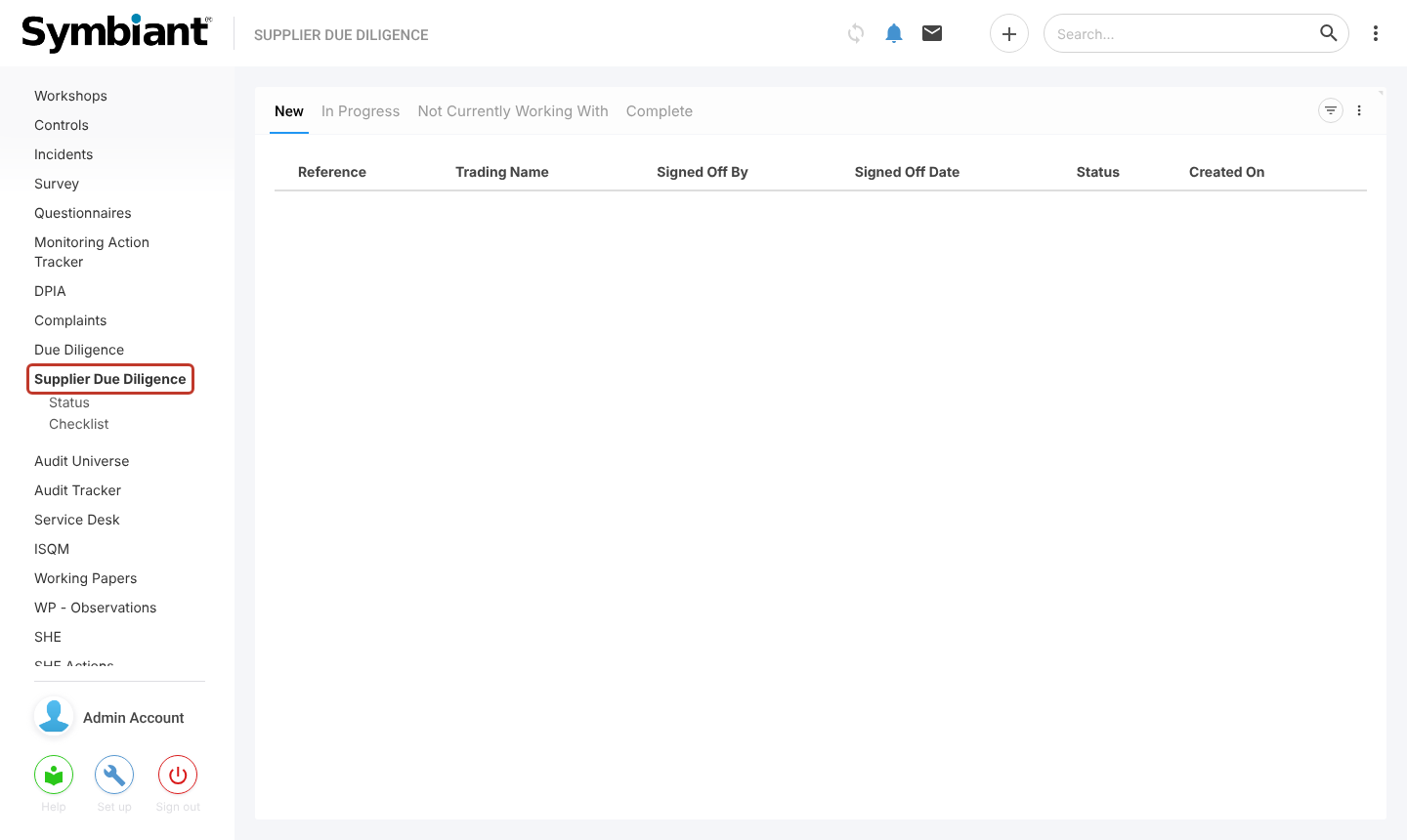
Supplier Due Diligence selected in the left menu

  1. Click the + icon at the top right.

The + icon at the top right of the screen

Record Details #

  1. The Reference is given automatically when you save. New records start with the status New.
  2. Check the Owners. You are added by default.
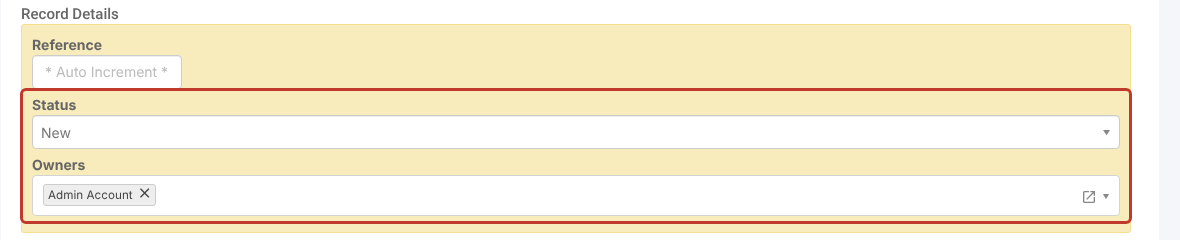
Status and Owners on a new supplier record

Company Details #

  1. Enter the supplier’s Trading Name. This is the only required field.
  2. Fill in the other details you have: Trading Style Used, Principle Contact and Principle Contact Role, Registered Address and Trading Address, Telephone, Company Registration Number, Financial Contact Details, ICO Number, VAT Number, FCA Number, Main Contact Email and Website.
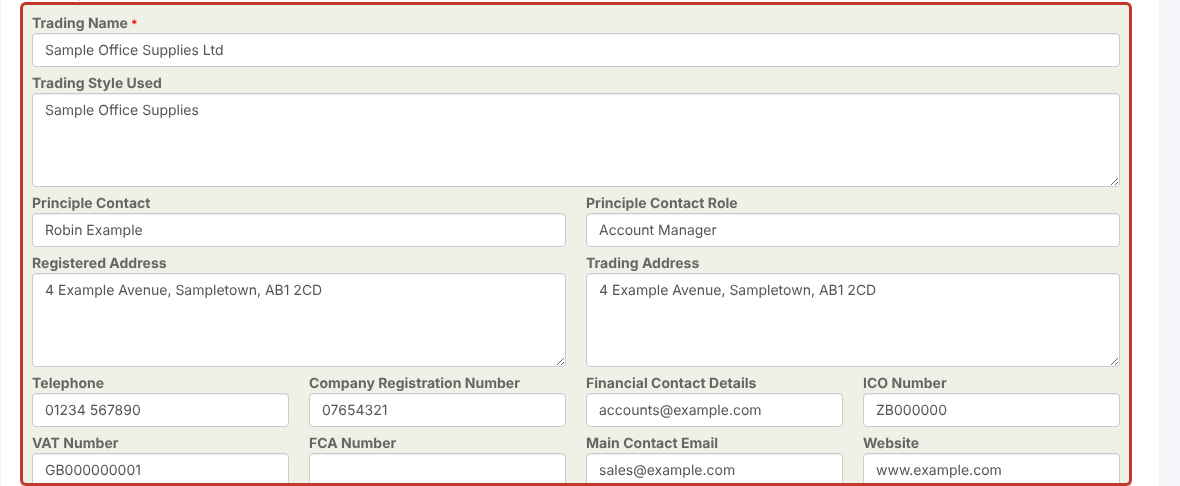
The Company Details section filled in

  1. Below these, enter the supplier’s bank name and address, Bank Account Number and Bank Sort Code, and describe your relationship with the supplier in the relationship details box.

Checklist #

  1. Under Checklist, tick each check as it is completed. Use the search box to find an item in a long list.

Three checklist items ticked

Tip: An administrator can change the checklist items and statuses under Supplier Due Diligence > Checklist and Supplier Due Diligence > Status in the left menu.

Saving the Record #

  1. Click Save at the top right.

The Save button at the top right of the form

The record opens on its Overview tab. Use Edit Supplier Due Diligence to make changes, and Attachments to add documents such as insurance certificates.
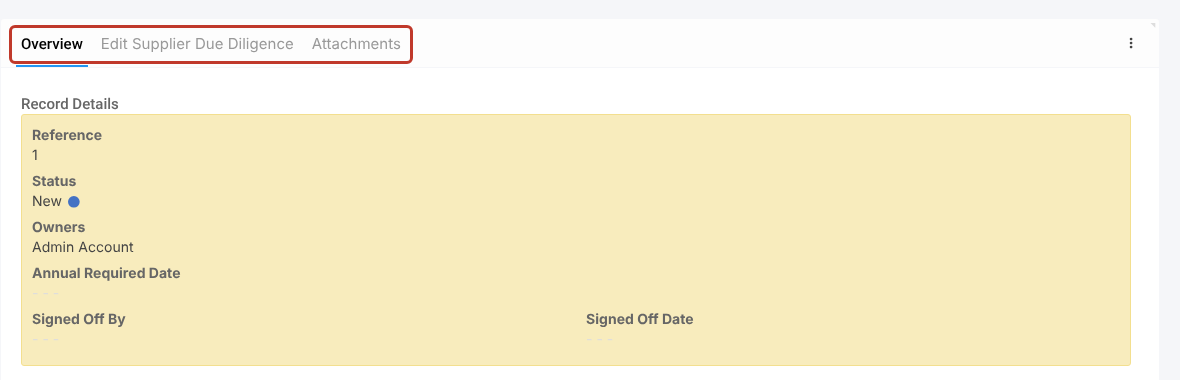
The supplier record tabs

Reviewing and Signing Off #

  1. Open the Edit Supplier Due Diligence tab.
  2. Update the Status as the checks progress, for example to In Progress, then Complete once all checks are done, or Not Currently Working With if you stop using the supplier.
  3. Set the Annual Required Date for when the supplier must next be reviewed.
  4. When the checks are signed off, choose who signed off in Signed Off By and pick the Signed Off Date.
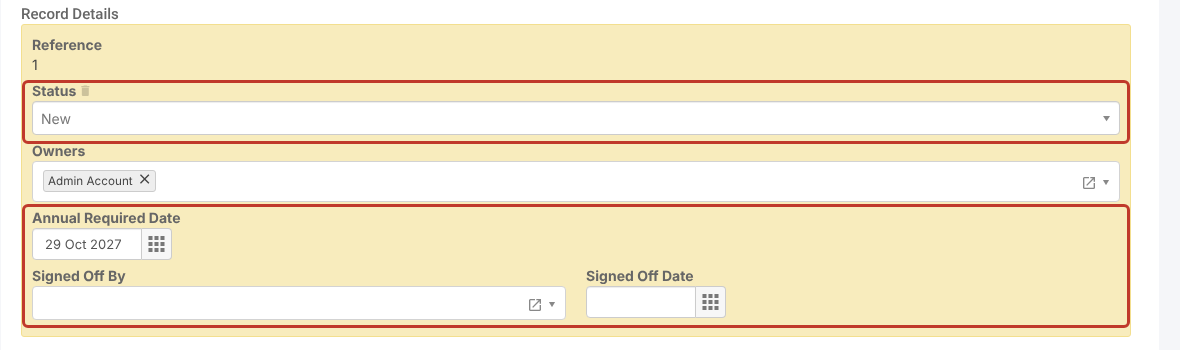
Status, Annual Required Date, Signed Off By and Signed Off Date

  1. Click Save or Save and Edit at the top right.

Finding Supplier Records #

Back on the Supplier Due Diligence page, select a tab to see the records with that status. Each row shows the reference, trading name, who signed it off and when, the status and the date it was created.

The status tabs and a supplier record in the New tab

Related Articles #

  • Creating a Due Diligence
  • Adding Due Diligence Sections, Issues and Actions
Did this help?

Share This Article :

  • Facebook
  • X
  • LinkedIn
Require Additional Information? Please Contact Support

How can we help?

Updated on 30 October 2026
Adding Due Diligence Sections, Issues and ActionsCreating a Due Diligence
Table of Contents
  • Opening the Supplier Due Diligence Module
  • Record Details
  • Company Details
  • Checklist
  • Saving the Record
  • Reviewing and Signing Off
  • Finding Supplier Records
  • Related Articles
Symbiant System White Logo

20-22 Wenlock Road

London

N1 7GU

Linkedin
Telephone Numbers
  • UK - 0113 5263 755
  • Support - 0204 5514 735 option 2
  • USA - 347 991 7130
Information
  • Home
  • Knowledge Base
  • Symbiant Website
  • Submit A Ticket
  • Change Requests
  • Support Staff Login

Copyright © 2025 Symbiant All Rights Reserved - Risk, Audit and Compliance Management Software

We use cookies on our website to give you the most relevant experience by remembering your preferences and repeat visits. By clicking “Accept All”, you consent to the use of ALL the cookies. However, you may visit "Cookie Settings" to provide a controlled consent.
Cookie SettingsAccept All
Manage consent

Privacy Overview

This website uses cookies to improve your experience while you navigate through the website. Out of these, the cookies that are categorized as necessary are stored on your browser as they are essential for the working of basic functionalities of the website. We also use third-party cookies that help us analyze and understand how you use this website. These cookies will be stored in your browser only with your consent. You also have the option to opt-out of these cookies. But opting out of some of these cookies may affect your browsing experience.
Necessary
Always Enabled
Necessary cookies are absolutely essential for the website to function properly. These cookies ensure basic functionalities and security features of the website, anonymously.
CookieDurationDescription
cookielawinfo-checkbox-analytics11 monthsThis cookie is set by GDPR Cookie Consent plugin. The cookie is used to store the user consent for the cookies in the category "Analytics".
cookielawinfo-checkbox-functional11 monthsThe cookie is set by GDPR cookie consent to record the user consent for the cookies in the category "Functional".
cookielawinfo-checkbox-necessary11 monthsThis cookie is set by GDPR Cookie Consent plugin. The cookies is used to store the user consent for the cookies in the category "Necessary".
cookielawinfo-checkbox-others11 monthsThis cookie is set by GDPR Cookie Consent plugin. The cookie is used to store the user consent for the cookies in the category "Other.
cookielawinfo-checkbox-performance11 monthsThis cookie is set by GDPR Cookie Consent plugin. The cookie is used to store the user consent for the cookies in the category "Performance".
viewed_cookie_policy11 monthsThe cookie is set by the GDPR Cookie Consent plugin and is used to store whether or not user has consented to the use of cookies. It does not store any personal data.
Analytics
Analytical cookies are used to understand how visitors interact with the website. These cookies help provide information on metrics the number of visitors, bounce rate, traffic source, etc.
SAVE & ACCEPT
Loading...

Insert/edit link

Enter the destination URL

Or link to existing content

    No search term specified. Showing recent items. Search or use up and down arrow keys to select an item.