
 Doc Summary

How to add a new BCP record for a planned scenario or a live incident.
Applies to: users who can create BCP records (for example bcp_admin or bcp_manager). Module: BCP.
Adding the Record #
- Select BCP in the left-hand menu.
- Click the + icon at the top right.
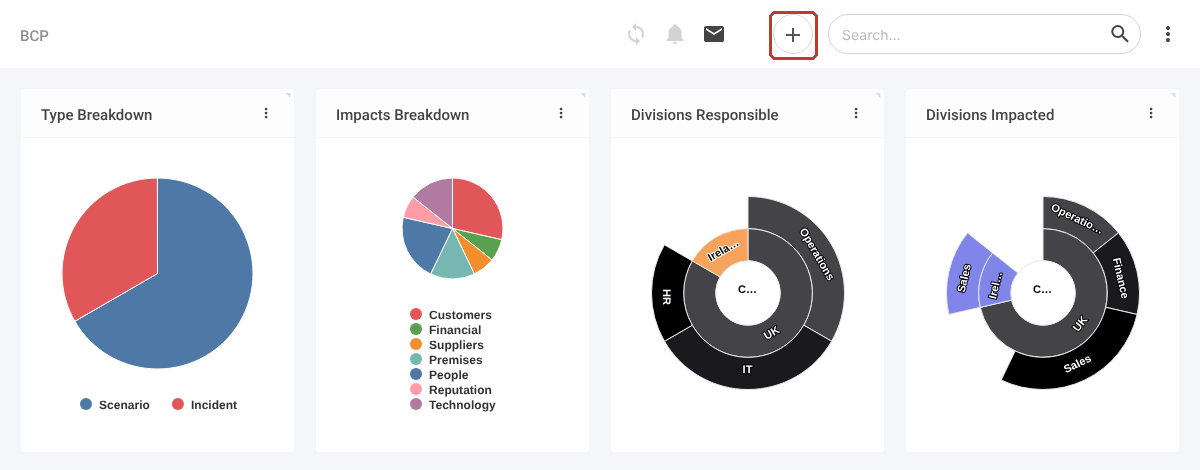
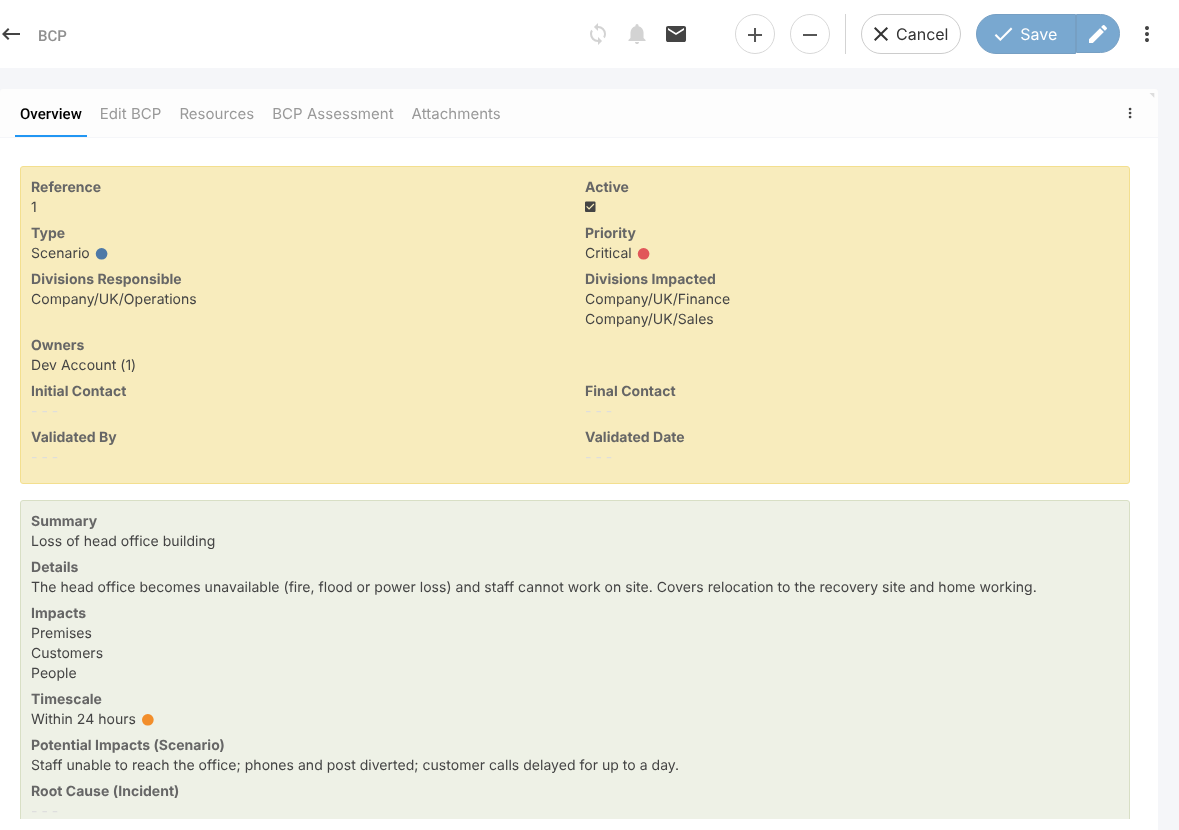
The New BCP form opens. The Reference is given automatically when you save, and Active is ticked by default.
Completing the Details #
- Choose the Type: Scenario for something you are planning for, or Incident for something that has happened. Type is required.
- Choose a Priority.
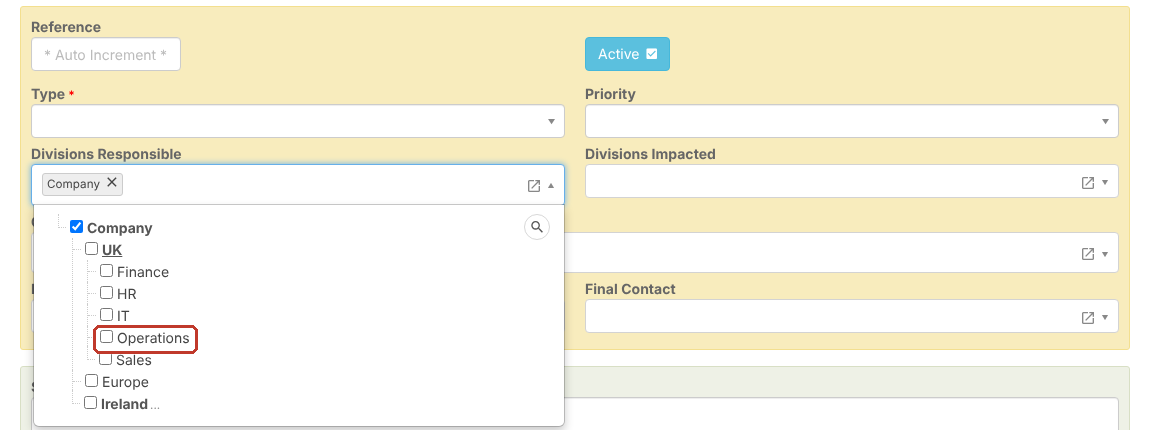
- In Divisions Responsible, tick the division that owns the plan (for example Operations). Click a division name to open the levels below it, and untick Company if it was added by default.
- In Divisions Impacted, tick every division that would be affected.
- Check the Owners (you are added by default) and pick an Initial Contact and Final Contact if your process uses them.
- Enter a Summary (required) and Details.
Impacts and Timescale #
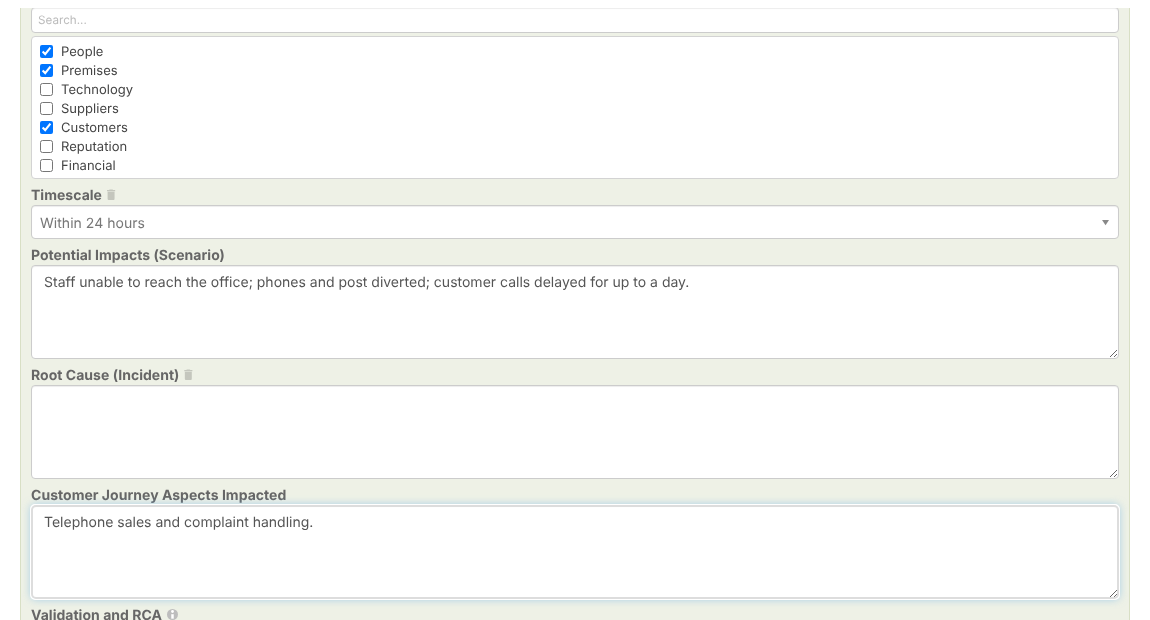
- Scroll down and tick each Impact that applies (for example People, Premises, Customers). Use the search box to find one quickly.
- Choose the Timescale within which the business must recover.
- For a scenario, describe the Potential Impacts (Scenario). For an incident, record the Root Cause (Incident).
- Optionally note the Customer Journey Aspects Impacted and Validation and RCA.
Saving #
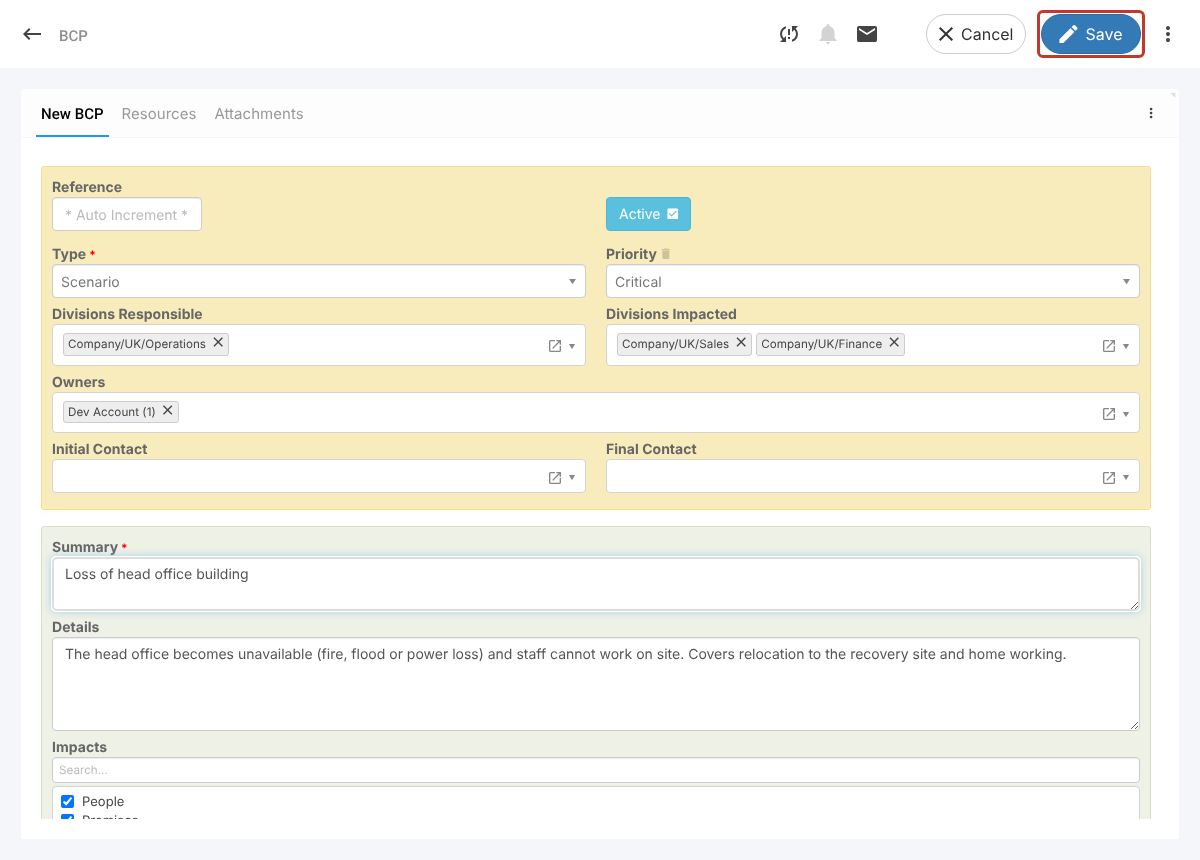
Click Save at the top right. The record gets its reference and opens on the Overview tab, where you can go on to link resources or add attachments.
Note: If you save without a required field (marked with a red asterisk), a “Validation failure” message appears and the field is marked with a warning triangle.