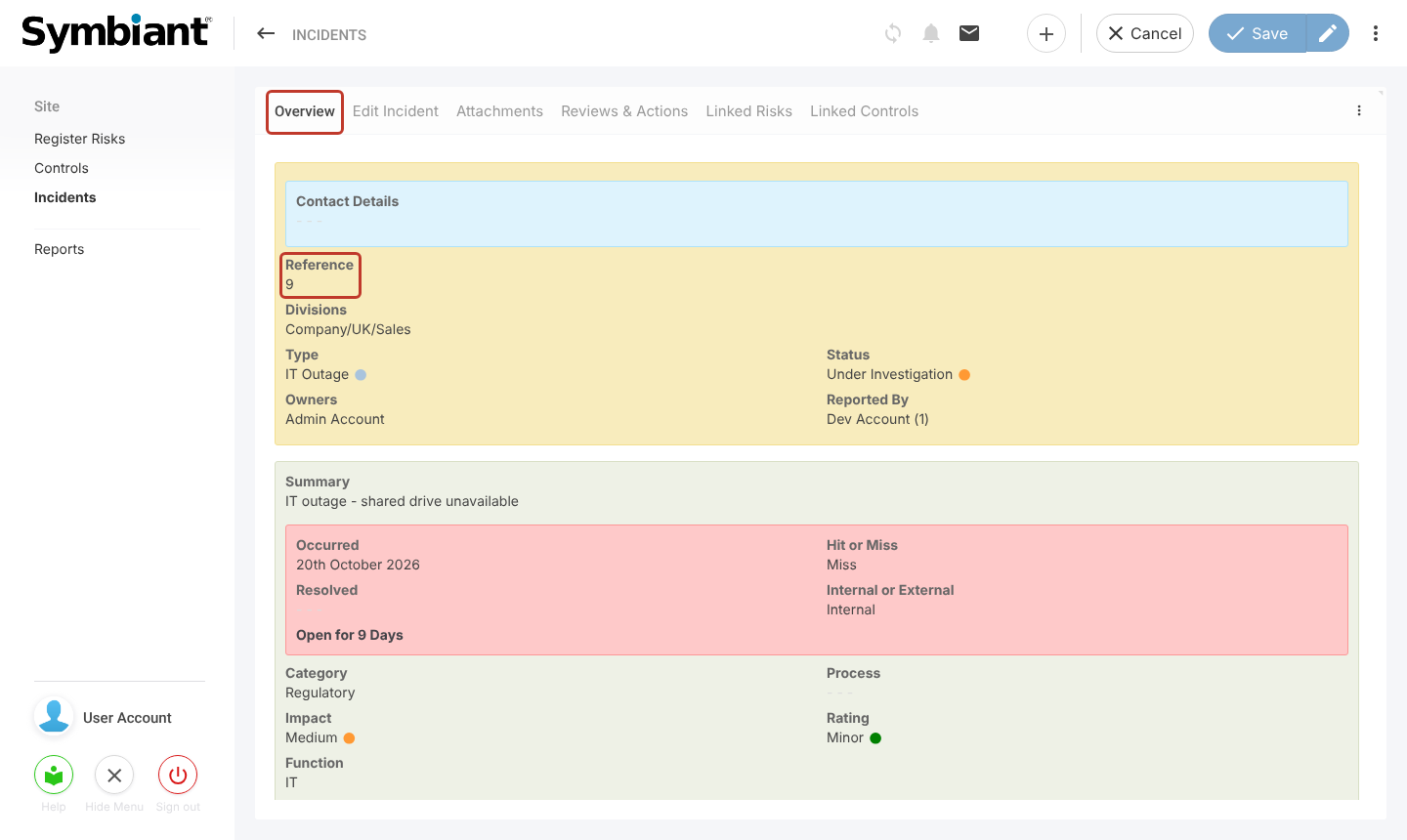
Doc Summary

How to add a new record to a module, using the Incidents module as the example. The steps are the same in every module; only the fields differ.
Applies to: Users with a role that can create records in the module (for example a module manager or admin role) · Module: All
Starting a New Record #
- Open the module from the sidebar (in this example Incidents).
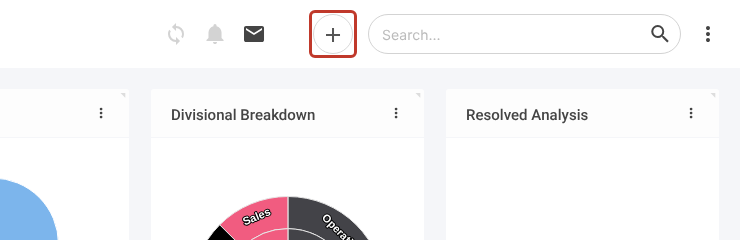
- Click the plus (+) icon at the top right.
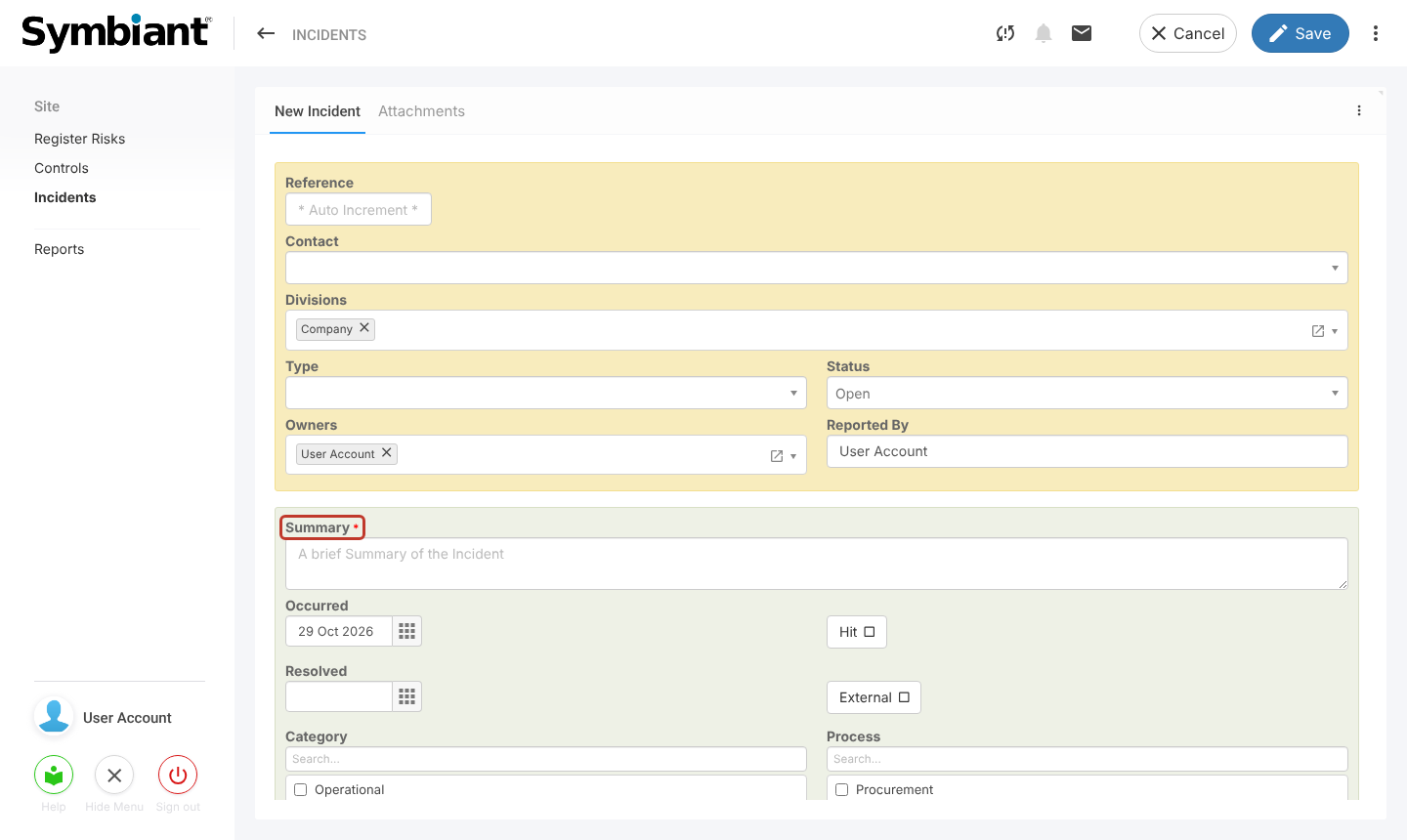
The new record form opens. Some fields may already be filled in for you, such as a default Status, today’s date, or your own name in Owners and Reported By. You can change these. The Reference shows “Auto Increment” because the number is given when you save.
Filling in the Fields #
Fields marked with a red asterisk (*) are required and must be filled in before you can save.
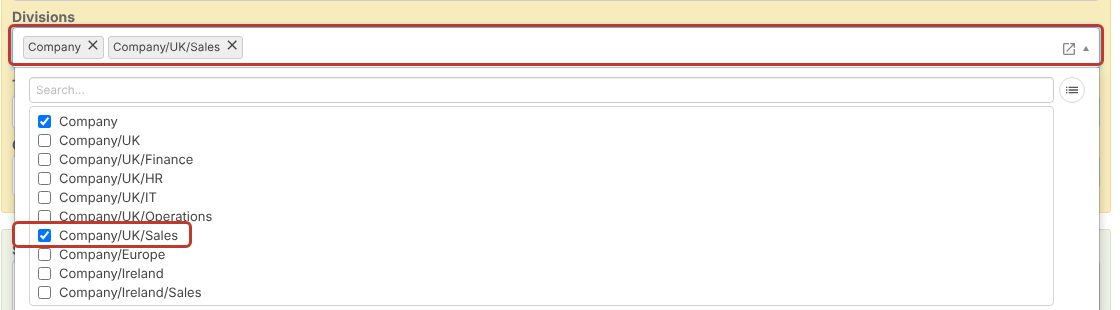
Divisions: click the field and tick the division the record belongs to. Click the magnifier icon to switch from the tree to a flat list of division paths if that is easier to read.
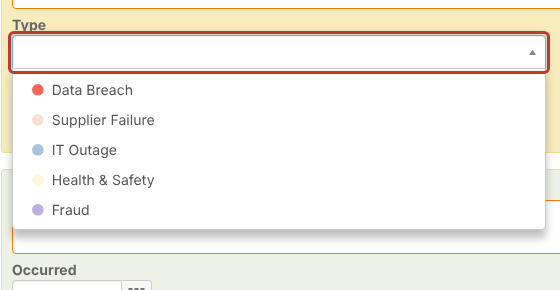
Drop-down fields: click the field and pick one option from the list.
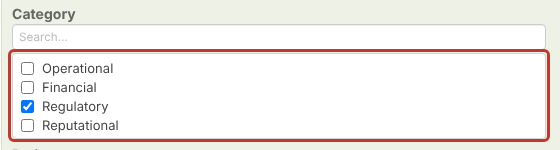
Multi-select fields: tick every option that applies. Some multi-selects have a Search… box above the list to help you find an option.
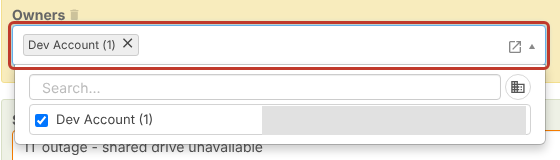
Owners: click the field and tick the users who own the record. Owners can edit the record (if their role allows it) and receive the record’s owner emails.
Note: If someone you expect is missing from the Owners list, see Why can’t I see specific users when trying to add record owners?
Saving the Record #
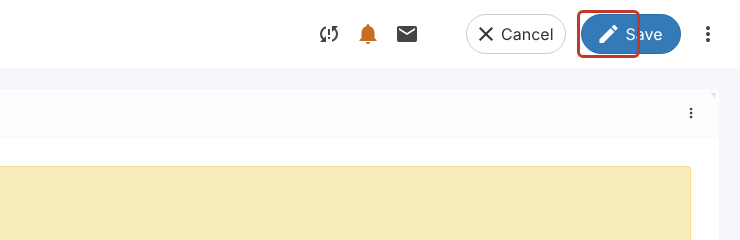
When you have filled in the fields, click Save at the top right.
If a required field is empty, the record is not saved. An Invalid! Please review the highlighted problems. message appears and each field that needs attention gets an orange border and a warning triangle. Fill those fields in and click Save again.
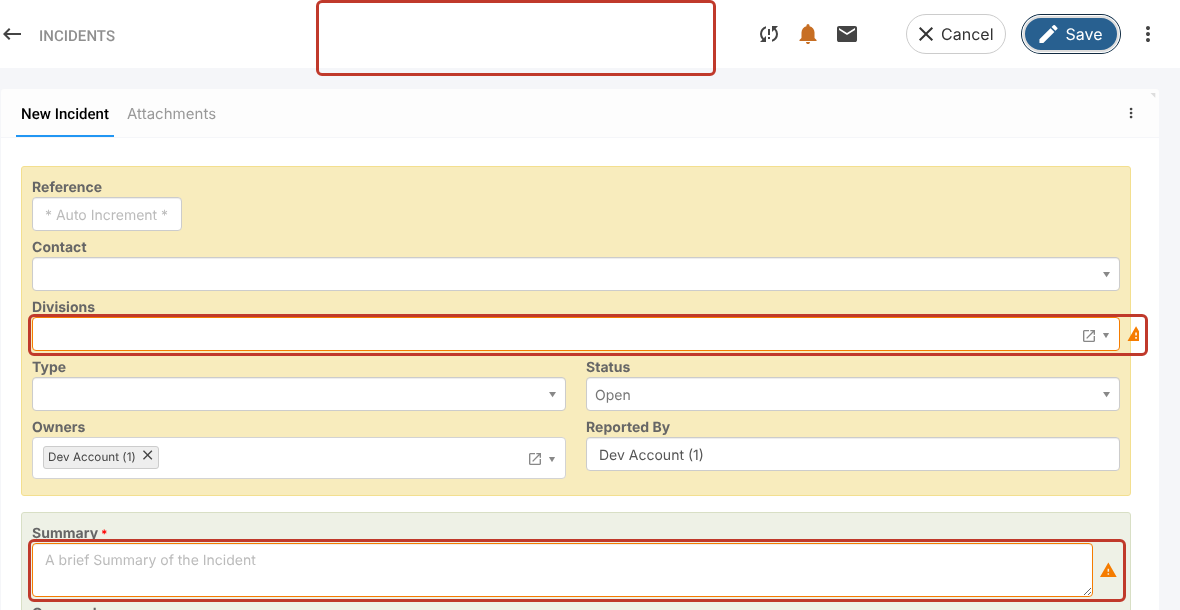
Note: Some fields are required even though they don’t show an asterisk. In the Incidents module, for example, a record can’t be saved without a Division. The highlighted fields tell you exactly what is missing.
Once saved, a Synchronisation successful! message appears, the record gets its Reference number and opens on its Overview tab. It also appears in the module’s dashboard grid.