
 Doc Summary

How to add reviews and actions to a record, and how to remove them.
Applies to: Users who can edit the record. Action assignees can add progress updates to their actions · Module: All modules with a Reviews & Actions tab
What Reviews and Actions are For #
The Reviews & Actions tab keeps comments, follow-up tasks and progress in one place on the record:
- A review is a note about the record (for example findings or recommendations). Each review can hold any number of actions.
- An action is a task with assignees and a due date. Symbiant tracks whether it is Not Started, In-Progress or Complete, and can send reminder emails when it is due or overdue.
- Assignees add progress updates, and others can add comments on each update.
- Every review, action, update and comment records who added it and when.
Adding a Review #
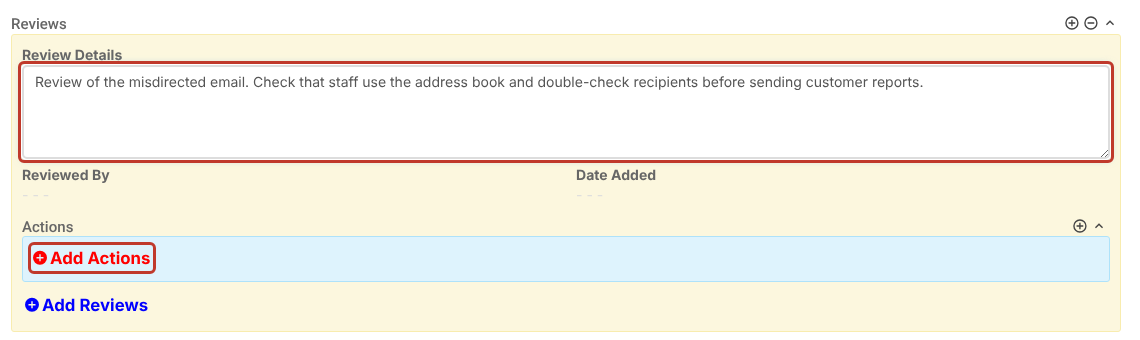
- Open the record and click the Reviews & Actions tab.
- Click Add Reviews.

- Type the Review Details. Reviewed By and Date Added fill in when you save.
Adding an Action #
- Inside the review, click Add Actions.
- Type the Action Details.
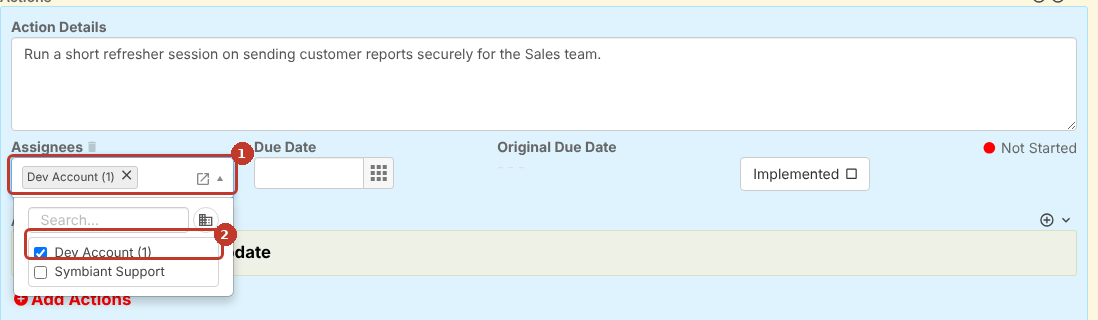
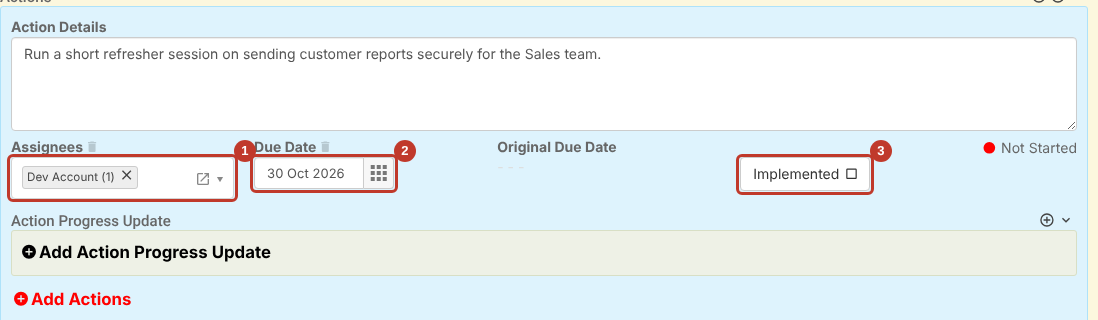
- Click the Assignees box (1) and tick the people responsible for the action (2).
- Pick a Due Date (2) from the calendar.
- Leave Implemented (3) unticked until the action is finished.
Note: If someone is missing from the Assignees list, see Why can’t I see specific users when trying to assign actions?
Adding Progress Updates and Comments #
Click Add Action Progress Update under the action, type the Progress Update, and add any supporting files with the plus (+) on the update’s Attachments grid. Tick Completed if the update finishes the work.
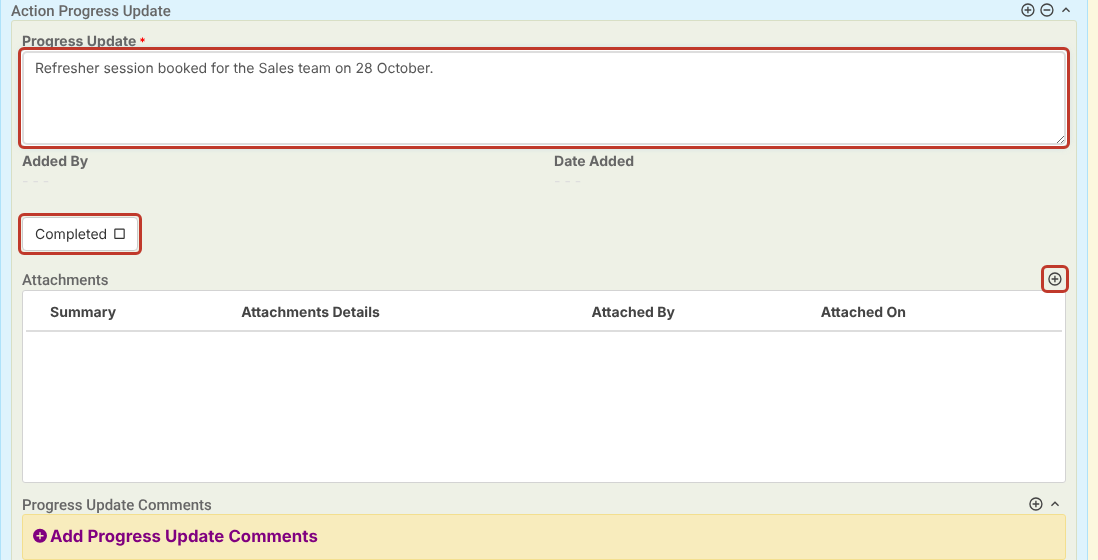
To reply to an update, click Add Progress Update Comments and type a Comment Response.
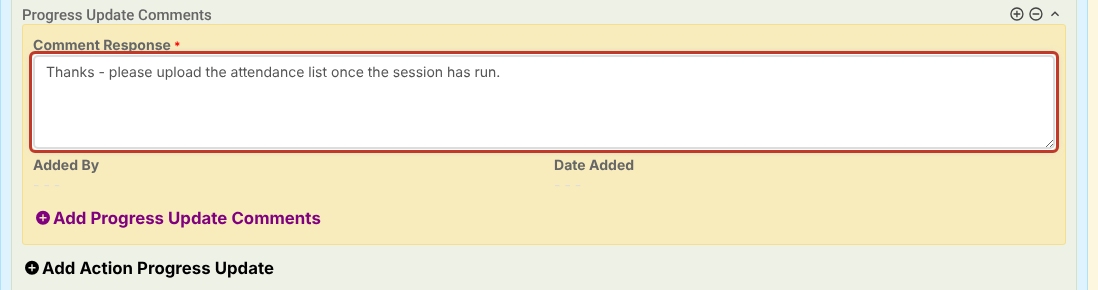
See Action Progress Updates and Comments for more on how assignees work with their actions.
Saving #
Click Save to save and close, or the pencil (Save and edit) to save and stay on the record. After saving, Reviewed By, Date Added and Original Due Date are filled in, and progress updates are collapsed into a summary line (click the arrow to expand them).
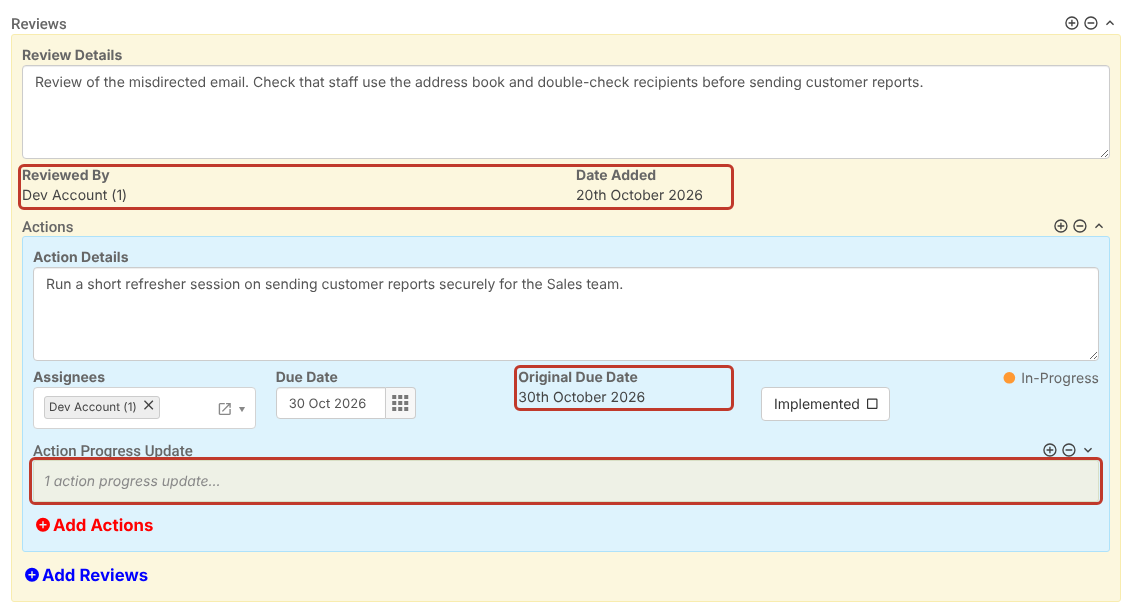
Note: Original Due Date keeps the first due date that was set. If the due date is moved later, you can still see what it was originally.
Removing a Review or Action #
- Click the minus (−) icon at the top right of the Reviews or Actions section (1). The items in that section get a dashed red outline and a bin icon.
- Click the bin (2) on the review or action you want to remove.
- Click Save.
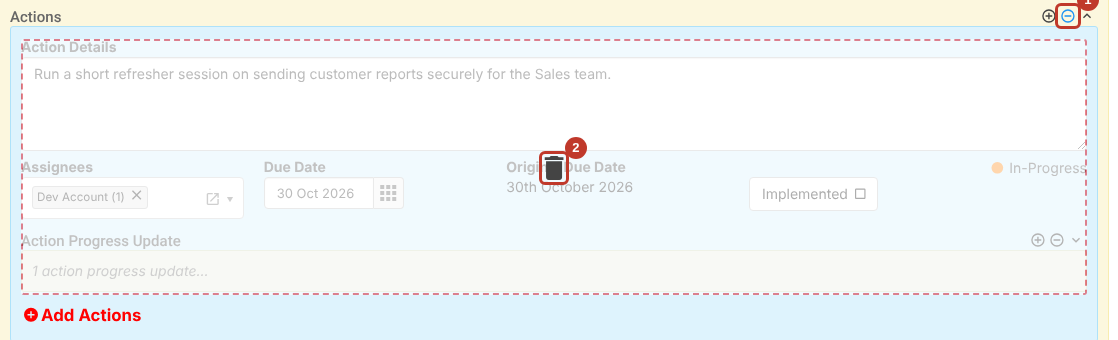
Click the minus icon again to leave remove mode without removing anything.
Critical: Removing an action also removes its progress updates and comments. If you don’t see the minus icon, your role doesn’t allow removing reviews or actions.


