
Skip to content
Symbiant System Black Logo
  • Home
  • Knowledge Base
  • Symbiant Website
  • Symbiant Changelog
  • Submit a Ticket
  • My Support Tickets
  • Home
  • Knowledge Base
  • Symbiant Website
  • Symbiant Changelog
  • Submit a Ticket
  • My Support Tickets
Popular Keywords importuserdivisionsamlimport risk

Navigation & Accessibility

  • Notifications and Messages
  • Saving Filter and Layout Presets
  • System Navigation Overview
  • Dashboard Layout Tools
  • Filtering Data
  • Advanced Filtering

User Basics

  • Duplicating a Record
  • Saving a Record: Save, Save and Edit, Cancel and Undo
  • Action Progress Updates and Comments
  • Getting Started: Your First Login
  • Signing Out and Session Timeout
  • Workflow Statuses Explained
  • Glossary of Symbiant Terms
  • Adding a Record
  • Adding an Attachment
  • Editing a Record
  • Deleting a Record (Retractions)
  • Resetting your Password
  • Generating A Report
  • Filtering on Reports
  • Linking Records Between Modules
  • Unlinking Records from a Module
  • Reviews & Actions
  • Multi-Factor Authentication (Google Authenticator)

Risk Register Basics

  • Adding a Risk
  • Risk Universe
  • Tracking Risk Score Changes Over Time
  • Scoring a Risk (Inherent, Residual, Target & Appetite)
  • Risk Heat Map (Risk Matrix)
  • Risk Appetite Logic
  • Risk Score Aggregation
  • Risk Relations (Related Risks)
  • Risk Flows
  • Risk Bow Tie
  • Key Risk Indicators (KRIs)
  • Basel II and SOX Categories
  • Template Risks
  • Generating a Risk Register Report
  • Generating a Risk Aggregate Report

Control Basics

  • Adding a Control
  • Adding a Control Policy
  • Attaching a Policy to a Control
  • Attaching a Control to a Risk
  • Control Weightings
  • Activating/Deactivating a Control
  • Control Assessments
  • Generating a Control Report

Workshop Basics

  • Creating a Workshop
  • Workshops Stages
  • Workshop Risk Treatment Plans
  • Workshop Escalating Risks to a Register

Incident Basics

  • Adding an Incident Contact
  • Creating an Incident
  • Linking Risks to Incidents
  • Linking Controls to Incidents
  • Generating an Incident Report

Survey & Questionnaire Basics

  • Creating a Survey
  • Scheduling a Survey
  • Responding to a Survey
  • Generating a Survey Report
  • Locking a Survey
  • Why can’t I see Questions in a Survey?
  • Questionnaire Basics
    • Creating a Questionnaire and Linking Questions
    • Questionnaire Question Visibility
    • Adding Questionnaire Pass and Fail Override Criteria
    • Question Basics
      • Creating a Question and Linking Options
      • Question Option Visibility
      • Adding Question Pass and Fail Override Criteria
      • Question Option Basics
        • Creating a Question Option
        • Adding Option Pass and Fail Criteria

Monitoring Action Tracker Basics

  • Creating an Action Tracker
  • Adding Tracker Findings
  • Approving and Validating Tracker Findings
  • Generating a Tracker Action Report

Complaint Basics

  • Creating a Complaint
  • Complaint Emails

DPIA Basics

  • Creating a DPIA
  • Answering a DPIA Questionnaire
  • Adding DPIA Risks
  • Resetting a DPIA Questionnaire

Due Diligence Basics

  • Supplier Due Diligence
  • Creating a Due Diligence
  • Adding Due Diligence Sections, Issues and Actions

Audit Basics

  • Audit Universe Overview
  • Creating an Audit Entity
  • Creating an Audit Issue Report
  • Creating an Audit Issue (Audit Tracker)
  • Adding Recommendations & Actions
  • Generating an Audit Issue Tracker Report

Working Paper Basics

  • WP – Observations
  • Creating a Working Paper
  • Accessing Linked Records Inside a Working Paper
  • Adding an Audit Plan
  • Adding a Timesheet
  • Adding an Assessment (Surveys & Questionnaires)
  • Generating a Working Paper Report

SHE Basics

  • Creating a new SHE Entry
  • Attaching an Investigation to a SHE Incident
  • Creating a SHE Stop and Talk Entry
  • SHE Actions

Document Management Basics

  • Document Revisions
  • The Approval Universe
  • The Change Request Universe
  • Document Status Logic
  • Adding a Document Record
  • Document Approval Process
  • Document Change Request Process
  • Document Reviews

Symbiant AI

  • AI – Generating Ideas
  • AI – Record Fields
  • AI – Generating Dropdown Ideas
  • AI – Rewriting Content
  • AI – Finding Links
  • AI – Finding Similar

System Errors & Issues

  • What Does “Data Conflict!” Mean?
  • Resolving System Issues
  • System Error Messages
  • Login Issues

ISQM Basics

  • ISQM Overview
  • Adding an ISQM Objective

Service Desk Basics

  • Service Desk Overview
  • Raising a Service Desk Ticket
  • Updating and Closing a Service Desk Ticket

Business Objective Basics

  • Business Objectives Overview
  • Adding a Business Objective
  • Connecting Risks to a Business Objective
  • Reviewing a Business Objective

Action Basics

  • Actions Overview
  • Updating an Action

BCP Resource Basics

  • BCP Resources Overview
  • Adding a BCP Resource
  • Adding an Action Plan to a BCP Resource

BCP Basics

  • BCP Overview
  • Adding a BCP Scenario or Incident
  • Linking Resources to a BCP
  • Completing a BCP Assessment
View Categories
  • Home
  • Knowledge Base
  • User Information
  • Document Management Basics
  • Adding a Document Record

Adding a Document Record

0:00 / 2:03
  • View as Markdown Open this page as plain Markdown (opens in a new tab)
  • Open in ChatGPT Ask questions about this page (opens in a new tab)
  • Open in Claude Ask questions about this page (opens in a new tab)
  • Open in Google AI Studio Ask questions about this page (Google account required) (opens in a new tab)
AI Doc Summarizer Doc Summary
AI Doc Summarizer Thinking Thinking

How to add a new document to the Document Management module, with its first revision.

Applies to: users with a Document Management role that can add records ยท Module: Document Management

Opening Document Management #

  1. In the left menu, click Document Management, then the + icon at the top right.
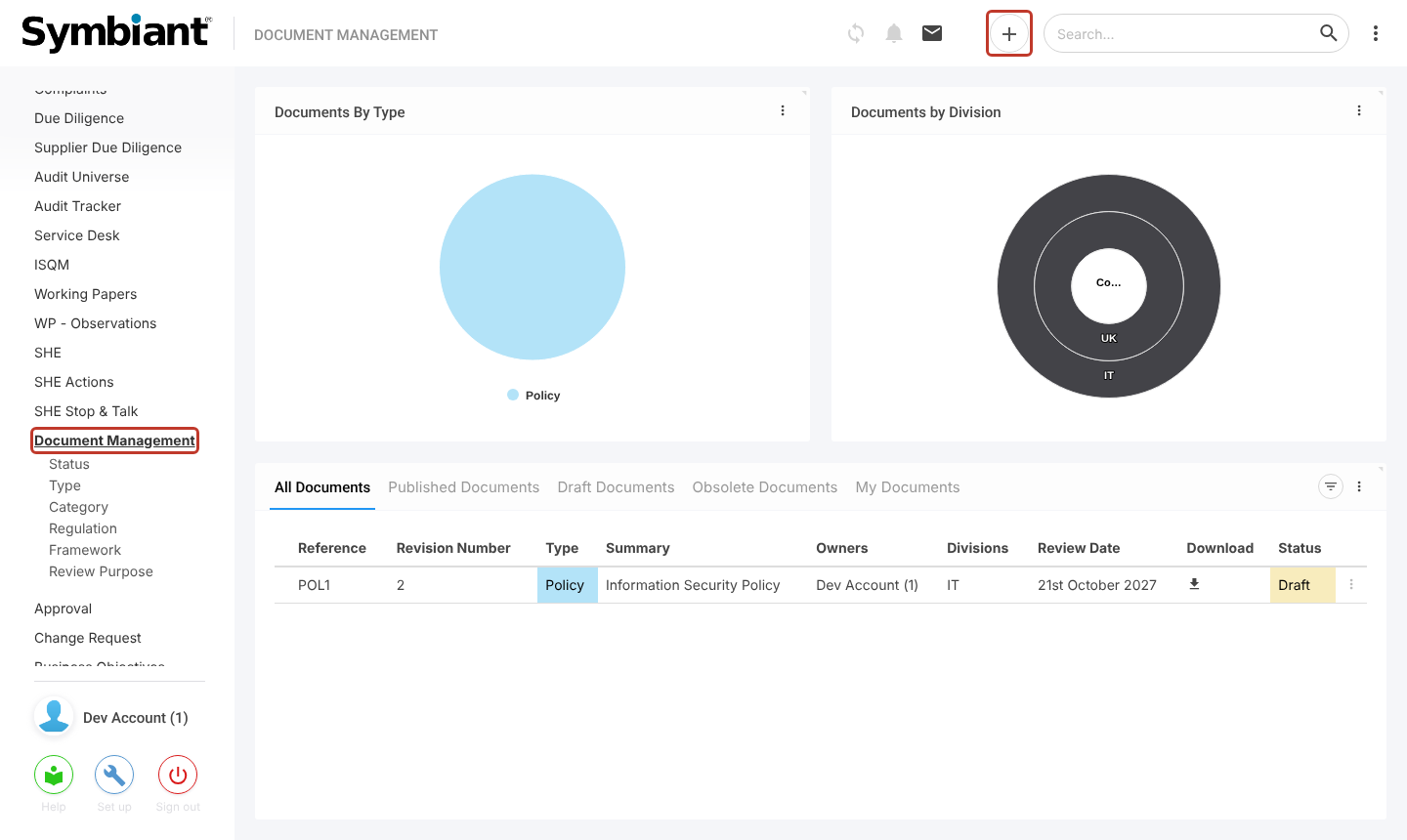
Document Management menu item and the plus icon

Entering the Document Details #

  1. Check the Active Date (the date the document takes effect). It defaults to today. Optionally set a Review Date for the next planned review.
  2. Enter a Summary (the document name or a short summary) and the Details (a full overview of the document).
  3. Select the Type. The type sets the document reference: each type has its own prefix and counter, so the first Policy becomes POL1, the next POL2, and so on. See Setting Up Document Types.
  4. Select the Divisions responsible for the document and the Used By (Divisions) that use it. Click the box, then tick each division in the list.
  5. Check the Owners. Your name is added for you; add or remove owners as needed.
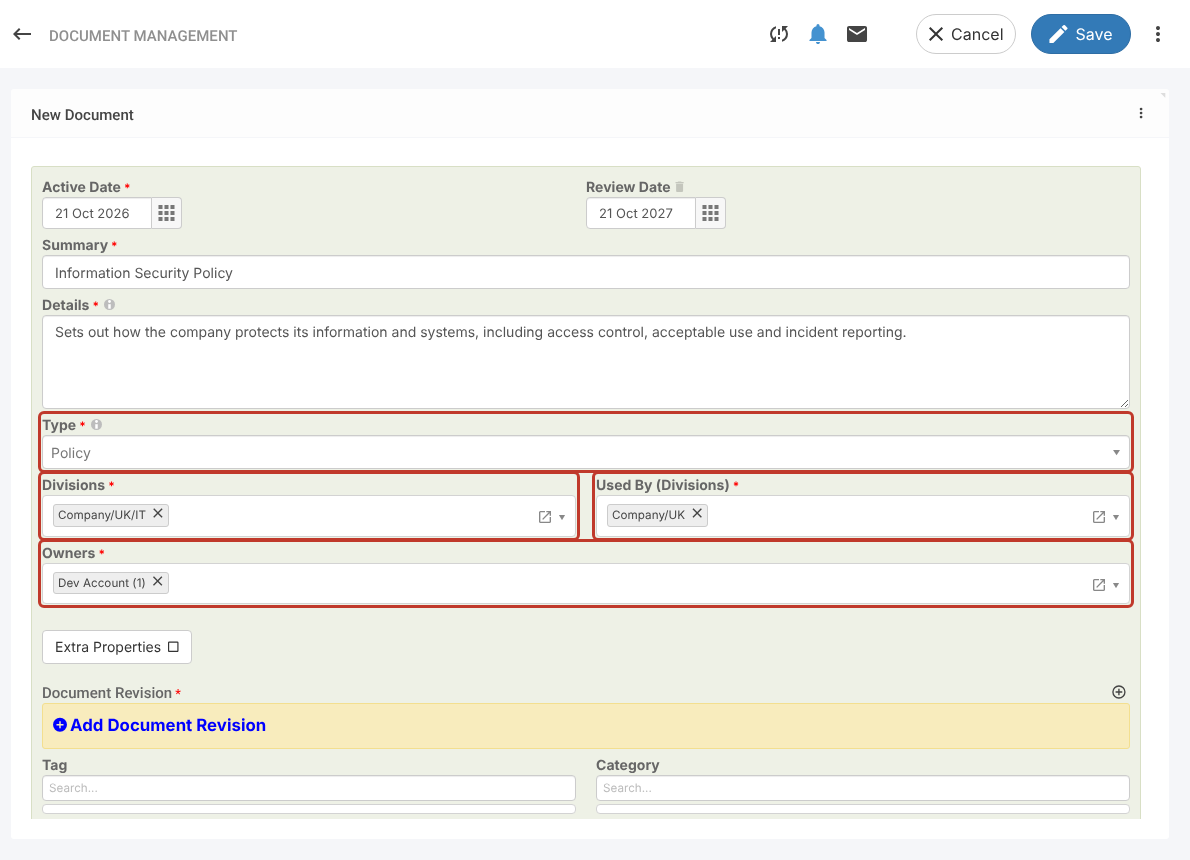
Document details with Type, Divisions, Used By and Owners

Adding the First Revision #

  1. Under Document Revision, click Add Document Revision.
  2. Drop the file into the Document box, or click Choose File. This is the copy users will open, for example a PDF.
  3. Choose whether to Include Source File?. Select Yes to also upload an editable source copy (for example the Word file behind the PDF), then drop it into the Source Document box.
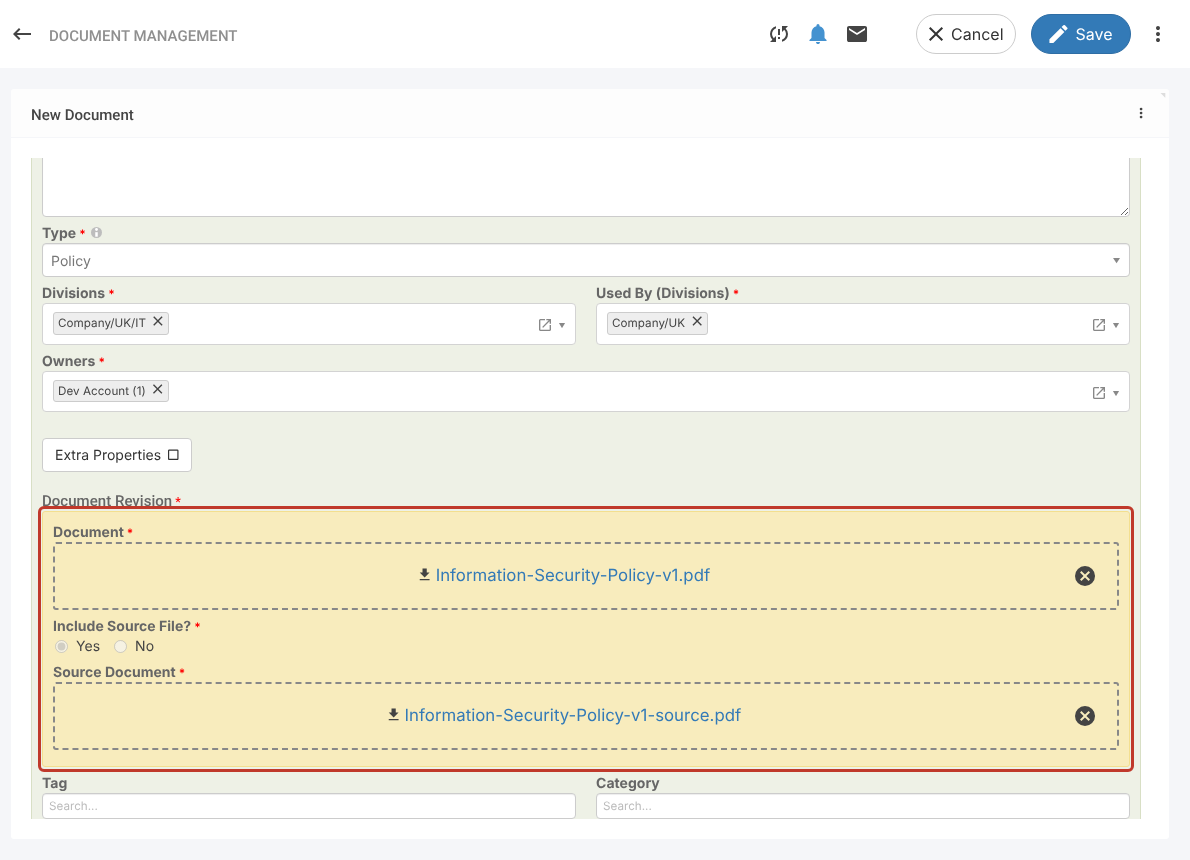
First revision with the document and its source file
  1. Optionally fill in Tag, Category, Regulation and Framework. These help users find documents and let you filter reports. Admins manage these lists under Document Management in the menu.

Saving #

  1. Click Save at the top right. The document opens on its Overview tab with its reference, and the first revision has the status Draft.
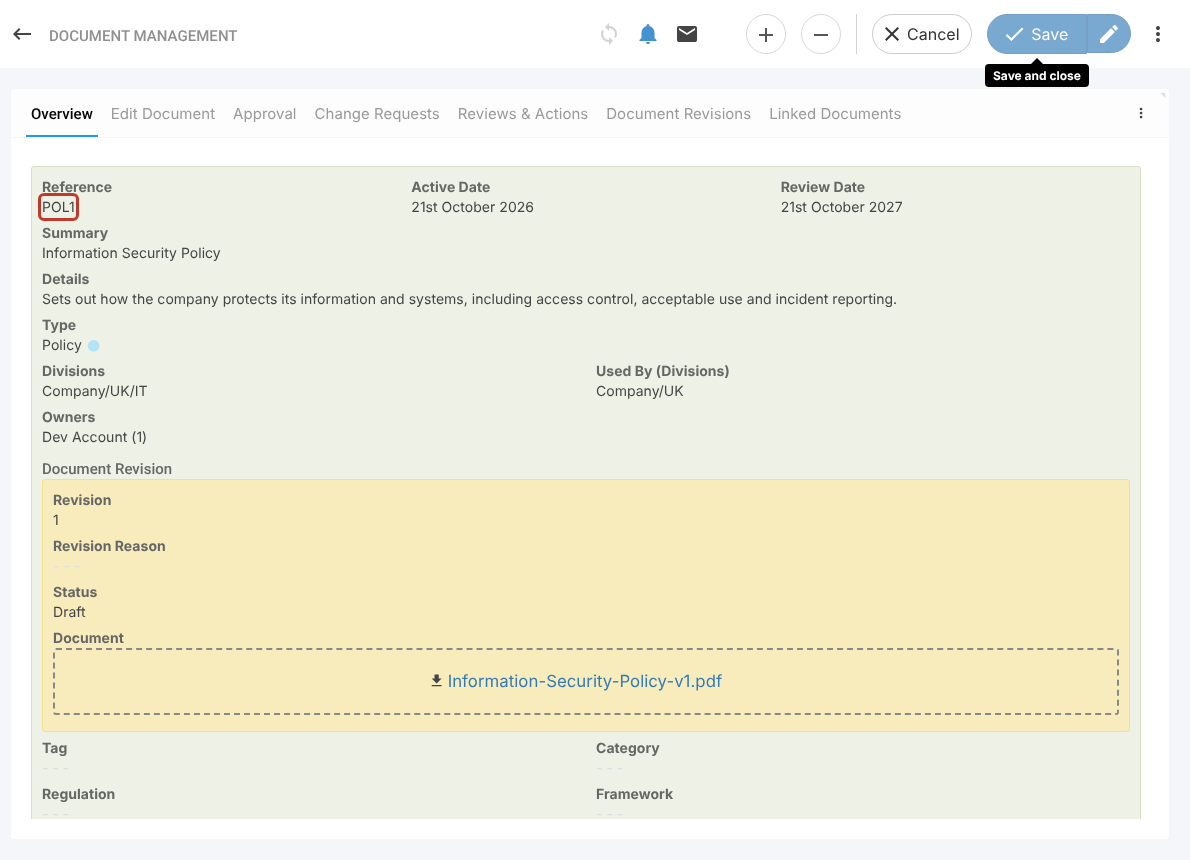
Saved document showing its reference POL1
  1. The document now appears in the Document Management list, showing its latest revision number and status (the example below was taken after revision 1 was published). Use the views at the top (All Documents, Published Documents, Draft Documents, Obsolete Documents, My Documents) to filter the list.
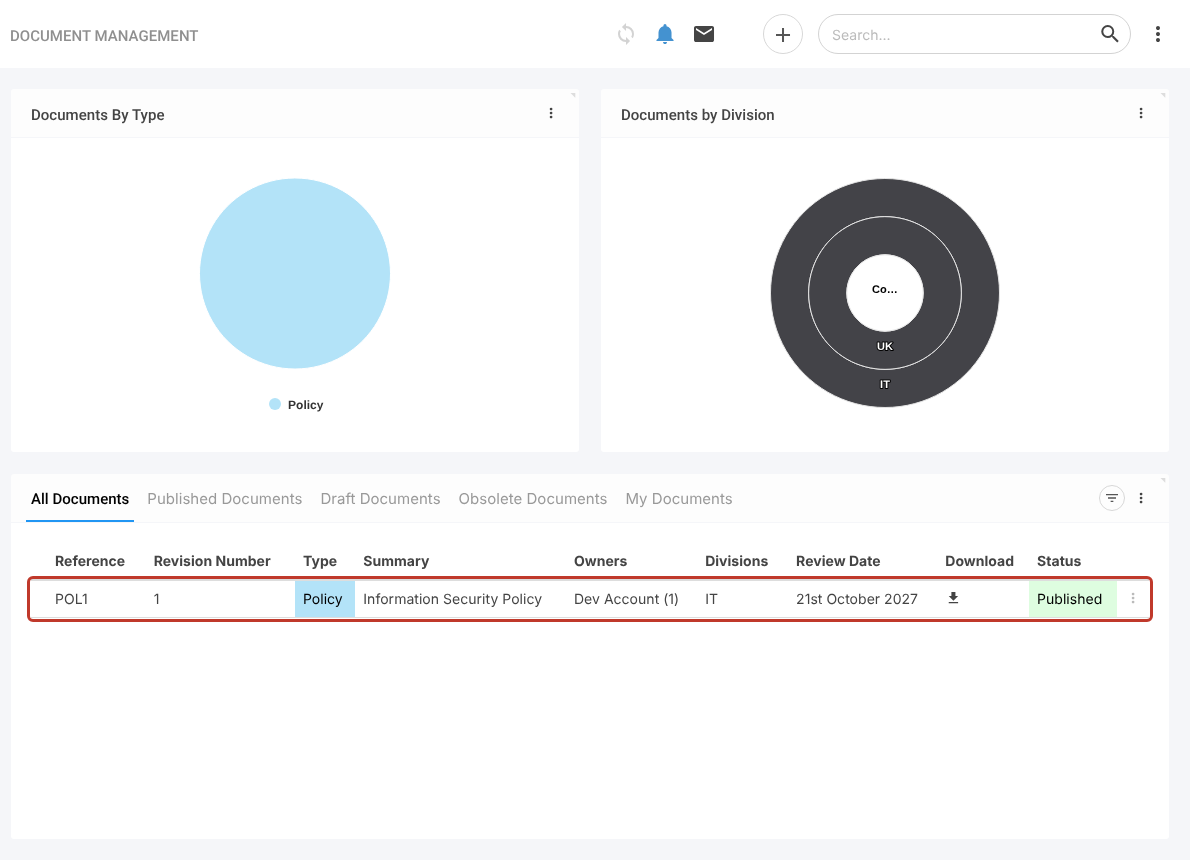
Document in the All Documents view

Note: A new document stays in Draft until it has been approved and its revision is set to the published status. See Document Approval Process.

Related articles #

  • Document Revisions
  • Document Status Logic
  • Document Storage Limits and File Sizes
Add
Did this help?

Share This Article :

  • Facebook
  • X
  • LinkedIn
Require Additional Information? Please Contact Support

How can we help?

Updated on 30 October 2026
Document Status LogicDocument Approval Process
Table of Contents
  • Opening Document Management
  • Entering the Document Details
  • Adding the First Revision
  • Saving
  • Related articles
Symbiant System White Logo

20-22 Wenlock Road

London

N1 7GU

Linkedin
Telephone Numbers
  • UK - 0113 5263 755
  • Support - 0204 5514 735 option 2
  • USA - 347 991 7130
Information
  • Home
  • Knowledge Base
  • Symbiant Website
  • Submit A Ticket
  • Change Requests
  • Support Staff Login

Copyright ยฉ 2025 Symbiant All Rights Reserved - Risk, Audit and Compliance Management Software

We use cookies on our website to give you the most relevant experience by remembering your preferences and repeat visits. By clicking โ€œAccept Allโ€, you consent to the use of ALL the cookies. However, you may visit "Cookie Settings" to provide a controlled consent.
Cookie SettingsAccept All
Manage consent

Privacy Overview

This website uses cookies to improve your experience while you navigate through the website. Out of these, the cookies that are categorized as necessary are stored on your browser as they are essential for the working of basic functionalities of the website. We also use third-party cookies that help us analyze and understand how you use this website. These cookies will be stored in your browser only with your consent. You also have the option to opt-out of these cookies. But opting out of some of these cookies may affect your browsing experience.
Necessary
Always Enabled
Necessary cookies are absolutely essential for the website to function properly. These cookies ensure basic functionalities and security features of the website, anonymously.
CookieDurationDescription
cookielawinfo-checkbox-analytics11 monthsThis cookie is set by GDPR Cookie Consent plugin. The cookie is used to store the user consent for the cookies in the category "Analytics".
cookielawinfo-checkbox-functional11 monthsThe cookie is set by GDPR cookie consent to record the user consent for the cookies in the category "Functional".
cookielawinfo-checkbox-necessary11 monthsThis cookie is set by GDPR Cookie Consent plugin. The cookies is used to store the user consent for the cookies in the category "Necessary".
cookielawinfo-checkbox-others11 monthsThis cookie is set by GDPR Cookie Consent plugin. The cookie is used to store the user consent for the cookies in the category "Other.
cookielawinfo-checkbox-performance11 monthsThis cookie is set by GDPR Cookie Consent plugin. The cookie is used to store the user consent for the cookies in the category "Performance".
viewed_cookie_policy11 monthsThe cookie is set by the GDPR Cookie Consent plugin and is used to store whether or not user has consented to the use of cookies. It does not store any personal data.
Analytics
Analytical cookies are used to understand how visitors interact with the website. These cookies help provide information on metrics the number of visitors, bounce rate, traffic source, etc.
SAVE & ACCEPT
Loading...

Insert/edit link

Enter the destination URL

Or link to existing content

    No search term specified. Showing recent items. Search or use up and down arrow keys to select an item.